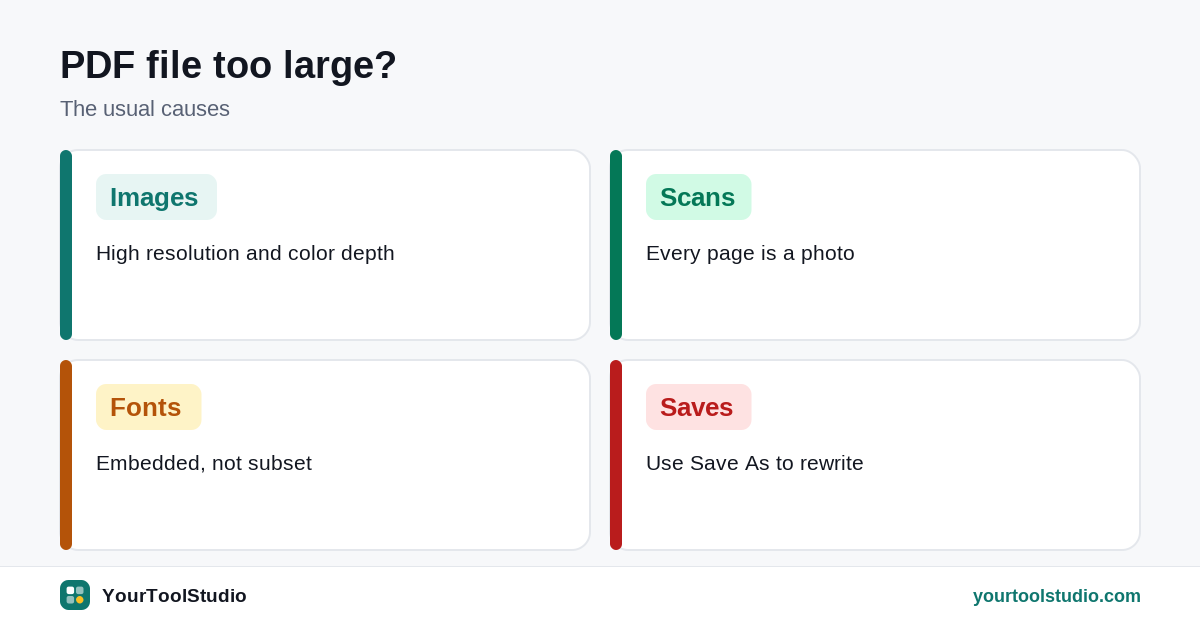
A PDF file is usually large because of its images: photos, screenshots and scanned pages stored at high resolution and full color. The other common causes are embedded fonts that were not subset and repeated saves that add changes to the end of the file instead of rewriting it. Adobe names fonts and images as the two main reasons on its Why is my PDF so big page.
First, work out what kind of PDF you have
The right fix depends on what is inside the file. You can usually tell in a few seconds:
| What you see | Likely cause | What helps most |
|---|---|---|
| You cannot select the text, or every page looks like a photo | It is a scan: each page is one big image | Compress the images, or rescan at a lower resolution |
| Many photos, screenshots or a large logo on every page | Full resolution images | Compress or downsample images |
| Mostly text, but several fonts and still several MB | Whole fonts embedded instead of subset | Re-export with font subsetting |
| The file grew every time you edited and saved it | Changes appended to the file | Save As a new file |
| Exported from a design app such as Canva or Illustrator | Print quality images, editing data or layers kept | Export with a smaller or web preset |
| Mostly text and already under 1 MB | Nothing is wrong | Compression will save little |
Why images make PDFs so big
Adobe says the resolution and bit depth of an image directly affect the file size, especially for high resolution color images. A quick piece of our own arithmetic shows why scans get large. An A4 page scanned at 300 pixels per inch is about 2,480 x 3,508 pixels, or 8.7 million pixels. At 3 bytes per pixel for full color, that is roughly 26 MB of raw image data for one page before any compression. At 150 pixels per inch the same page is about 1,240 x 1,754 pixels, which is a quarter of the pixels and a quarter of the raw data.
Scanners and phone scanning apps compress this, so a real page is far smaller than 26 MB, but the rule holds: halving the resolution cuts the image data by about three quarters, and grayscale needs a third of the data of full color. That is why a 20 page color scan at 600 ppi is so much heavier than the same document saved from Word.
Fonts and repeated saves
Adobe notes that adding a single font to a PDF can sometimes increase the file size substantially. Its advice is to choose the option to subset the font when you create the PDF, so the file stores only the characters you used instead of the whole font.
The second hidden cause is how you save. Adobe says data takes up less space when the program writes an entirely new file than when it adds changes to an existing one, so use Save As instead of Save after heavy editing. If a PDF has been edited, annotated and saved many times, simply saving a fresh copy can shrink it.
How to shrink a large PDF
In your browser
Our Compress PDF tool works on your own device, with no upload. Pick Extreme for the smallest file, Recommended for most documents or Less to keep print quality. It re-encodes only the images, so text and vector graphics stay sharp, which also means a PDF that is mostly text will not shrink much. The result screen shows the size before and after.
Three compression levels, batch support and sharp text. Your files stay on your device.
In Adobe Acrobat
Adobe's help page Reduce PDF file size (last updated 22 October 2026) gives these steps:
- On Windows choose Menu, on a Mac choose File, then Save as Other, Reduced Size PDF.
- In Make compatible with, pick an Acrobat version that everyone who uses the PDF can open.
- Select OK, choose a location and filename, and select Save.
For more control, Adobe's advanced size reduction page (last updated 28 October 2026) uses Save as Other, Optimized PDF. Its panels let you downsample and compress images, unembed or subset fonts, flatten transparency, discard embedded thumbnails and search indexes, and remove comments, multimedia and private data. Adobe notes that choosing an older Acrobat version may limit compression features, and that the Mobile setting downsamples images more than Standard.
On a Mac with Preview
Apple's guide Reduce the size of a PDF in Preview on Mac says to open the PDF, choose File, Export, pick Reduce File Size in the Quartz Filter menu and click Save. Apple warns that the compressed PDF may be of lower quality than the original. The current version of the guide also lists checkboxes in the Export dialog for Optimize images for screen, Save images as JPEG and Create Linearized PDF; older macOS versions may not show them. Save under a new name so you keep the original.
Stop the next PDF from being large
- Compress pictures before they go in. Shrink photos and screenshots with Compress Image or Resize Image before adding them to a document.
- Fix the source document. If the PDF comes from Word, see why is my Word document so large; slides have their own causes in why is my PowerPoint so large.
- Use RGB for screen-only files. Adobe suggests the RGB color space if the PDF is not going to print.
- Choose a smaller export preset in design apps when the file is only for email or the web.
If the PDF is still too large
These are our own suggestions when compression is not enough:
| Situation | Try this |
|---|---|
| Only some pages are needed | Send just those pages with Split PDF; see how to split a PDF |
| Color does not matter | Convert to grayscale with Grayscale PDF, then compress |
| Forms and annotations are finished | Flatten them with Flatten PDF, then compress again |
| It must go by email | Check your provider in our email attachment size limits chart, or share a cloud link instead |
Adobe also points out that splitting does not lower quality at all, because it does not change the data, it just cuts the file into smaller pieces. The Adobe and Apple steps on this page were checked against the linked pages on 20 November 2026. Menu names can change between versions.
Frequently asked questions
Why is my PDF file so large when it is only a few pages?
Usually the pages contain high resolution images or are scans, where every page is stored as one large picture. Embedded fonts and repeated saves can add more.
Why is my scanned PDF so large?
Each scanned page is an image. Higher resolution and full color multiply the data, so scan ordinary documents at 150 to 200 ppi in grayscale when the file is only for screen.
Why is my PDF file so large on a Mac?
The causes are the same as on Windows. In Preview, choose File, Export and the Reduce File Size Quartz filter to make a smaller copy.
Does compressing a PDF reduce quality?
Text and vector graphics usually stay sharp, but images are re-encoded, so heavy compression can make photos softer. Keep the original until you have checked the result.
Why does my PDF get bigger every time I save it?
Some programs add changes to the end of the file. Adobe recommends Save As, which writes a new file and takes less space.