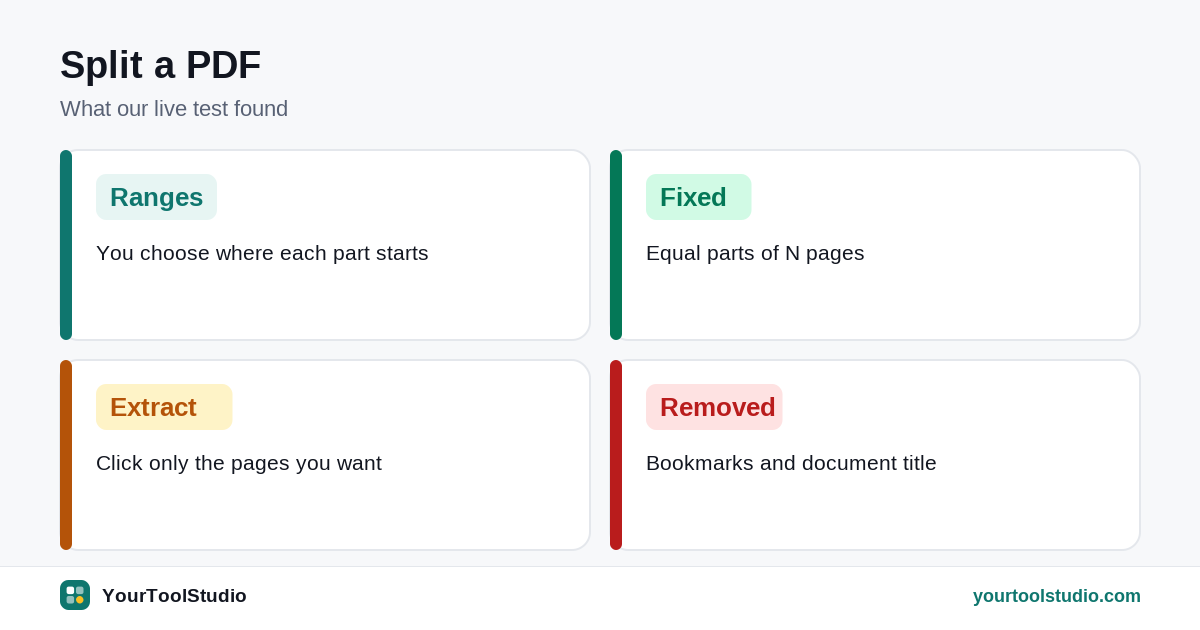
To split a PDF, open Split PDF, choose your file, pick Ranges, Fixed or Extract, enter the pages and select Split PDF. One part downloads as a PDF, and two or more arrive together in a ZIP. The work happens on your device, so the document is never uploaded.
Split a PDF in five steps
- Open Split PDF. You do not need an account.
- Choose the PDF, or drop it onto the page. A thumbnail appears for every page.
- Pick a mode: Ranges for parts you define, Fixed for equal parts, or Extract to click individual pages.
- Enter your page numbers, then select Split PDF.
- Select Download PDF or Download ZIP, then open the parts to confirm they start and end where you expected.
Cut by range, by page count or by clicking pages, with nothing sent to a server.
Which split mode should you use?
The three modes answer different questions. This table uses a 12-page document, and each outcome is what the live tool produced when we ran that setting.
| Goal | Mode and setting | What you get |
|---|---|---|
| Separate a report into chapters | Ranges: 1 to 4, then 5 to 12 | Two PDFs in a ZIP |
| Cut a long file into even batches | Fixed: 5 pages per file | Three PDFs of 5, 5 and 2 pages |
| Turn every page into its own file | Fixed: 1 page per file | Twelve one-page PDFs |
| Pull out a few scattered pages as separate files | Extract: click pages 2, 5 and 7 | Three one-page PDFs |
| Keep a few scattered pages together | Extract: click the pages, then tick Save selected pages as one PDF | One 3-page PDF |
| Build one file from sections in a new order | Ranges: 9 to 10, then 1 to 2, with Merge all ranges into one PDF ticked | One PDF running 9, 10, 1, 2 |
Details that catch people out
Four behaviours surprised us during testing, and each one can leave you with the wrong pages if you miss it.
- Ranges only export what you type. Entering 1 to 3 and 4 to 6 on our 12-page file produced those six pages and nothing else. Add a final range if you want the remainder.
- Extract ignores click order. We clicked pages 7, 2 and 5, and the output ran 2, 5, 7. To rearrange pages, use Ranges with the merge option or Organize PDF.
- A backwards range is not reversed. Asking for pages 6 to 3 returned 3, 4, 5, 6 in normal reading order.
- Ranges may overlap. Entering 1 to 3 and 2 to 4 repeats pages 2 and 3 in both parts, which is useful for handouts that share a cover page.
Part names come from the original file and its pages, such as report-pages-1-5.pdf or report-page-2.pdf, so the parts stay in order when sorted by name.
How to split a PDF in half
Divide the page count by two and round up, then use Fixed with that number. A 13-page file set to 7 pages per file gives one part of 7 pages and another of 6. For a split at a specific page, use Ranges instead.
Some people searching this want to cut each sheet down the middle, for example a scanned book with two pages on every image. Split PDF does not do that, because it divides documents between pages and never cuts a page itself.
What splitting keeps and what it removes
We built a 12-page test file containing a mix of PDF features, split it with the live tool on 19 November 2026 using Chrome 157 on Windows, and read the structure of every output.
| Feature in the original | After splitting | What we saw |
|---|---|---|
| Page content and order | Kept | Every part held the requested pages in sequence |
| Mixed page sizes | Kept | An A4 landscape page stayed A4 landscape among US Letter pages |
| Page rotation | Kept | A page stored at 90 degrees was still stored at 90 degrees |
| Links to websites | Kept | The address on page 2 was unchanged |
| Filled-in form answers | Kept visible | The typed answer remained on its page |
| Document-level form | Removed | Complete and submit forms before splitting |
| Bookmarks | Removed | Two bookmarks in the source became none |
| Title and author | Removed | Both fields were empty in each part |
| Links to a page in another part | Stop working | The link remains, but the page it pointed to is not in that file |
Will splitting make each file smaller?
Usually, but it depends on what the pages share. A PDF can store one image once and show it on many pages. Each part needs its own copy of that image, so repeated logos and backgrounds get duplicated. We measured three files to show the range.
| Test file | Original size | Split into single pages | Total of all parts |
|---|---|---|---|
| 10 pages, one large photo on page 1 | 755 KB | Page 1 is 751 KB, the other nine about 1 KB each | 761 KB |
| 10 pages, same logo on every page | 275 KB | Every page is about 271 KB | 2.7 MB |
| 200 pages of plain text | 79 KB | Every page is about 1 KB | About 211 KB |
The second row is the important one for email. Each single page of that file was almost as large as the whole original, so splitting would not have helped it fit under an attachment limit. When that happens, run the file through Compress PDF first, or follow our guide to compressing a PDF for email. Our attachment limits chart shows the size each email service accepts.
Speed was not a concern at this scale: the 200-page file became 200 separate PDFs in about a third of a second. Very large scans will take longer and depend on your device memory.
Fix common split errors
These are the messages the tool displayed during our tests.
| Message | Cause | Fix |
|---|---|---|
| This PDF is password protected. Remove the password first, then try again. | The file needs a password to open | If it is yours, remove the password with Unlock PDF |
| This PDF is password protected or restricted. Remove the protection first, then try again. | The file opens, but its owner limited changes | Use Unlock PDF if you have permission, then split the new copy |
| Page 20 does not exist. This PDF has 12 pages. | A range starts after the last page | Check the page count shown above the thumbnails |
| Please choose a PDF file. | Another file type was selected | Convert it first, for example with Word to PDF |
A range that merely ends too late is not an error. Asking for pages 10 to 99 of our 12-page file simply returned pages 10, 11 and 12.
Browser split or Adobe Acrobat online?
Both handle ordinary documents. They differ mainly in where the file goes and how many parts you can make. Adobe's details come from its Split PDF page, checked on 19 November 2026.
| Question | YourToolStudio Split PDF | Adobe Acrobat online |
|---|---|---|
| Where is the file handled? | On your device, in the browser | On Adobe servers |
| Sign-in | Not needed | Required after the file uploads |
| Stated size limits | No set cap, though your device memory matters | 1 GB and 1,500 pages |
| Parts from one split | No set cap, and 200 worked in our test | Up to 20, using 19 divider lines |
After you split
- Add up the page counts of the parts and compare them with the original.
- Number the pages of each part with Add Page Numbers if readers will refer to them.
- Sign the final part with Sign PDF rather than the full document, if only that section needs a signature.
- Changed your mind? Join the parts again with our guide on how to merge PDF files.
Frequently asked questions
How do I split a PDF into multiple files for free?
Open Split PDF, choose your file, select Ranges or Fixed, enter the pages and select Split PDF. Two or more parts download together in one ZIP file, with no account needed.
How do I save one page of a PDF as its own file?
Choose Extract, click the page and select Split PDF. You receive a new one-page PDF named after the original file and the page number.
Can I split every page of a PDF into a separate file?
Yes. Choose Fixed and leave pages per file at 1. Our 12-page test produced 12 PDFs, and a 200-page test produced 200 PDFs in a single ZIP.
Does splitting a PDF reduce quality?
No. Pages are copied without being converted or recompressed, so text and images stay as they were. Bookmarks, the document title and the form list are not carried over.
Why are my split PDF files so large?
Each part needs its own copy of anything shared between pages. In our test, a logo repeated on 10 pages made every one-page part about as large as the 275 KB original.
Can I split a password-protected PDF?
Not directly. Remove the protection with Unlock PDF first, entering the password if the file needs one, and only do this for files you are allowed to change.