You finish scanning a contract, an application or a photo-heavy report, press attach, and the mail app complains the file is too big. Or the message goes out and comes bouncing back an hour later. Nearly every time, the cure is to compress the PDF until it fits under the attachment limit. Done properly, the person reading it will not notice a thing.
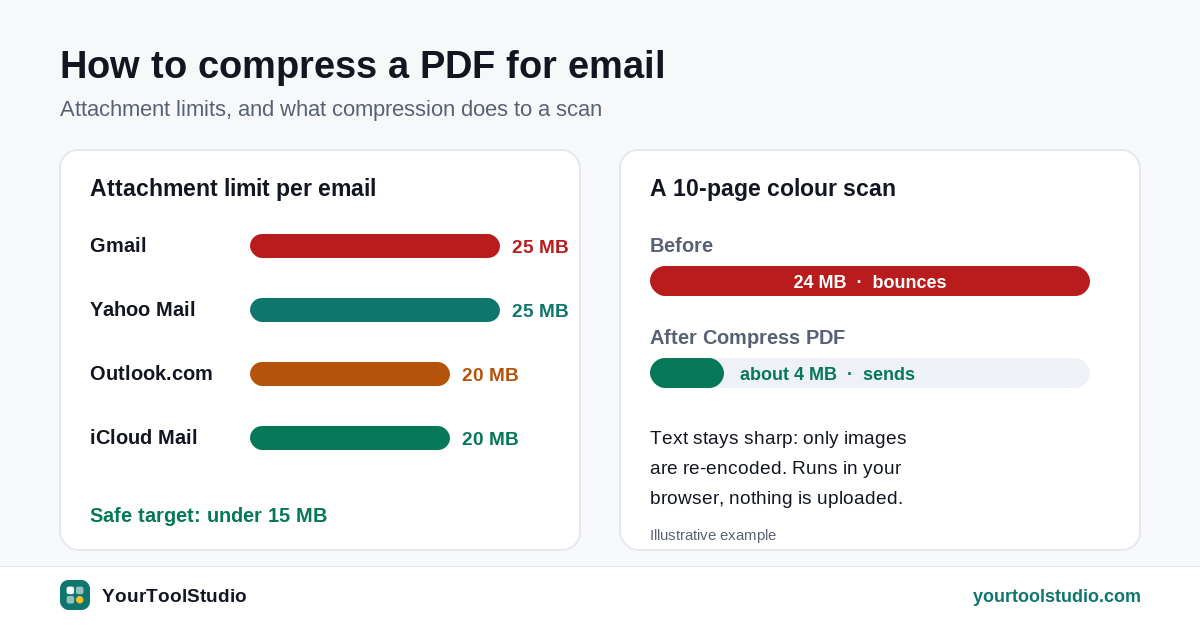
Attachment limits by provider
Each email service sets its own cap. Here are the most common:
| Service | Limit per message | What happens over the limit |
|---|---|---|
| Gmail | 25 MB | Offers a Google Drive link instead |
| Yahoo Mail | 25 MB | The file refuses to attach |
| Outlook.com | 20 MB | Suggests sharing via OneDrive |
| iCloud Mail | 20 MB | Mail Drop can send a download link |
| Company email (Exchange) | Set by IT, often 10 to 25 MB | The message bounces |
There is a detail few people know. Attachments are converted to text for sending, which makes them roughly a third larger than the file on your disk. So a 19 MB PDF can arrive as about 25 MB and be turned away by a server advertising a 25 MB limit. The recipient's server counts too: your Gmail may accept a file that your client's company server rejects.
What makes a PDF heavy
Text takes almost no space; a 50-page text-only report is usually below 1 MB. The bulk nearly always comes from images:
- Scans. Scanners and phone scanning apps store every page as a high-resolution photo. Ten colour pages at 300 DPI can easily exceed 20 MB.
- Photos and screenshots. Pictures dropped into Word or PowerPoint keep their full camera resolution when exported to PDF.
- Fonts and leftovers. Some apps embed entire font files or keep old editing data inside the PDF.
Compression re-saves those images at a sensible resolution and quality and then tidies up the file structure. Real text and vector graphics stay just as crisp, which is why a compressed contract remains perfectly readable.
The quick way: compress in your browser
This works identically on Windows, Mac, Android and iPhone, with nothing to install.
- Open the free Compress PDF tool.
- Drop your PDF onto the page or tap to pick it.
- Choose a level. Recommended suits nearly everything, Extreme gives the smallest file for tight limits, and Less keeps print quality.
- Press Compress PDF and download the smaller copy. You will see the before and after sizes, so you know immediately whether it fits.
The compression happens on your own device and the document is never uploaded, which matters for payslips, bank statements, medical letters and passport scans. Scanned and image-heavy PDFs often shrink by 50 to 90 percent.
Free and private, with no account. The file stays on your device.
Windows
Windows does not include a PDF compressor, and "Microsoft Print to PDF" rarely shrinks a scan. Two good options:
- The browser tool above in Edge or Chrome, the fastest choice for scans and PDFs someone sent you.
- If you created the PDF in Word, export it again via File > Save As > PDF and pick Minimum size (publishing online) instead of Standard. You can also select an image first and use Compress Pictures on the Picture Format tab.
Mac
Preview, the Mac's default PDF app, has a built-in option: open the PDF, choose File > Export and set the Quartz Filter to Reduce File Size. It is free and fast but can be heavy-handed, leaving scans fuzzy and hard to read. Check the output before sending; if it looks poor, use the browser tool on Recommended, which keeps scanned text legible.
iPhone and iPad
Neither Files nor Mail has a compress button. The easiest route:
- Save the PDF to Files if it is not already there (in Mail, tap the attachment, then Share > Save to Files).
- Open the Compress PDF tool in Safari and select the file from Files.
- Compress it, save the smaller copy and attach that one to your email.
If you send from Apple Mail and the file is still too large, Mail will offer Mail Drop, which puts the attachment on iCloud and emails a download link instead.
Android
Open the compress tool in Chrome, choose the PDF from Downloads or Drive and save the result. Gmail on Android will attach it as normal.
Still too big? Three more ideas
- Split it. Send a long document across two or three emails. Split PDF can cut it by page range, such as pages 1 to 20 and 21 to 40.
- Drop the colour. A colour scan of a plain document wastes space. Converting it with Grayscale PDF before compressing often halves the size again.
- Share a link. For really large files, upload to Google Drive, OneDrive or Dropbox and email the link. Your mail app may suggest this automatically.
Before you press send
- Is the PDF below 15 MB (or 10 MB for an organisation)?
- Open the compressed copy and zoom in: is every word still easy to read?
- Did you attach the new, smaller file rather than the original?
- Is the file name sensible, like
Jane-Smith-Application.pdfinstead ofscan0001.pdf?
Sending photos alongside the PDF? The same thinking applies: our guide on shrinking images without visible quality loss shows how to fit everything in one email.
Forwarding a bank statement that asks for a password each time? See removing the password from a PDF bank statement before you attach it.
Sending an invoice to a client? Our guide to invoicing for freelance work covers what it needs to include.
Frequently asked questions
How large a PDF can I send by email?
Gmail and Yahoo Mail accept roughly 25 MB of attachments per message, and Outlook.com about 20 MB. Since attachments swell by around a third when encoded for sending, staying under about 15 MB is the safe bet for most recipients.
Does compressing a PDF blur the text?
No. Real text and vector drawings are left untouched. Only images inside the PDF are re-encoded, so scans and photos may lose a little detail on the strongest setting.
Why did my PDF hardly shrink?
A PDF that is mostly text is usually small already, so there is little to strip out. The big savings come from scans and photos. If a text-heavy PDF is still too large, split it into parts.
Is compressing a PDF online safe?
Many online compressors upload your file to their servers. YourToolStudio's Compress PDF works inside your browser, so the document stays on your device, which matters for payslips, contracts and ID scans.
How can I make a PDF smaller on an iPhone?
iOS has no built-in PDF compressor. Open a browser-based compressor in Safari, pick the PDF from the Files app, compress it and save the smaller version back to Files before attaching it.