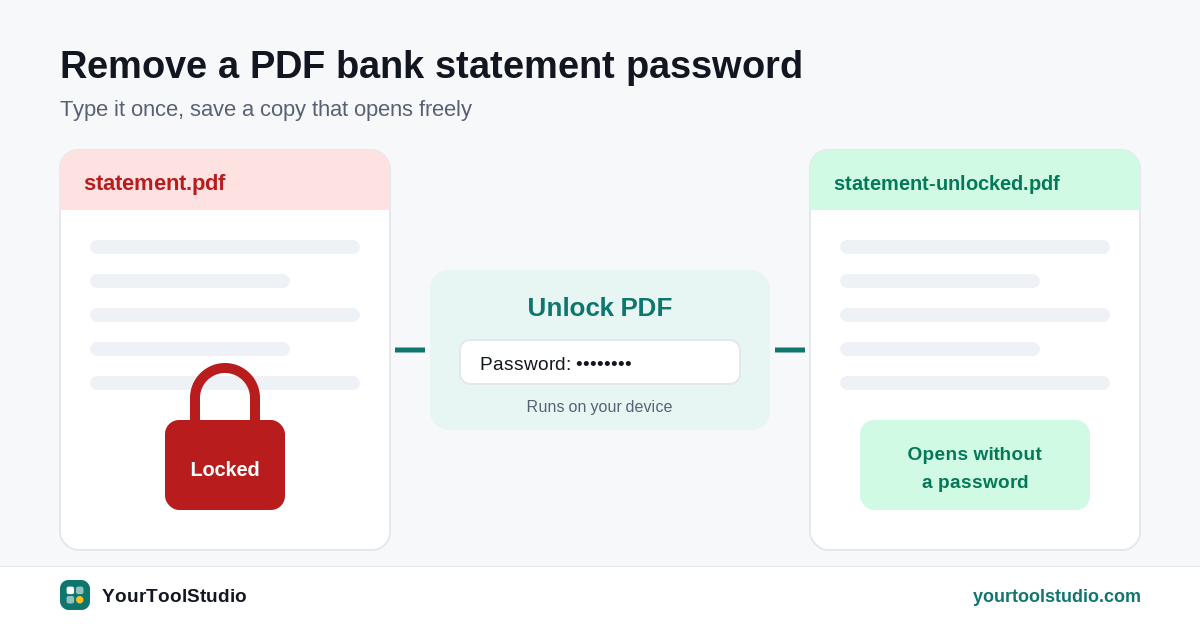
The quick way: open the statement in Unlock PDF, type its password once and download the unlocked copy. That copy opens immediately with no password, ready to upload to a loan, visa, rental or tax portal, or simply to keep for your records.
You do need to know the password. Banks encrypt e-statements with it, and no honest tool can remove it otherwise. If you are not sure what it is, jump to when the password will not work below.
Why banks lock statements
Statements usually arrive by email, which is not a private channel. Encrypting the PDF means that if the message is forwarded, intercepted or opened on a shared computer, nobody can read your balance or transactions without the password. Card statements, payslips, tax documents and insurance papers are often protected the same way.
Once the statement is safely on your own device, though, the lock gets in the way. You type the password every time, some apps cannot open the file at all, and many upload forms refuse encrypted PDFs. Removing the password from your copy fixes all three.
The fastest option: Unlock PDF in your browser
The same steps work on a Windows PC, a Mac, a Chromebook, an iPhone or an Android phone, with nothing to install.
- Open Unlock PDF.
- Select the statement. On a phone, look in Files (iPhone) or Downloads (Android). If it is still in your inbox, save the attachment first.
- Enter the password exactly as your bank describes it; capital and small letters count.
- Press Unlock PDF and download the copy. Open it to check that it no longer asks for a password.
Everything happens inside your browser. Neither the statement nor the password is sent to a server, which is exactly what you want for a document showing your account number, address and every payment you made.
Free and private, no account. The file stays on your device.
Other methods, by device
If you would rather use apps you already have, these work too. Each opens the file with your password and saves a new copy without one.
Windows: "Save as PDF" in Chrome or Edge
- Right-click the PDF, choose Open with and pick Google Chrome or Microsoft Edge.
- Enter the password when prompted.
- Press Ctrl + P, choose Save as PDF as the printer (Edge may call it "Save as PDF" or "Microsoft Print to PDF") and click Save.
This prints the pages into a fresh PDF. It will not work if the bank has also blocked printing, and the new file may lose clickable links and bookmarks. Unlock PDF keeps the original structure instead.
Mac: Preview
- Open the statement in Preview and enter the password.
- Choose File > Export as PDF and save it under a new name.
- Open the new file to confirm it no longer asks for a password.
iPhone and iPad
The Files app opens protected PDFs but cannot remove the password. Safari is the easiest route: open Unlock PDF, tap the drop area and choose the statement from Files. The unlocked copy goes into Downloads in Files.
Android
Open Unlock PDF in Chrome, pick the statement from Downloads, type the password and download. Some phones' built-in PDF viewers also have Print > Save as PDF, which works like the Windows method.
Adobe Acrobat
The free Acrobat Reader opens protected files but cannot strip the password; that is a feature of the paid Acrobat Pro, under its security or protection settings. You do not need it for this.
How the methods compare
| Method | Devices | Keeps links and text | Works when printing is blocked |
|---|---|---|---|
| Unlock PDF (browser) | Windows, Mac, iPhone, Android | Yes | Yes |
| "Save as PDF" in Chrome or Edge | Windows, Mac, Chromebook | Text usually, links often lost | No |
| Preview export | Mac | Yes | Usually |
| Acrobat Pro | Windows, Mac (paid) | Yes | Yes |
When the password will not work
There is no single industry format, and the format can even differ between a savings statement, a card statement and a loan statement from the same bank. Most banks build it from details they already have, such as part of your name, your date of birth, your customer ID, or the last digits of your phone or card number.
- Reread the email or SMS. The message that came with the statement nearly always explains the format, often with an example. Follow it exactly.
- Mind the capitals. If the format uses letters from your name, the bank will say whether they are upper or lower case. "RAHU" and "rahu" are different passwords.
- Check the date style. DDMM, DDMMYY and DDMMYYYY are all common. Leave out slashes and spaces unless the bank includes them.
- Use the name the bank holds. If your account uses a shortened or differently spelled name, the password follows that spelling.
- Switch off auto-correct. Phone keyboards may capitalise the first letter or add a space. Type slowly or paste the password from a notes app.
- Download a fresh copy. A statement saved from a preview or forwarded several times can get damaged. If even the right password fails, re-download it from online banking. If it opens but shows errors, Repair PDF can sometimes help.
If nothing works, contact your bank through its app or official website. Steer clear of sites offering to "recover" or "crack" statement passwords: you would be handing your financial records to strangers, and they cannot do anything the bank's own format does not already tell you.
After unlocking: prepare it for upload
Loan, visa and rental portals often have more rules than just "no password". These tools cover the usual ones, all in your browser:
- Over the size limit? Compress PDF gets it under caps like 2 MB or 5 MB; scanned statements shrink the most.
- Need six months in one file? Unlock each month, then join them in order with Merge PDF.
- Only certain pages needed? Pull them out with Split PDF.
- Sending it by email? Our guide on shrinking a PDF to email it covers Gmail and Outlook limits.
Look after the unlocked copy
Anyone who gets hold of an unlocked statement can read it. A few habits keep that risk low:
- Keep the original locked statement as your archive, and use the unlocked one only for uploading.
- Delete unlocked copies from Downloads and shared folders once you are done.
- If you have to email it, consider adding your own password with Protect PDF and sharing that password separately, for example by phone.
- Before sharing with someone who does not need everything, black out account numbers or unrelated transactions with Redact PDF, which removes the text rather than just covering it.
Frequently asked questions
Can a statement password be removed without knowing it?
No, and be suspicious of any site claiming otherwise. The open password is what encrypts the file. You type it once, and then you can save a copy that opens without it.
What password does my bank statement PDF use?
It varies by bank and by type of statement. Most banks combine details they already hold, such as part of your name, your date of birth, your customer ID or the last digits of your phone or card number. The email or SMS that came with the statement describes the exact format.
Is it safe to remove the password from a statement?
Yes, with a tool that works on your own device like Unlock PDF, because nothing is uploaded. The unlocked copy is no longer protected, though, so store it carefully and delete spare copies once you have sent it.
How do I unlock a PDF on my phone?
Open Unlock PDF in Chrome on Android or Safari on iPhone, choose the statement from Files or Downloads, type the password and save the unlocked copy. No app needed.
Why does a loan or visa site reject my statement?
Many upload portals cannot read encrypted PDFs and either reject them or show an error. Upload the unlocked copy, and compress it if there is also a size limit.