When a form says "signature size should be at least 20KB", it means the signature file must weigh at least 20 kilobytes. The fix is to save it with more pixels and a higher JPG quality using Resize Image, then confirm the new file sits within the form's range. If the complaint is the opposite, that the file is too large, use Compress image to 20 KB.
Both problems share one cause: file size depends on the number of pixels and how hard the image is compressed, not on how big your signature looks on paper. Understand that, and hitting any range takes about a minute.
Why the file size comes out wrong
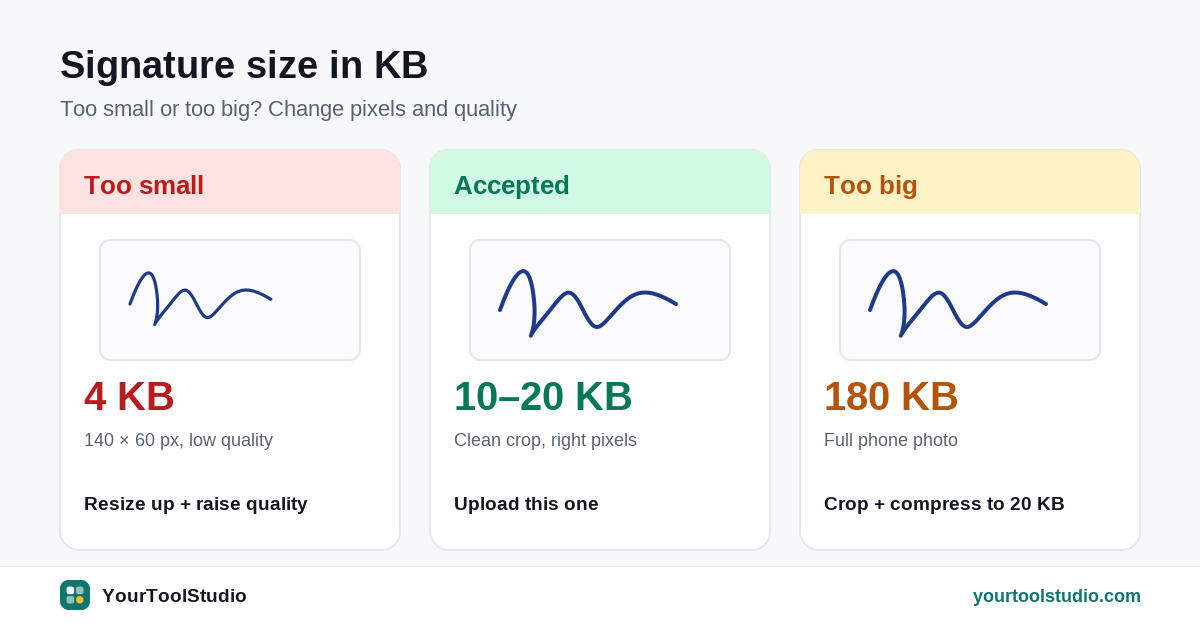
A signature is dark ink on white, about the easiest image there is to compress. So a small, closely cropped signature saved as JPG often weighs only a few KB. That is why people who match the required pixel size exactly still get "file size should be at least 20KB".
Phone photos cause the opposite problem. A signature shot on a modern phone can be thousands of pixels wide and include the desk, shadows and paper texture, easily reaching hundreds of KB, well past a 20 KB or 50 KB cap.
| Change you make | Effect on size |
|---|---|
| More pixels in width and height | Larger file |
| Higher JPG quality (towards 100%) | Larger file |
| Saving as PNG rather than JPG | Usually larger for photographed signatures |
| Cropping off white space | Smaller file, and a sharper signature at the same KB |
| Lower JPG quality | Smaller file |
Step 1: start with a clean image
A good starting picture makes every later step easier, whichever direction you need to go.
- Sign with a black or dark blue pen on plain white paper. Gel and ballpoint pens both work; avoid pencil.
- Photograph it in daylight or under a bright lamp, holding the phone straight above the page so your hand and phone cast no shadow.
- Open the photo in Crop Image and crop to the signature with a thin white border. Keep the shape the form asks for if it specifies one; signature boxes are usually wide and short.
Step 2a: too small? Push it to at least 20 KB
Follow this when the form says "at least", "minimum" or "between 20 KB and ..." and your file is below the lower figure.
- Open Resize Image and add the cropped signature.
- Pick Pixels and enter a bigger Width. Keep Keep aspect ratio on so nothing gets stretched.
- Untick Do not enlarge smaller images, or a small image will stay the same size.
- Under Save as, choose JPG and slide Quality up towards 100%.
- Press Resize images and check the size shown. Still below the minimum? Increase the width a little and repeat. Now over the maximum? Drop the quality slightly.
Enlarging cannot invent detail that was never captured, so do not go much larger than needed. If the form also fixes the pixel dimensions (say "140 × 60 pixels, 20 to 50 KB"), keep those exact dimensions and adjust quality instead. If 100% quality still falls short at that size, start again from a sharper, higher-resolution photo, crop it, then resize down to the exact pixels at high quality.
Step 2b: too large? Get it under 20 KB
- Crop off the background first (Step 1). Less white space means more of the KB budget goes to the signature itself.
- If the form specifies pixel dimensions, resize to them with Resize Image.
- Open Compress image to 20 KB and add the image. It finds the highest quality that still fits below 20 KB.
- Download the result and zoom in to make sure the strokes are still clear.
For a 50 KB or 100 KB cap, use Compress image to 50 KB or Compress image to 100 KB the same way. All these tools work in your browser, so your signature, an image someone could misuse, is never uploaded.
Free and private, no account, on phones and computers.
Phone or computer
Android and iPhone
Every tool above works in Chrome and Safari. Take the photo with your usual camera app, then pick it from your gallery or Photos inside the tool. Downloads land in Downloads (Android) or Files (iPhone), where you can attach them to the form. If your iPhone saves HEIC, the tools read it and save the result as JPG.
Windows and Mac
Transfer the photo from your phone or scan the signature, then use the same tools in any browser. Paint on Windows and Preview on Mac can resize too, but they cannot target a KB size, so you end up guessing. Right-click the file and choose Properties (Windows) or Get Info (Mac) to see the exact size before uploading.
Typical requirements (always check your notice)
Each portal sets its own rules, and they change between notices, so treat these as examples and follow the official notification for your form.
- Indian bank exams (IBPS and similar): notices have often specified a signature of around 140 × 60 pixels and 10 to 20 KB, in JPG.
- Other exam and recruitment portals: some set a minimum like 20 KB plus a larger maximum, others only a maximum. Read both numbers.
- Visa, bank and university forms worldwide: often allow larger files (up to 1 MB or 2 MB, for instance) and care more about a clear, complete signature than an exact size.
Uploading a photo too? The same KB rules usually apply. Our guide on shrinking images without visible quality loss explains how to keep faces sharp at small sizes, and the Passport Photo Maker produces ID-style photos at standard sizes.
Troubleshooting
- "Invalid format" although it is a JPG. Some phones save HEIC files with photo-like names. Re-save it as JPG with Resize Image or HEIC to JPG.
- The signature looks grey or patchy. The light was poor. Retake it in daylight; compression makes shadows look worse.
- It says 19.8 KB and the form calls it under 20 KB. Portals may count a KB as 1,000 or 1,024 bytes. Leave room: aim for 22 to 25 KB when the minimum is 20 KB, and a bit under the maximum.
- The form gives a size in cm. Online forms only see pixels. Use the pixel size if the notice gives one; otherwise keep the wide, short shape of a signature box.
- Transparent background? Not needed. A transparent PNG can appear black on some portals. Use plain white and JPG.
Frequently asked questions
What does 'signature should be at least 20KB' actually mean?
The form will reject any signature image file under 20 kilobytes. It refers to the file size on disk, not how large the signature appears. Saving the image at more pixels or a higher JPG quality usually fixes it.
How do I take a 5 KB signature up to 20 KB?
Open it in Resize Image, enter a larger width, untick Do not enlarge smaller images, choose JPG and push the quality towards 100%. More pixels and less compression make a bigger file. Check the result and adjust until it falls in range.
How do I get my signature below 20 KB?
Use Compress image to 20 KB, which finds the best quality that fits under the limit. Cropping off extra white space first keeps the strokes sharper at that size.
What pixel dimensions should a signature have?
It depends on the form. Many Indian bank exam notices, such as IBPS, have asked for 140 x 60 pixels and 10 to 20 KB, while other portals accept bigger images. Always go by the notice for your form.
Should I upload my signature as JPG or PNG?
Most government and exam portals want JPG or JPEG. Only use PNG if the form lists it. You do not need a transparent background; a clean white one is what forms expect.