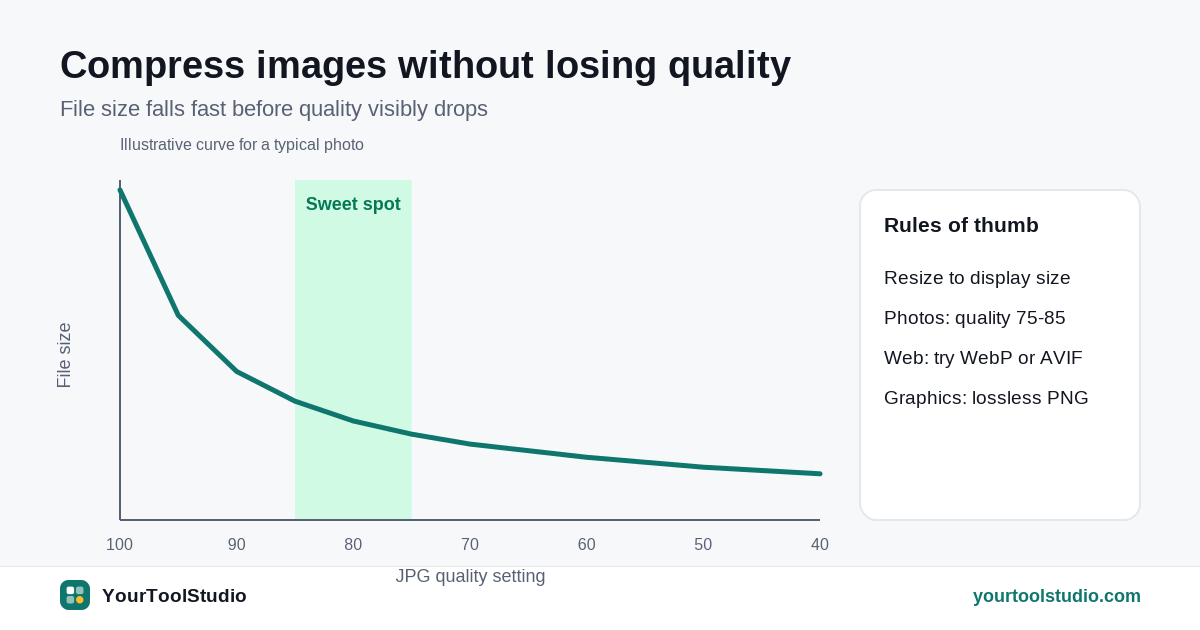
"No quality loss" deserves an honest explanation. Compression works by discarding information your eyes do not pick up. Viewed at normal size, a photo saved at 80 percent JPG quality looks the same as the 100 percent original while taking up a fraction of the space. That gap between what the file stores and what you can see is where all the savings come from, and it is huge.
Step 1: get the dimensions right
The biggest saving usually comes from size, not compression. A 48-megapixel phone photo is overkill for a web page that displays it 1200 pixels wide. Resize the picture to the width it will really be shown at and you can often cut the file by 80 percent before touching any quality setting. Keep the original safe and make a resized copy for each place it is used.
Step 2: find the quality sweet spot
Almost every tool offers a quality number from 1 to 100. Near 100, files are enormous for no visible benefit on a screen. Around 80 to 85, most photos look identical to the original at a fraction of the size. Near 70, faint artefacts begin to appear in smooth areas such as skies. Under 60, pictures often turn soft or blocky.
Step 3: pick a smarter format
Converting a JPG photo to WebP typically trims another 25 to 35 percent at the same visible quality, and every modern browser displays WebP, so it is the right choice for images that live on a website. For photos going by email or into older systems, stay with JPG at the quality suggested above.
There is also a mistake in the other direction: saving photographs as PNG. A photo in PNG is often several times bigger than the JPG, because PNG keeps every pixel exactly. Save logos and screenshots as PNG, but not camera photos you want to keep light.
Step 4: remove the hidden extras
Photos carry data you never see: GPS coordinates, the camera model, timestamps and embedded preview thumbnails. Together they can add a surprising number of kilobytes. A tool that runs on your device can strip this metadata cleanly, making the file lighter and keeping your location out of other people's hands.
Do it all in your browser
You can handle every step with a free tool that never uploads your pictures. Add a photo, set the quality, resize if needed and save the result. Since the processing happens on your own device, the image never reaches a server and its metadata never ends up in someone else's logs.
Free and private, with a quality slider and no account.
The quick recipe
- Resize to the width the image will be displayed at.
- Use WebP for websites, and JPG for email and maximum compatibility.
- Set quality to about 80 where looks matter and 75 where speed matters.
- Strip metadata before sharing the file.
Follow those four steps and a 5 MB phone photo commonly ends up around 200 KB, with nobody able to tell it was changed.
Dealing with a form that has strict size limits? Our guide to getting a signature image into the right KB range covers both "too small" and "too large" errors.
Frequently asked questions
How far can I compress a photo before it looks worse?
Most photos can drop to around 80 percent JPG quality with no visible change. Converting to WebP at a similar setting usually saves a further 25 to 35 percent.
Which quality setting should I use?
For photographs, 80 to 85 percent looks the same as 100 percent at normal viewing sizes. Below about 70 percent, artefacts tend to appear in smooth areas like skies.
Does compressing an image change its width and height?
Not by itself. Compression reduces how many bytes the picture uses, while resizing reduces its pixel dimensions. Doing both together gives the biggest saving.