A freelance invoice needs your name and contact details, your client's details, a unique invoice number, the invoice date and due date, a clear description of the work with a price for each item, any tax, the total owed, and how the client can pay you. Save it as a PDF and email it.
You can do all of that free with the Invoice Generator: fill in the form, watch the live preview and download a PDF. There is no account to create, and your details stay in your own browser. The rest of this guide walks through each part so your first invoice looks professional and gets paid on time.
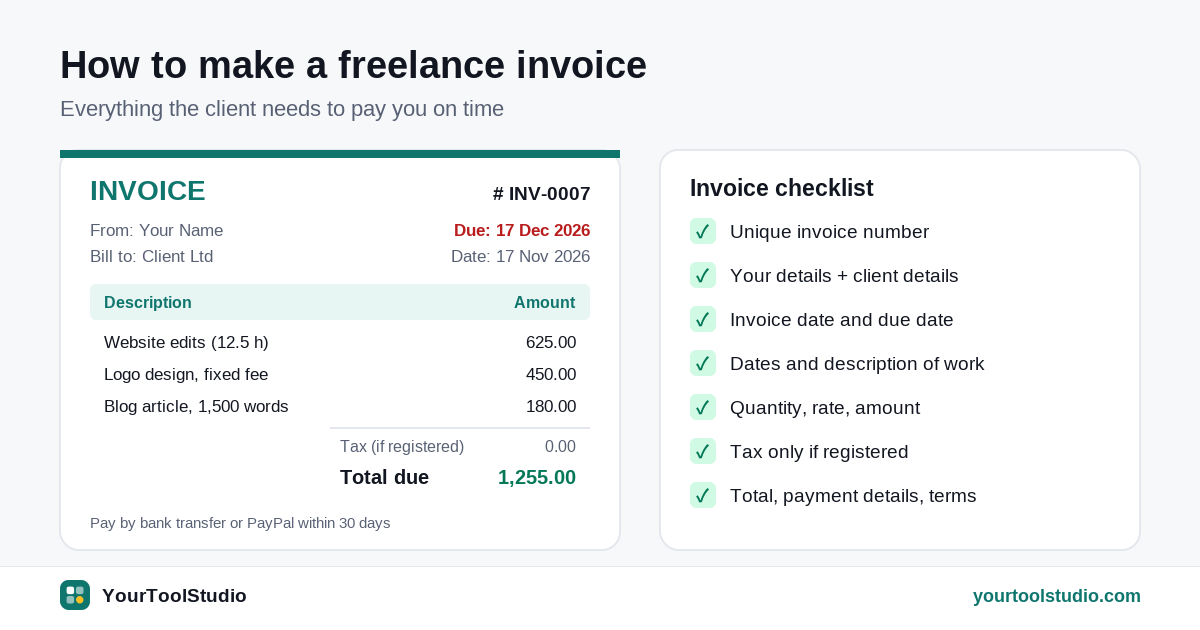
Your invoice checklist
Run through this before sending anything. Many late payments start with an invoice missing something the client's accounts team needs.
| Item | Why it is there |
|---|---|
| The word "Invoice" | Makes clear this is a bill, not a quote or estimate. |
| A unique invoice number | Lets both of you track it. Never use a number twice. |
| Your name or business name, address and email | Shows who should be paid. Add your tax number if you are registered for VAT, GST or similar. |
| The client's name, company and address | Shows who owes the money. Include their PO number or reference if they gave one. |
| Invoice date and due date | Starts the payment clock. |
| When the work was done | Many tax offices want the supply date, not just the invoice date. |
| Line items: description, quantity, rate, amount | Spells out exactly what is being charged so nothing gets queried. |
| Subtotal, discount, tax and total | The client's accounts team will check the sums. |
| Payment details | Bank details, PayPal, Wise or another method, plus the currency. |
| Payment terms | For example "Payment due within 14 days", and any agreed late fee. |
In the UK, the government's guide to what an invoice must include lists a unique number, both parties' details, a description, the supply date, the invoice date, the amounts and the total owed. It is a sensible standard wherever you are based.
Creating a free invoice, step by step
These steps use the free Invoice Generator, which works the same on Windows, Mac, iPhone and Android because it runs in your browser.
- Open the Invoice Generator and leave the type set to Invoice. (Switch to Quote or Estimate before a job, or Receipt once you have been paid.)
- Set the number and currency. Numbering begins at INV-0001; change it if you have sent invoices before. Choose the currency agreed with the client. The tool suggests a currency, tax label and paper size based on your device's region, all of which you can change.
- Set the invoice date and due date. 14 or 30 days is typical for freelance work.
- Add a logo if you have one and fill in From: your name or business name, address, email and any tax ID.
- Fill in Bill to with the client's name, company and address.
- Add a line for each piece of work. Give a clear description, a quantity (hours, days, words, or "1" for a fixed fee) and a rate. Amounts and totals calculate automatically.
- Add a discount, tax or amount paid if relevant. Pick the tax label your country uses (Tax, VAT, GST, Sales tax, HST or IVA) and enter the rate. If the client paid a deposit, enter it under Amount paid and the invoice shows the balance due.
- Complete Payment details, Notes and Terms. Bank or PayPal details go under payment; terms like "Payment due within 14 days" go under Terms.
- Download the PDF, give it a final check and email it to the client.
For the next one, click New invoice (keep my details). Your business details, logo and settings stay, the client and items are cleared, and the number goes up by one. Everything is stored only in your browser on that device; nothing is uploaded.
Free PDF invoices with your logo, tax and currency. No account needed.
On a computer (Windows or Mac)
Any modern browser works. Download PDF gives you a finished file. If you want selectable text in the PDF (some clients copy the invoice number or bank details), press Print and pick Save as PDF as the printer instead.
On iPhone or Android
Open the tool in Safari or Chrome. The form is above the preview, so scroll down to check the invoice before tapping Download PDF. On iPhone the file lands in the Files app (usually Downloads); on Android in Downloads. Attach it to an email or share it in a chat from there.
Numbering your invoices
Every invoice needs a number you have never used, and the numbers should run in order. Simple systems work best:
- Plain sequence: INV-0001, INV-0002, INV-0003. Easy to follow.
- Year prefix: 2026-001, 2026-002. Restarts each year, with the year keeping every number unique.
- Client prefix: ACME-001, ACME-002. Useful with a handful of regular clients, as long as one master list ensures no number repeats.
Never delete or recycle a number. If an invoice was wrong, issue a correction or credit note instead (see the FAQ below).
Writing clear line items
Vague lines like "Design work" invite questions and slow payment. Name the deliverable and the period:
- Hourly: "Website edits, 3-14 Nov 2026" × 12.5 hours at your hourly rate.
- Fixed fee: "Logo design, 3 concepts + 2 rounds of changes" × 1.
- Per unit: "Blog article, 1,500 words: Winter skincare" × 1, or use word count as the quantity if you charge per word.
- Milestone: "App design, milestone 2 of 3 (50% deposit received)".
Including dates in the description also covers the "supply date" some tax offices require. If you track hours in a spreadsheet, attach the timesheet as a second PDF, or combine both into one file with Merge PDF.
Tax: it depends where you are
Tax is the part that varies most between countries, so always check your own tax office's guidance. Broadly:
- Not registered for VAT, GST or sales tax? Do not add tax. Many small freelancers are below the registration threshold.
- Registered for VAT or GST (in the UK, EU countries, India, Australia, Canada or New Zealand, for example)? Your invoice usually has to show your registration number, the tax rate and the tax amount, sometimes more. In the UK these are known as VAT invoices.
- Clients abroad? Cross-border business-to-business services often use a "reverse charge", where the client accounts for the tax rather than you. Ask an accountant or check with your tax office before leaving tax off.
- United States: there is no national invoice format. Whether services carry sales tax depends on the state and the work. Keep a copy of every invoice; the IRS explains which records to keep.
Terms that help you get paid
- Agree terms before starting, and repeat them on the invoice so nothing comes as a surprise.
- State an actual due date rather than just "Net 30". "Due 17 December 2026" is harder to overlook.
- Take a deposit on larger jobs, such as 50% up front, and show it under Amount paid on the final invoice.
- Make paying easy with full bank details, IBAN/SWIFT for overseas clients, or a PayPal or Wise email.
- Send it promptly when the work is delivered, and follow up politely just before and after the due date.
When you work through platforms like Upwork or Fiverr, the platform handles billing for that work, so you usually do not send your own invoice. Direct clients are where you need one.
Troubleshooting
- The client says details are missing. Usually it is their PO number, your tax number or your full address. Add it and resend with the same invoice number.
- You spotted a mistake after sending. If the client has not processed it, send a corrected copy and mention it in your email. If it is already recorded, issue a credit note and a new invoice.
- The PDF is too big to email, usually because of a large logo. Use a smaller logo image or run the file through Compress PDF. Our guide on shrinking a PDF to email it covers the limits.
- The client wants a signed invoice. Add your signature with Sign PDF.
- The currency symbol is wrong. Change the currency in the tool before downloading; totals use whatever symbol you choose.
- Your saved details have gone. They live in the browser you used. A different browser, a private window or cleared site data starts afresh.
Running a local business rather than freelancing online? Our guide to a Google review QR code is another quick, free win.
Frequently asked questions
Can I create a freelance invoice for free?
Yes. Open the free Invoice Generator, enter your details and the client's, an invoice number, dates and line items, add tax and payment details if needed, then download the PDF and email it. You do not need an account or to pay anything.
What information does a freelance invoice need?
Your name and contact details, the client's details, a unique invoice number, the invoice and due dates, when the work was done, a description of each item with quantity and rate, any tax, the total owed, payment details and payment terms.
Can I make invoices on a phone?
Yes. The Invoice Generator works in Safari and Chrome on iPhone and Android. Fill in the form, check the preview and tap Download PDF; the file saves to Files or Downloads, ready to attach to an email.
Do I need a registered company to invoice clients?
In most countries, no. Freelancers and sole traders can invoice in their own name. Once you register for tax, some countries require your tax or business number on invoices, so check your local tax office's guidance.
What number should my first invoice have?
Any number you will never reuse, such as INV-0001 or 2026-001. After that, count upwards in order and never repeat a number.
How do I correct an invoice I have already sent?
If the client has not processed it yet, send a corrected copy and explain what changed. If it has already been recorded or paid, issue a credit note to cancel it and send a fresh invoice with a new number.