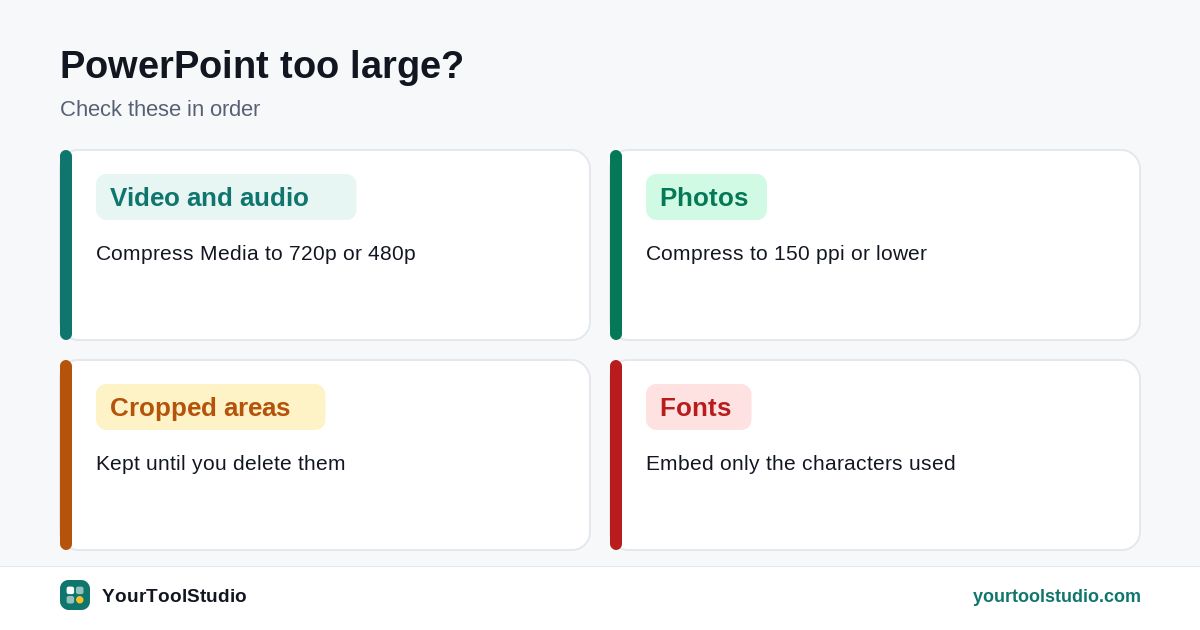
Your PowerPoint is most likely large because of embedded video and audio, followed by photos stored at full camera resolution. The other usual causes are cropped pictures that still keep their hidden parts, editing data saved so picture changes can be undone, and embedded fonts. A deck with lots of slides but no media is rarely more than a few megabytes, so start by finding what is inside the file.
Look inside the file before changing anything
Microsoft's PresentationML documentation explains that a presentation is not stored as one large body. Each slide, master, theme and other part is stored separately, as items in a ZIP package. That means you can open a copy and see exactly which parts hold the megabytes.
- Make a copy of the presentation, so the original stays safe.
- Rename the copy from deck.pptx to deck.zip. On Windows, turn on file name extensions in File Explorer first.
- Open the ZIP, go into the ppt folder and open each subfolder.
- Sort by size. Large MP4, MOV or WAV files point to media. Large JPG or PNG files point to pictures. A deck where nothing stands out is worth checking for embedded fonts.
- Close and delete the copy. Never edit the original this way.
The causes, from biggest to smallest
| What you find | Why it makes the deck large | Fix |
|---|---|---|
| Embedded video | The whole video file is stored inside the presentation | Compress Media, trim the clip, or link to it online |
| Embedded audio, especially WAV | Uncompressed audio is stored in full | Compress Media, or convert the audio to MP3 first |
| Phone and camera photos | They keep far more pixels than a slide shows | Compress Pictures at 150 ppi or lower |
| Cropped pictures | The cropped-away part is kept so the crop can be changed | Tick Delete cropped areas of pictures |
| Pictures edited in PowerPoint | Original image data is retained so edits can be undone | Tick Discard editing data |
| Embedded fonts | Font files are saved inside the deck | Embed only the characters used |
| The same photo pasted on many slides from different copies | Each separate copy can be stored | Insert it once and copy the slide, or compress all pictures |
Compress video and audio
Microsoft's page on how to compress your media files says that for audio or video, compression can reduce the size significantly. The steps are:
- Open the presentation that contains the media.
- Go to File, then Info, and in the Multimedia section choose Compress Media.
- Pick a quality: Full HD (1080p), HD (720p), or Standard (480p), which Microsoft suggests when space is limited, such as for email.
Two limits matter here. Microsoft says this feature is in PowerPoint for Windows but not in PowerPoint for Mac or for the web, and that embedded subtitles and alternate audio tracks are lost during compression. Keep an uncompressed copy if you might need them.
To see why video dominates, here is our own arithmetic, file size equals bitrate times length divided by eight:
| Clip | Bitrate | Approximate size |
|---|---|---|
| 10 minutes | 8 Mbps | 600 MB |
| 10 minutes | 3 Mbps | 225 MB |
| 2 minutes | 3 Mbps | 45 MB |
| 2 minutes | 1 Mbps | 15 MB |
A short clip at a modest bitrate costs less than one minute of a high bitrate recording. If you would rather shrink a clip before inserting it, Compress Video and Trim Video both run in your browser.
Reduce MP4 and MOV files on your own device, with no upload and no watermark.
Compress the pictures
Microsoft's guide to reducing PowerPoint file size gives these steps:
- Select any picture. The Picture Format tab appears.
- In the Adjust group, choose Compress Pictures.
- Make sure Apply only to this picture is not ticked, so every picture in the deck is compressed.
- Tick Delete cropped areas of pictures. Microsoft warns that the removed parts cannot be restored.
- Under Resolution, choose Use default resolution, then save.
The same page says to go to File, Options, Advanced and, under Image Size and Quality, tick Discard editing data, make sure Do not compress images in file is not ticked, and set the Default resolution to 150 ppi or lower.
How many pixels does a slide need? Our own arithmetic, pixels equal width in inches times resolution:
| Picture width on the slide | Pixels at 150 ppi | Pixels at 96 ppi | A 12 MP phone photo, 4032 px wide |
|---|---|---|---|
| 10 inches | 1,500 px | 960 px | About 2.7 times the 150 ppi need |
| 5 inches | 750 px | 480 px | About 5.4 times the 150 ppi need |
| 2.5 inches | 375 px | 240 px | About 10.8 times the 150 ppi need |
A small picture in the corner of a slide can carry ten times the detail anyone sees. You can also shrink photos before inserting them with Resize Image or Compress Image.
Embedded fonts
Microsoft notes that embedded fonts increase file size. To keep the increase small, go to File, Options, Save, and under Preserve fidelity when sharing this presentation select Embed fonts in the file and then Embed only the characters used in the presentation. Choose Embed all characters only if others need to edit the deck with your custom fonts.
Which fix to use for which goal
| Your goal | Best option | Trade-off |
|---|---|---|
| Email the deck | Compress Media at 480p and pictures at 150 ppi or lower | Lower video quality on a big screen |
| Present from your own laptop | Leave it large, or use 1080p | None, if you do not need to send it |
| Share for reading only | Save as PDF, then compress the PDF | Video, audio and animations do not carry over |
| Share with editors | Upload to cloud storage and send a link | Readers need access to the link |
For the reading-only route, convert with PowerPoint to PDF and shrink the result with Compress PDF. To know how small the file has to be, check our email attachment size limits chart. Word has a similar set of causes, covered in why is my Word document so large.
If it is still too large
These are our own troubleshooting suggestions:
- Save a fresh copy with Save As after compressing, then compare sizes.
- Check the slide master. A large background photo on a master or layout is stored once but easy to miss because it is not on a normal slide.
- Check for hidden slides that still contain media you no longer use.
- Replace a long video with a link to the same video online, if the room will have internet access.
The Microsoft steps on this page were checked against the linked pages on 20 November 2026. Menu names can differ slightly between PowerPoint versions.
Frequently asked questions
Why is my PowerPoint so large with only a few slides?
Embedded video or audio is the usual reason, followed by full resolution photos. Rename a copy to .zip and sort the parts by size to see which one it is.
Why is my PowerPoint file so large with no pictures?
Check for embedded fonts, media on the slide master or hidden slides, and pictures used as slide backgrounds, which are easy to miss.
Can I compress media in PowerPoint for Mac?
No. Microsoft says Compress Media is available in PowerPoint for Windows but not in PowerPoint for Mac or PowerPoint for the web.
What resolution should I compress PowerPoint pictures to?
Microsoft suggests a default resolution of 150 ppi or lower to reduce file size. Lower values make smaller files but softer pictures on large screens.
Does Compress Media remove anything?
Yes. Microsoft says embedded subtitles and alternate audio tracks are lost when media is compressed, so keep an original copy.