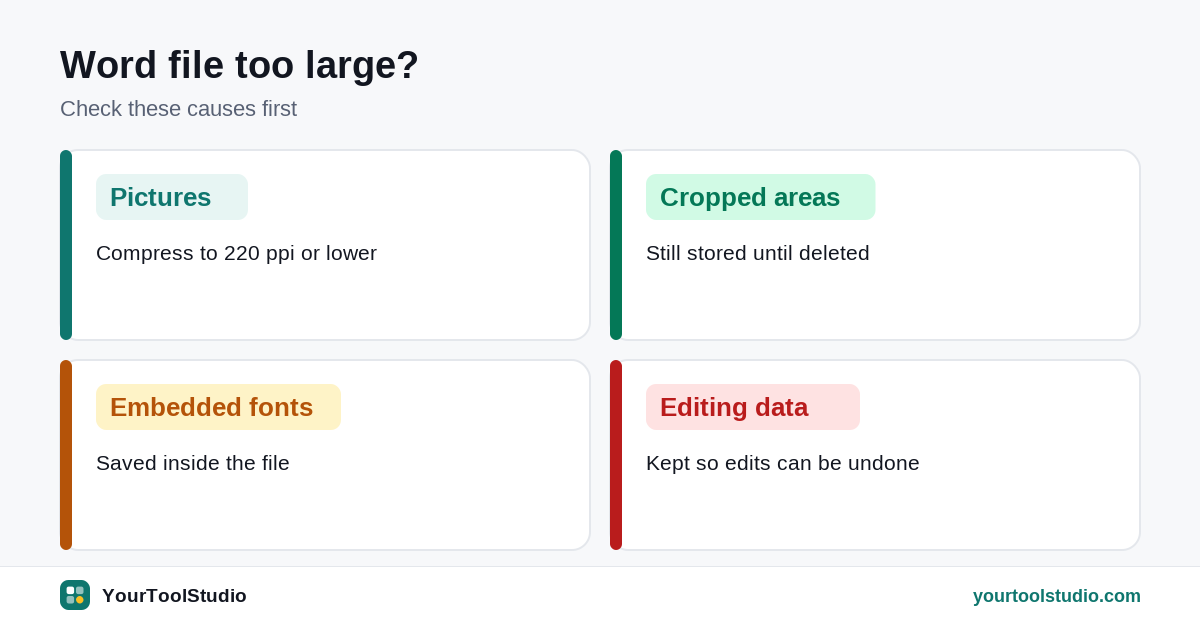
Your Word document is most likely large because of the pictures inside it: photos inserted at full camera resolution, cropped pictures that still keep their hidden parts, and editing data Word saves so you can undo picture changes. Embedded fonts are the other common cause, especially in a document that is nearly blank but still several megabytes. Text alone is rarely the problem.
Find out what is taking the space
Guessing wastes time, so look inside the file first. Microsoft's Open XML documentation explains that a .docx can be renamed to .zip, and that the ZIP package contains the parts that make up the document. You can use that to see where the megabytes are.
- Make a copy of the document, so the original stays untouched.
- Rename the copy from report.docx to report.zip. On Windows, turn on file name extensions in File Explorer first.
- Open the ZIP and go into the word folder.
- Sort by size. A media folder holding large JPG or PNG files means pictures are the cause. If the pictures are small, check the font setting described below.
- Delete the copy when you are done. Never edit the original this way.
The common causes and what to do about each
| What you find | Why it makes the file large | Fix |
|---|---|---|
| Phone or camera photos | They are stored at their original resolution, far more pixels than a page needs | Compress Pictures, or shrink the images before inserting them |
| Cropped pictures | Word keeps the cropped-away part so the crop can be changed later | Tick Delete cropped areas of pictures |
| Pictures you edited in Word | Word can keep editing data so the original can be restored | Tick Discard editing data |
| Embed fonts in the file turned on | Word saves font files inside the document | Turn embedding off, or embed only the characters used |
| Screenshots saved as PNG | Large, detailed PNGs compress less well than photos saved as JPG | Compress them, or convert photo-like screenshots to JPG |
| Pasted charts or objects from other apps | Embedded objects can carry their own data | Paste as a picture if nobody needs to edit the chart |
Compress the pictures in Word
Microsoft's guide to reducing picture file size gives the steps for the desktop app:
- Select any picture in the document.
- Open the Picture Format tab and choose Compress Pictures in the Adjust group.
- Clear Apply only to this picture so every picture is compressed.
- Tick Delete cropped areas of pictures.
- Choose a resolution, select OK and save the document.
The same page says the default picture resolution in Microsoft 365 is 220 ppi, and that you can change it under File, Options, Advanced, in the Image Size and Quality section. It also notes that these features are only in the desktop apps, not in Microsoft 365 for the web, so open the file in desktop Word to use them.
How many pixels does a page really need?
This is why photos are such a large share of the file. The figures below are our own arithmetic: pixels needed equals the printed width in inches multiplied by the resolution.
| Picture width on the page | Pixels at 220 ppi | Pixels at 150 ppi | A typical 12 MP phone photo |
|---|---|---|---|
| Full width, 6.5 in | 1,430 px | 975 px | 4,032 px wide, about 2.8 times the 220 ppi need |
| Half width, 3 in | 660 px | 450 px | About 6 times the 220 ppi need |
| Thumbnail, 1.5 in | 330 px | 225 px | About 12 times the 220 ppi need |
A picture shown at half width therefore carries far more detail than anyone can see. If you prefer to prepare pictures before inserting them, shrink them with Resize Image or Compress JPG, which run in your browser without uploading the photo.
Reduce JPG, PNG and WebP files on your own device, with no upload and no watermark.
Embedded fonts: the cause of large blank documents
If the pictures are small, or a nearly empty document is still several megabytes, check font embedding. Microsoft's page on embedding custom fonts says the setting is under File, Options, Save, as Embed fonts in the file, and warns that certain fonts can be very large.
| Setting | Effect on size | When to use it |
|---|---|---|
| Embed fonts in the file turned off | Smallest | The reader has the same fonts, or exact fonts do not matter |
| Embed only the characters used | Smaller | Others will read but not edit the document |
| Do not embed common system fonts | Microsoft says this may increase the file size | Others need to edit and keep the same font |
Microsoft says turning embedding off and saving removes the fonts, and a different font is substituted when the file is reopened on a computer without them. Check the layout after you turn it off.
Discard saved editing data
When you recolor, sharpen or crop a picture in Word, the program can keep data that lets you go back to the original. Microsoft's picture guide says you can remove it by ticking Discard editing data under File, Options, Advanced, Image Size and Quality. The trade-off is that undoing those edits later means inserting the picture again, so keep a backup copy of the full document.
If the file is still too large
These are our own troubleshooting suggestions, ordered from quickest to slowest:
- Save a fresh copy. Use Save As to a new name, then compare sizes. A copy can come out smaller after the steps above.
- Check headers and footers. A large logo in the header is easy to miss because it repeats on every page but is stored once, at full size.
- Send a PDF instead. If the reader does not need to edit, convert with Word to PDF, then shrink it with Compress PDF if needed.
- Check the attachment limit. If you are shrinking the file to email it, see our email attachment size limits chart so you know the target.
The Microsoft settings on this page were checked against the linked pages on 20 November 2026. Menu names can differ slightly between Word versions.
Frequently asked questions
Why is my Word document so large with only a few pages?
Pictures are the usual reason. Photos inserted at full camera resolution, cropped areas and saved editing data can add many megabytes regardless of page count.
Why is my blank Word document so large?
Check whether fonts are embedded. Look in File, Options, Save for Embed fonts in the file, and a header logo stored at full size is the other thing to check.
What resolution should I compress Word pictures to?
Microsoft says the default in Microsoft 365 is 220 ppi. Lower settings make smaller files and are usually fine for on-screen reading and email.
Does cropping a picture in Word reduce the file size?
Not by itself. Word keeps the cropped part until you tick Delete cropped areas of pictures in the Compress Pictures dialog.
Can I compress pictures in Word for the web?
No. Microsoft says these picture compression features are only in the desktop versions of the Office apps.