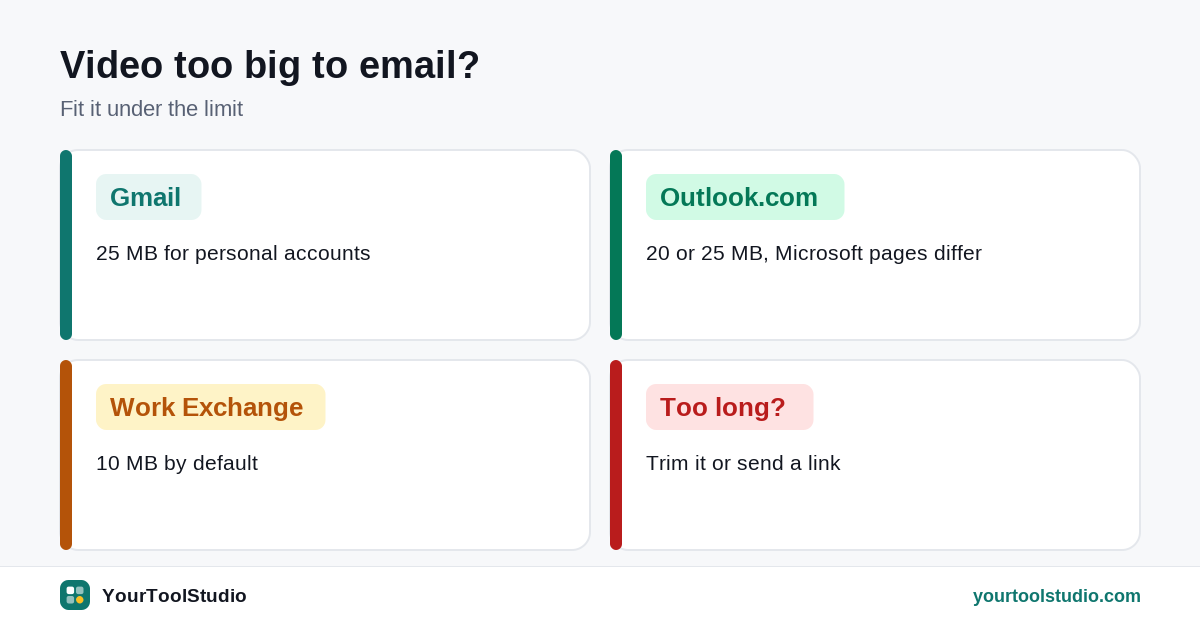
To compress a video for email, re-encode it to an MP4 that is smaller than your email provider attachment limit, which is 25 MB for a personal Gmail account and 10 to 25 MB for most Outlook accounts. The fastest way is to set a target size, such as 20 MB, in a video compressor; if the video is long, also lower the resolution or trim it, and for anything over a few minutes send a cloud link instead.
The results for this search are mostly video editor companies promoting their own apps, and few of them say how small the file must be or why a long clip still looks bad after compression. This guide covers both, with the numbers worked out.
How small does the video need to be?
| Sending from | Attachment limit stated | Safe target | Source |
|---|---|---|---|
| Personal Gmail | 25 MB | 20 to 22 MB | Gmail Help |
| Google Workspace (work or school) | Set by your administrator | Ask your IT team | Gmail Help |
| Outlook.com | 20 MB on one Microsoft page, 25 MB on another | 18 MB | Microsoft Support |
| Exchange work account in Outlook | 10 MB by default | 8 to 9 MB | Microsoft Support |
| Apple Mail with Mail Drop | Large files go to iCloud instead of the email | No need to compress | Apple Mail User Guide |
Microsoft's page on reducing attachment size says the limit includes both the attachment and the email itself, so a 20 MB video will not fit through a 20 MB limit. Its Outlook.com sending limits page says 25 MB for files, while the attachment size page says 20 MB for internet accounts such as Outlook.com. Until Microsoft lines them up, aim under 20 MB. For limits on other providers, see our email attachment size limits chart.
Why length matters more than anything else
A video file size is roughly bitrate x duration. Turn that round and you get the bitrate a clip can have and still fit: target size in megabytes x 8 / length in seconds gives megabits per second for video and audio together. The table below is our own arithmetic, not a measurement:
| Video length | Fits in 25 MB at | Fits in 10 MB at | What to expect |
|---|---|---|---|
| 30 seconds | 6.7 Mbps | 2.7 Mbps | 1080p looks good at 25 MB |
| 1 minute | 3.3 Mbps | 1.3 Mbps | 1080p is fine for 25 MB; choose 720p for 10 MB |
| 2 minutes | 1.7 Mbps | 0.67 Mbps | Choose 720p, or 480p for 10 MB |
| 5 minutes | 0.67 Mbps | 0.27 Mbps | 480p or 360p only, softer picture |
| 10 minutes | 0.33 Mbps | 0.13 Mbps | Too low for a watchable video; send a link |
For example, a 2 minute clip with a 25 MB limit: 25 x 8 = 200 megabits, and 200 / 120 seconds = about 1.7 Mbps. That is plenty for 720p but thin for 1080p, so lowering the resolution gives a cleaner picture than squeezing every pixel into the same budget. If you are not sure why the original is so large, our guide to why video files get so large explains each cause.
Compress the video in your browser
- Open Compress Video and choose the video. It is processed with your device video encoder, so the file is not uploaded.
- Set Mode to Target size. Click the 25 MB (email) chip, or type a lower number such as 18 for Outlook.com or 9 for a work Exchange account.
- Leave the format on MP4, which plays on phones, Macs and Windows without extra apps.
- If the video is longer than about two minutes, set the resolution to 720p or 480p before you compress.
- Turn off audio for silent screen recordings. It frees the whole budget for the picture.
- Download the result, check the size shown, and play it through before you attach it.
Type the size you need in MB, keep MP4, and download. No upload and no watermark.
On a phone or Mac
- Phone or tablet: open Compress Video in your mobile browser and pick the clip from your gallery or Photos, with no app to install. If your browser cannot create MP4 video, the tool tells you so and suggests WebM or Chrome or Edge.
- Mac with Apple Mail: you may not need to compress at all. Apple says Mail Drop uploads large attachments to iCloud, where they are encrypted and stored for up to 30 days, and they do not count against your iCloud storage. With an iCloud email account Mail uses it automatically; with other providers Mail asks whether to use it.
When compression is not the answer
Below about 0.5 Mbps, most videos turn soft and blocky. If the numbers above put your clip in that range, pick one of these instead:
| Option | Best for | How |
|---|---|---|
| Trim the video | Only part of the clip matters | Trim Video removes the start and end; every second cut saves bitrate x 1 second |
| Lower the resolution | Long clips watched on a phone | Resize Video to 720p or 480p before compressing |
| Send a Google Drive link | Gmail users with long videos | Gmail Help says to use Google Drive for large files such as videos |
| Send a OneDrive link | Outlook users | Microsoft lists a 2 GB limit for OneDrive files shared from Outlook.com |
| Mail Drop | Apple Mail users | Mail uploads the file to iCloud for up to 30 days |
Troubleshooting
- Zipping did not help. MP4 and MOV video is already compressed, so a ZIP saves very little. Our article on why a ZIP is not smaller shows the figures.
- The file is a MOV from an iPhone. Compress Video reads it and writes MP4. Sending the MOV as it is can also fail on Windows if the recipient lacks the codec; see convert MOV to MP4.
- The compressed video is still too big. Your target was right but the email adds a little on top. Go 2 to 3 MB lower and compress again from the original, never from the already compressed copy.
- The picture is blocky. The bitrate is too low for the resolution. Choose a lower resolution with the same target size, or trim the video.
Sources and dates
| Page | Date | Used for |
|---|---|---|
| Gmail Help: Attachment size limits | No date shown, read 21 November 2026 | 25 MB for personal accounts, Workspace limits set by administrator, Google Drive for large videos |
| Microsoft Support: Reduce attachment size to send large files with Outlook | No date shown, read 21 November 2026 | 20 MB for Outlook.com, 10 MB default for Exchange, limit includes the email |
| Microsoft Support: Sending limits in Outlook.com | No date shown, read 21 November 2026 | 25 MB attachment limit, 2 GB for OneDrive files |
| Apple Mail User Guide: Send attachments in Mail on Mac | No date shown, read 21 November 2026 | Mail Drop, 30 days, not counted against iCloud storage |
Frequently asked questions
How do I compress a video to send by email?
Re-encode it to an MP4 under your provider limit. In Compress Video choose Target size, type 20 MB for Gmail, 18 for Outlook.com or 9 for a work Exchange account, and download the result.
What size video can I email?
25 MB on personal Gmail, 20 or 25 MB on Outlook.com depending on the Microsoft page, and 10 MB by default on Exchange work accounts. The limit includes the email itself.
How long a video fits in 25 MB?
About a minute at 1080p, about two minutes at 720p and about five minutes at 480p or 360p. Longer clips need a cloud link.
Does zipping a video make it small enough to email?
Rarely. MP4 and MOV are already compressed, so a ZIP saves very little. Re-encode at a lower bitrate instead.
How do I send a video that is too big to email?
Trim it, lower the resolution, or share a link from Google Drive or OneDrive. On a Mac, Apple Mail can send it with Mail Drop.