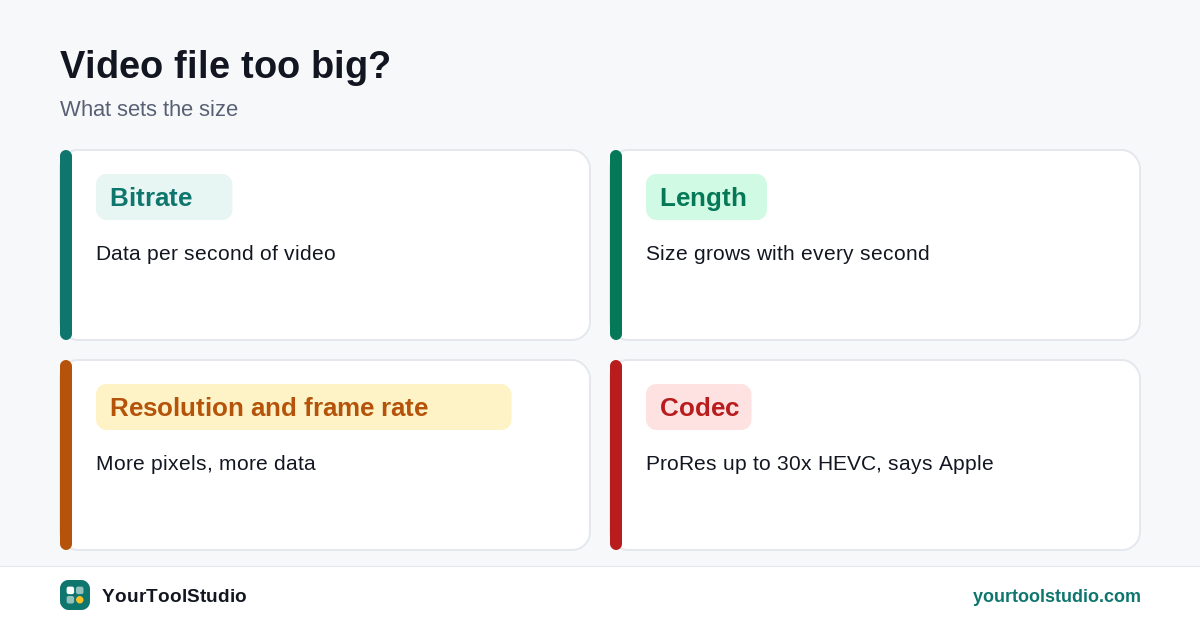
A video file is large because its bitrate, the amount of data stored for each second, is multiplied by its length. High resolution, a high frame rate, a less efficient codec such as H.264, or a pro format such as ProRes all raise the bitrate, so the fix is to lower whichever of those you do not need, then re-encode the video once.
Microsoft's Clipchamp support page lists the same factors: frame rate, bit rate, resolution, duration, and the video and audio codecs. The rest of this guide shows how each one adds up, how to spot which one is behind your file, and what to change.
The one formula that explains video size
File size is roughly bitrate x duration. Bitrate is usually given in megabits per second (Mbps), and there are 8 bits in a byte, so divide by 8 to get megabytes. The figures below are worked arithmetic, not measurements of any one camera or app:
| Bitrate | 1 minute | 10 minutes | 1 hour |
|---|---|---|---|
| 2 Mbps | 15 MB | 150 MB | 900 MB |
| 8 Mbps | 60 MB | 600 MB | 3.6 GB |
| 20 Mbps | 150 MB | 1.5 GB | 9 GB |
| 50 Mbps | 375 MB | 3.75 GB | 22.5 GB |
For example, 8 Mbps x 60 seconds = 480 megabits, and 480 / 8 = 60 MB. Audio adds a little on top, usually far less than the video track. If you know the size you need, the formula also works backwards: a 25 MB limit for a 2 minute clip leaves about 25 x 8 / 120 = 1.7 Mbps for video and audio together.
Six common causes, and how to tell which is yours
| Cause | How to spot it | What to change |
|---|---|---|
| Very high bitrate export | Bitrate is many times higher than the source clips | Export at a lower bitrate or quality setting |
| 4K or high frame rate recording | Resolution 3840 x 2160 or frame rate of 60 fps or more | Record at 1080p 30 fps when 4K is not needed, or downscale |
| Older codec (H.264 instead of HEVC) | Codec shows AVC or H.264 | Keep it if you need wide compatibility; otherwise encode to HEVC |
| Pro or intermediate format | Codec shows ProRes, Animation or another editing codec, usually in a MOV file | Export a delivery copy as MP4 |
| Export larger than the source | Exported resolution or frame rate is higher than the clips you used | Match the export to the source resolution and frame rate |
| It is just long | Bitrate looks normal, but the video runs for an hour or more | Trim unused parts or split it |
iPhone videos: High Efficiency versus Most Compatible
Apple's support page on HEIF and HEVC says HEVC gives better compression than H.264, so it uses less storage while keeping the same visual quality. The setting is in Settings, Camera, Formats: High Efficiency records HEVC, while Most Compatible records H.264, which plays on more devices but takes more space. Apple's iPhone User Guide also says faster frame rates and higher resolutions result in larger video files, so 4K at 60 fps is one of the biggest settings you can choose.
Sharing can change the file too. Apple says that when you send media by AirDrop, Messages or email to a device that does not support HEVC, it may be sent in a more compatible format such as H.264, which can make the copy bigger than the original on your phone.
ProRes and Apple Log
If you recorded in ProRes, the size is expected. Apple's page about ProRes on iPhone says ProRes files are up to 30 times larger than HEVC files, and that you need at least 10 percent of your storage free to record in it. ProRes is designed for editing and colour work, not for sharing, so export a finished MP4 before you send it to anyone.
Edited exports that are bigger than the original
People are often surprised when a trimmed or edited video comes out bigger than the clip they started with. Clipchamp's help gives the reasons: the source may already be compressed more efficiently than the export settings can manage, the export resolution may be higher than the source, the project may combine many clips, images and titles, and the default export frame rate and bit rate may be higher than the source. The same logic applies to most editors, including CapCut and Premiere Pro: an export preset aimed at maximum quality can easily write ten times the bitrate of a phone clip.
How to make the file smaller
Work through these in order. Each step costs more quality than the one before, so stop as soon as the file is small enough.
- Lower the bitrate, keep the resolution. Open Compress Video, choose By quality and a stronger compression level, or switch to Target size and type the maximum size in MB you need. It runs in your browser, so the video is not uploaded.
- Reduce the resolution. A clip for a phone screen or chat app rarely needs 4K. Choosing 1080p or 720p in Compress Video, or using Resize Video, cuts the pixels per frame sharply.
- Cut what you do not need. Trim Video removes the start and end; every second removed saves bitrate x 1 second.
- Convert a MOV or ProRes file to MP4. Video Converter writes a standard MP4 that plays on most devices.
- Drop the audio if nobody needs it. Compress Video lets you turn off the audio track for silent clips such as screen recordings.
Pick a quality level or a target size in MB, all on your own device, with no upload and no watermark.
Worked examples
| Situation | Likely cause | Best first fix |
|---|---|---|
| 3 minute iPhone clip is 1.2 GB | 4K at 60 fps, possibly Most Compatible (H.264) | Compress to 1080p, or switch recording to High Efficiency for future clips |
| CapCut export is far bigger than the clips used | High bitrate or higher export resolution than the source | Export again at the source resolution, or compress the export |
| Short animation exported as MOV is several GB | An intermediate codec such as ProRes or Animation | Export an MP4 delivery copy |
| Screen recording of a slideshow is huge | High frame rate with mostly still content | Compress with a target size and turn off audio if not needed |
| Two hour meeting recording is many GB | Length, at an ordinary bitrate | Trim the parts you do not need, or split it |
What not to do
- Do not compress the same file several times. Each lossy pass throws away more detail; always work from the best copy you have.
- Do not rename a MOV to MP4 to make it smaller. The extension changes nothing inside the file; only re-encoding does.
- Do not raise the resolution in an export to make it look sharper. It adds data without adding detail, as Clipchamp notes for 480p sources exported at 1080p.
If your file is going to a site with a hard cap, check the exact number first in our guides to Instagram video limits, TikTok video limits and email attachment limits. For a MOV from a phone or Mac, see how to convert MOV to MP4.
Sources and dates
| Page | Date | Used for |
|---|---|---|
| Microsoft Support: Why your output video file may be larger than the original | No date shown, read 21 November 2026 | Factors behind file size; why exports grow |
| Apple Support: Using HEIF or HEVC media on Apple devices | Published 5 December 2025, read 21 November 2026 | HEVC versus H.264, Formats setting, sharing conversion |
| Apple iPhone User Guide: Record a video | Read 21 November 2026 | Higher resolution and frame rate make larger files |
| Apple Support: About Apple ProRes on iPhone | Published 10 November 2026, read 21 November 2026 | ProRes up to 30 times larger than HEVC, 10 percent free storage |
Frequently asked questions
Why is my video file so large?
Its size is its bitrate multiplied by its length. High resolution, a high frame rate, an older codec such as H.264 or a pro format such as ProRes all raise the bitrate.
How do I work out a video file size?
Multiply the bitrate in megabits per second by the length in seconds and divide by 8 for megabytes. 8 Mbps for 60 seconds is about 60 MB.
Why are my iPhone videos so big?
4K and 60 fps settings, the Most Compatible format, which records H.264, and ProRes all make larger files. Apple says ProRes files are up to 30 times larger than HEVC.
Why is my exported video bigger than the original?
The export may use a higher bitrate, resolution or frame rate than the source, or the source was already compressed more efficiently than the export settings allow.
Does converting MOV to MP4 make a video smaller?
Only if it is re-encoded at a lower bitrate or with a more efficient codec. Renaming the file changes nothing.