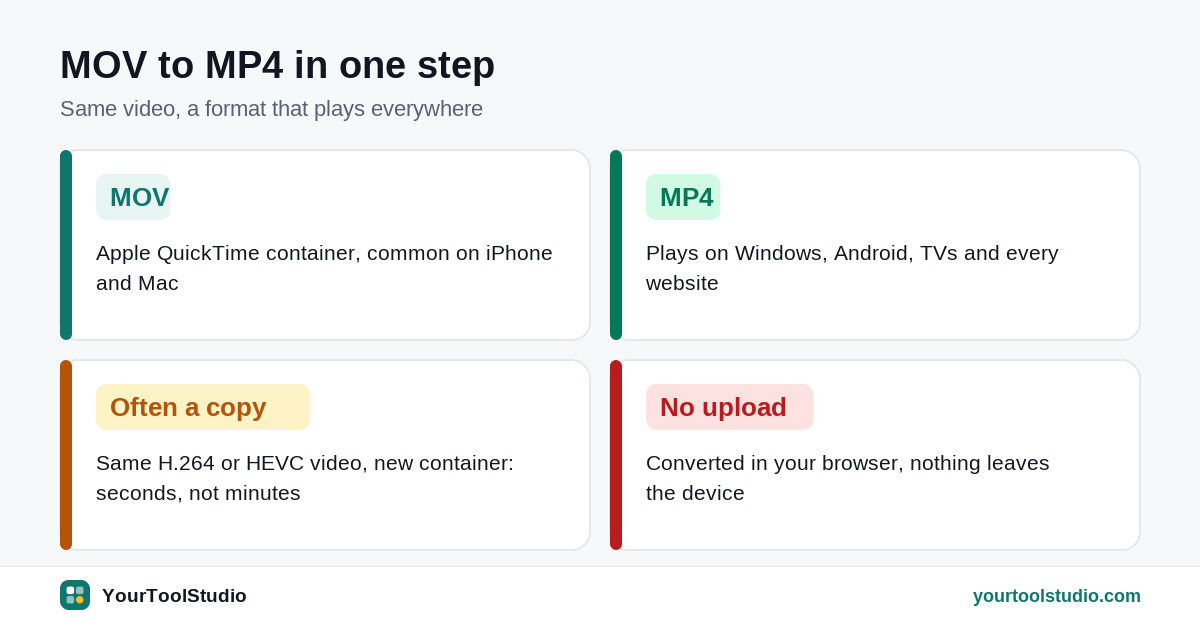
The short answer: open Video Converter, add the MOV file, choose MP4 and press Convert. You get a standard MP4 that plays on Windows, Android, smart TVs, WhatsApp and every upload form, and the file never leaves your device.
MOV and MP4 are close relatives. Both are containers, a kind of box that holds the video, the sound and some information about them. What is inside the box is usually the same: H.264 or HEVC video and AAC audio. That is why converting can be very quick and lossless when the video inside is already compatible.
MOV vs MP4 at a glance
| Feature | MOV | MP4 |
|---|---|---|
| Made by | Apple (QuickTime) | International standard (MPEG-4) |
| Typical source | iPhone, Mac screen recordings, cameras | Android, most apps and websites |
| Plays on Windows | Sometimes, depends on codecs | Yes |
| Accepted by upload forms | Often refused | Almost always |
| Quality | Same video codecs | Same video codecs |
Convert MOV to MP4 in your browser
- Open Video Converter. It works on Windows, Mac, Chromebook, Android and iPhone.
- Add your MOV file by dragging it in or tapping the drop area.
- Choose MP4 and leave the quality on High.
- Press Convert, play the result to check it, then download it.
Free, no watermark and no upload. Works with iPhone and Mac videos of any size.
On iPhone: stop recording MOV in the first place
If you share videos with Windows or Android users a lot, change the camera setting. Go to Settings > Camera > Formats and choose Most Compatible. New videos are then saved as H.264, which converts instantly and plays almost everywhere. The trade-off is larger files, since HEVC is about twice as efficient.
When you share from the Photos app, iPhone often converts automatically. Problems usually appear when files are copied by cable, AirDrop or cloud sync, because the original MOV is transferred untouched.
On Mac: QuickTime and Finder options
macOS can export too: open the video in QuickTime Player and choose File > Export As, or right-click in Finder and choose Encode Selected Video Files. Both re-encode, which takes longer than a container copy. The browser tool is quicker for files that only need a new container, and it lets you pick a lower resolution in the same step.
Will I lose quality?
Not when the video is copied. When it has to be re-encoded, for example HEVC to H.264 for older devices, it is done at high quality, which looks identical on a phone or laptop. To make the file smaller at the same time, run it through Compress Video afterwards, or pick 1080p or 720p in Resize Video.
Troubleshooting
- No sound after converting. Some MOV files from professional cameras use PCM audio. Try again; the tool converts it to AAC for MP4.
- Video plays sideways. The phone saved a rotation flag. Fix it with Rotate Video.
- File is huge. 4K iPhone clips are large. Convert, then use Compress Video with a target size.
- The site still refuses the upload. Check its size limit, then see our guide to fitting videos under upload limits.
Frequently asked questions
Is MP4 better than MOV?
Neither is better in quality, since both hold the same video codecs. MP4 is simply more widely supported, so it is the safer choice for sharing and uploading.
How do I convert MOV to MP4 without losing quality?
Use a converter that copies the video stream into the new container when it can. Video Converter does this automatically, so quality is untouched and the change takes seconds.
Can I convert MOV to MP4 on iPhone?
Yes. Open Video Converter in Safari, choose the video from Photos, pick MP4 and save. The MP4 goes to the Downloads folder in the Files app.
Why will my iPhone video not play on Windows?
It is probably HEVC (H.265), which Windows cannot play without an extra codec. Converting it to MP4 with H.264 makes it play everywhere.
Is there a file size limit?
No upload limit, because the file is processed on your device. Very long 4K videos just take more time and memory.