The short answer: open Compress Video, switch to Target size, type 19 MB (a hair under the free 20 MB cap), and for anything longer than about a minute pick 720p. You end up with a regular MP4 that plays directly in the chat.
If you remember a 10 MB limit, that is out of date: Discord doubled the free cap to 20 MB in August 2026. Plenty of guides and converter sites still quote 10 MB or 25 MB, so people either squeeze far too hard or not hard enough.
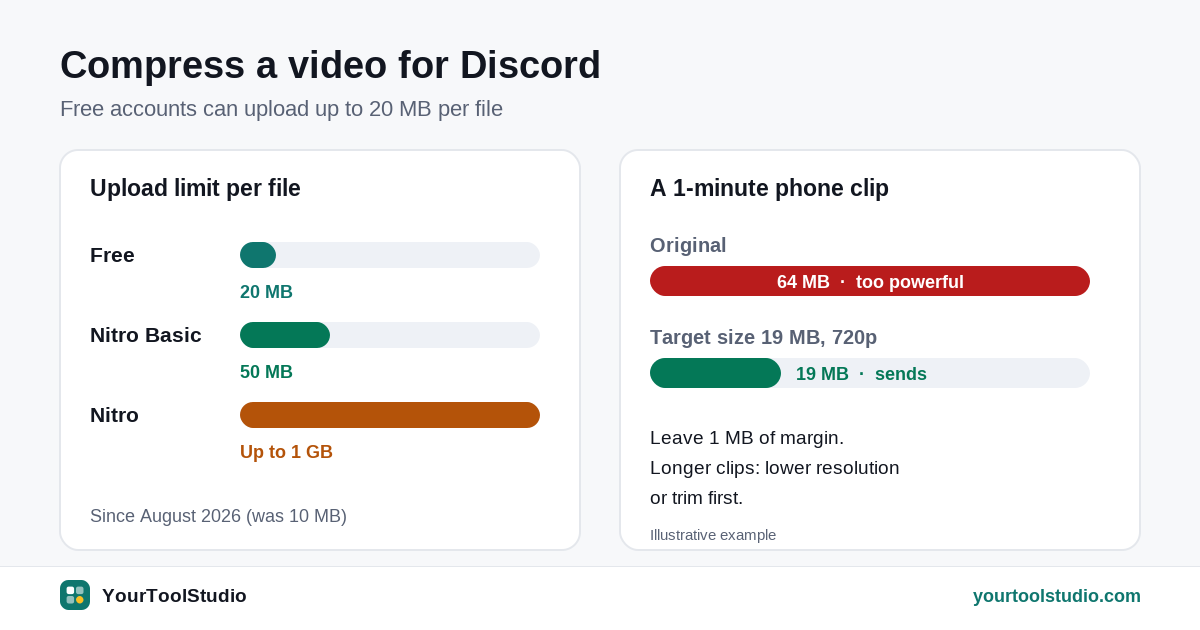
Current Discord upload limits
| Plan | Largest file | Size to aim for |
|---|---|---|
| Free | 20 MB | 19 MB |
| Nitro Basic | 50 MB | 48 MB |
| Nitro | Up to 1 GB | 950 MB |
These caps apply to each file. Discord has moved them several times (25 MB, then 10 MB from 2024, then 20 MB from August 2026), so if an upload gets refused, check Discord's File Attachments FAQ for the latest number.
Four steps to a Discord-sized clip
This works in any modern browser on Windows, Mac, Chromebook, Android and iPhone. The video is re-encoded on your own device and never uploaded, so private clips and long recordings stay with you.
- Open Compress Video and add your clip. MP4, MOV, WebM, MKV and phone recordings are all fine.
- Choose Target size and enter 19 MB (or 48 MB on Nitro Basic).
- Pick a resolution using the table further down. The estimated size appears before you start.
- Press Compress video, play the result, download it and drag it into Discord.
Free, no watermark and nothing uploaded. Set 19 MB and you are done.
Match resolution to length
A size cap is really a cap on total data, so the longer the clip, the less data each second gets. You can estimate it: 19 MB is roughly 152 megabits, so divide that by the clip length in seconds to see the bitrate you can afford.
| Length | Rough bitrate at 19 MB | Resolution that holds up |
|---|---|---|
| 30 seconds | around 5 Mbps | 1080p |
| 1 minute | around 2.5 Mbps | 1080p for calm scenes, 720p for gameplay |
| 2 minutes | around 1.2 Mbps | 720p |
| 3 minutes | around 0.8 Mbps | 480p to 720p |
| 5 minutes or longer | below 0.5 Mbps | 480p, or cut it shorter |
Treat these as guidelines. Fast gameplay, confetti and moving water need more data than a webcam or a slideshow recording. If the output looks blocky, go one resolution lower: a clean 720p clip beats a smudged 1080p one.
Too long? Cut it first
Most clips shared on Discord are a highlight from a longer recording. Removing the dull parts before and after is the best way to keep quality up.
- Open Trim Video and mark the start and end of the bit that matters.
- Save the shorter clip.
- Shrink that clip to 19 MB as described above. A 40-second highlight can stay at 1080p when the full four-minute recording could not.
For a reaction or a joke lasting a few seconds, a GIF from Video to GIF loops on its own in the chat. GIFs are far less efficient than MP4, so keep them brief and small.
Notes for each device
Windows and Mac
Chrome or Edge gives the quickest results; Safari 16.4+ and Firefox 130+ also work on a computer. Captures from Xbox Game Bar, NVIDIA or OBS are often recorded at a very high bitrate, so even short clips can be far over 20 MB until compressed.
iPhone
iPhone videos are normally HEVC inside a MOV file and can be big, particularly in 4K. In Safari, open Compress Video, tap the drop area and pick the clip from Photos. The finished MP4 lands in Downloads in the Files app; attach it from there in Discord. To record smaller files in future, choose 1080p instead of 4K under Settings > Camera > Record Video.
Android
In Chrome, open the tool, choose the clip from your gallery, compress it and attach the downloaded file in Discord. Older or low-memory phones can take a while with long 4K clips; choosing 720p speeds things up a lot.
Troubleshooting
- Still "too powerful" after compressing. The target was exactly 20 MB, or several files went at once. Use 19 MB and send them one by one.
- Uploads fine but will not play in chat. Discord plays common formats like H.264 MP4 inline; MKV or unusual codecs may only offer a download. Compress Video outputs H.264 MP4, which plays everywhere.
- Audio is missing or out of sync. Try again from the original file using Recommended quality. Some screen recorders write variable frame rates, and re-compressing usually sorts it out.
- Looks blurry. Lower the resolution rather than forcing 1080p into a tiny bitrate, or trim so each second gets more data.
- A server bot rejects anything over 10 MB. Some communities set their own lower cap. Use 9 MB with 720p or 480p.
Emailing the same clip? The attachment limits in our email guide apply to video too: Gmail allows 25 MB, and Compress Video has a one-click 25 MB target. For pictures you post on Discord, our image compression guide explains how to keep screenshots crisp.
Frequently asked questions
How big can a Discord upload be without Nitro?
Free accounts can send files up to 20 MB each since August 2026, up from the 10 MB cap set in 2024. Nitro Basic allows 50 MB and full Nitro up to 1 GB. Discord changes these from time to time, so check its help centre if an upload is refused.
Do I still need to get videos under 10 MB?
Not on a free account, since the cap is now 20 MB. If a particular server or bot still asks for 10 MB, set the target size to 9 MB in Compress Video and choose 720p or 480p.
Why is my compressed video still rejected?
Usually the target was set right at the limit, and apps count megabytes slightly differently. Aim for 19 MB rather than 20. Very long clips may also need trimming to fit at a watchable quality.
Can I shrink a video for Discord on my phone?
Yes. Open Compress Video in Chrome on Android or Safari on iPhone, choose the clip from your gallery or Photos, set the target size and save the result, then attach it in the Discord app.
Will Discord compress the video for me?
Not to make it fit. The app compares the original file size with your limit and refuses anything over it, so shrink the clip to about 19 MB before sending.