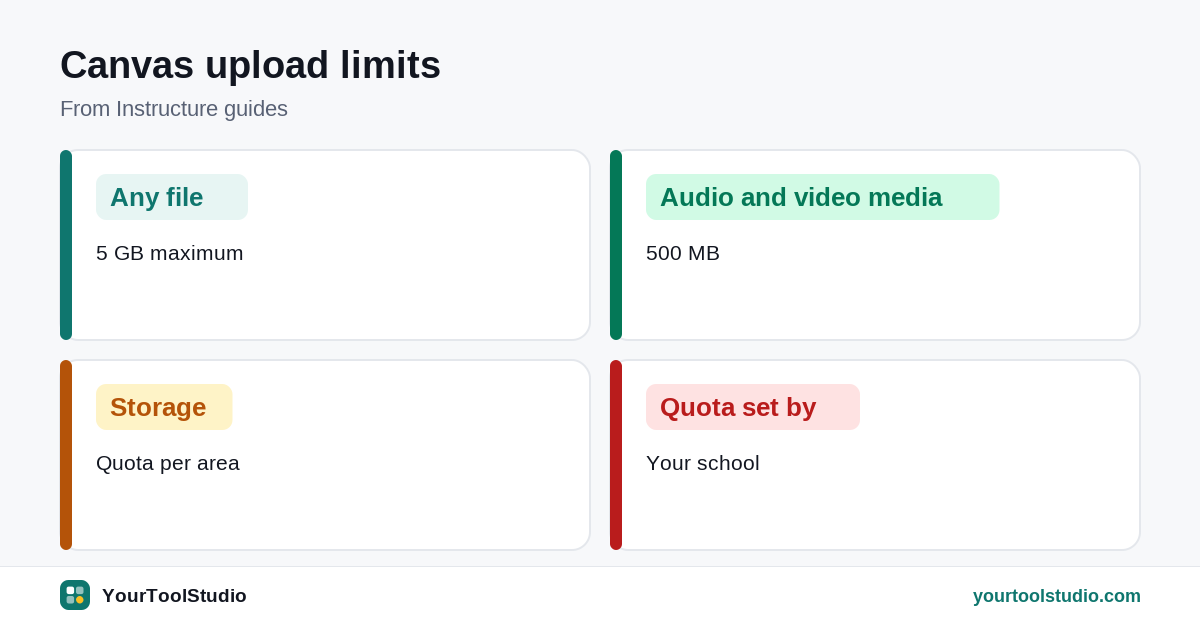
Canvas does not accept file uploads larger than 5 GB, and audio and video uploaded through the media tool, the Rich Content Editor or a media assignment submission are limited to 500 MB. On top of those caps, every user, course and group has its own storage quota, which your school sets, so a smaller file can still be refused when the quota is full. The Instructure Community guides below were read on 23 November 2026.
Canvas size limits at a glance
| Where you upload | Limit | What the guide says | Instructure guide |
|---|---|---|---|
| Files area (user, course or group files) | 5 GB per file | Canvas does not support file uploads larger than 5 GB | How do I upload a file in Files? (updated 5 Oct 2026) |
| Audio or video through the media tool | 500 MB | Media tool uploads can be up to 500 MB | How do I upload a file in Files? |
| Audio or video in the Rich Content Editor | 500 MB converted | Canvas converts files up to 500 MB; host larger ones elsewhere, such as YouTube, and embed them | What types of media files can I upload? (updated 30 Sep 2026) |
| Media file as an assignment submission | 500 MB | Canvas will not accept media uploads larger than 500 MB | How do I submit a media file? (updated 17 Sep 2026) |
| Storage per area | Set by your school | User, course and group files each have a quota | What types of media files can I upload? |
None of the guides give a default quota in megabytes, because each institution chooses its own. If you need the exact figure, ask your school's Canvas support team.
How storage quotas are counted
The media guide explains which uploads use up which quota. This matters most for students, because a full personal quota can block uploads even when the file is well under 5 GB.
| What you upload | Which quota it uses |
|---|---|
| A file uploaded to your own user files | Your user quota |
| A profile picture | Not counted |
| A file uploaded to a group | That group's quota |
| Any file uploaded into a course | The course quota |
| Attachments on a graded assignment submission | Stored in your user files, but not counted against your user quota |
The upload guide adds a practical tip: if you submit a file you had already uploaded to your user files, you can delete it from your files afterwards to free up space, and the submission is kept.
File types Canvas accepts for playback
Canvas lets you upload most file types to Files, but the media guide lists which images, videos and audio it can show and play inside Canvas. Anything else can still be downloaded and opened outside Canvas.
| Type | Formats listed by Instructure | Notes from the guide |
|---|---|---|
| Images | BMP, GIF, JPEG, SVG, TIFF, PNG | TIF and TIFF previews are not native to most browsers and may not preview |
| Video | FLV, ASF, QT, MOV, MPG, MPEG, AVI, M4V, WMV, MP4, 3GP | The Canvas media player supports H.264 playback |
| Audio | MP3, WAV, WMA, WMV | Playback depends on the browser; try another browser if a file will not play |
HEIC photos from an iPhone and WebP images are not on the image list, so convert them with HEIC to JPG or WebP to JPG if a preview does not appear.
When an upload is too large
- Video over 500 MB: shrink it with Compress Video, or cut unused minutes with Trim Video. If the video must stay large, Instructure suggests hosting it externally, such as on YouTube, and embedding it; see our YouTube upload limits.
- Large PDF: scanned pages and photos are the usual cause. Reduce it with Compress PDF, or divide it with Split PDF if your instructor allows several files. Our guide to why a PDF is so large explains what takes up the space.
- Photos for a portfolio or discussion: resize and shrink them with Compress Image before uploading.
- Quota full: delete old files from your user files, especially copies of work you have already submitted.
If you have read a different limit
Archived Canvas forum threads from earlier years discuss caps that may no longer apply, and guides on other sites sometimes repeat them. The current Instructure guides, updated between September and October 2026, give 5 GB for files and 500 MB for media, and those are the figures on this page. Your school can still set lower quotas, so a limit shown inside your own Canvas wins over any general guide.
For other upload limits, see our Google Drive upload limits and email attachment size limits pages.
Frequently asked questions
What is the maximum file size for Canvas?
The Instructure guides say Canvas does not support file uploads larger than 5 GB. Audio and video uploaded as media are limited to 500 MB.
What is the Canvas video upload limit?
500 MB for video uploaded through the media tool, the Rich Content Editor or a media assignment submission. Compress larger videos or host them on YouTube and embed them.
Why does Canvas say my file is too large when it is under 5 GB?
Your storage quota may be full, or you are uploading media, which is capped at 500 MB. Each school sets its own quotas for user, course and group files.
Do assignment submissions count against my Canvas storage?
No. Instructure says attachments added to a graded assignment submission are stored in your user files but do not count against your user quota.
Can I upload HEIC photos to Canvas?
HEIC is not on the image formats Canvas lists for display. Convert the photo to JPG first so it previews correctly.