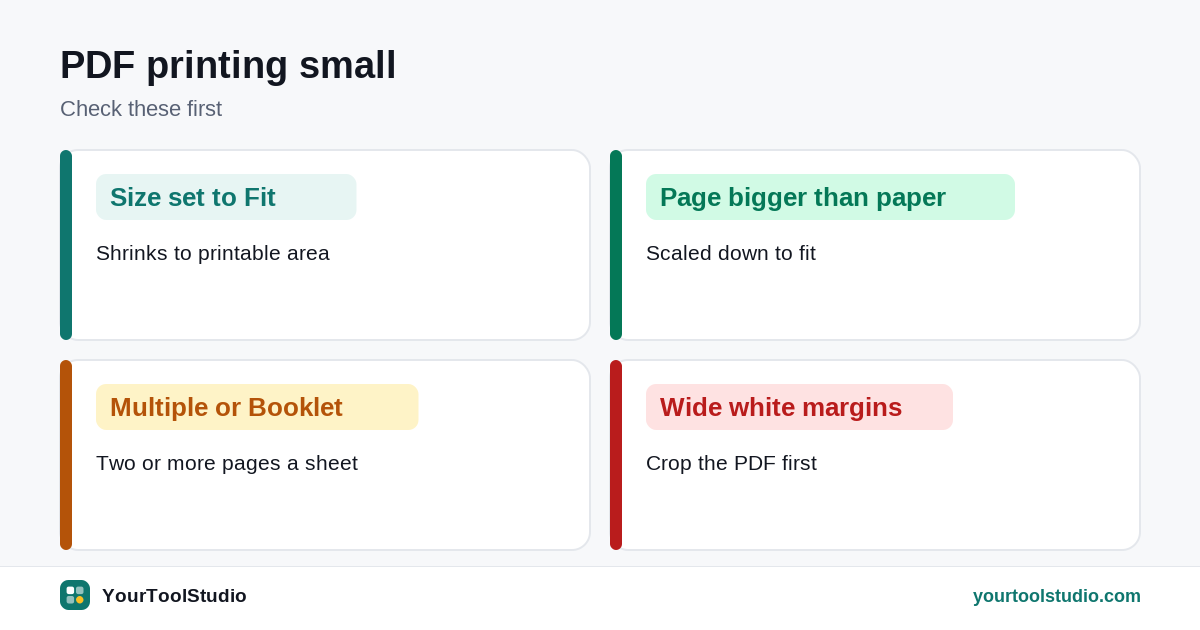
A PDF usually prints small because the print dialog is scaling it down: Fit or Shrink oversized pages is selected, the PDF page is larger than the paper in the printer, or Multiple or Booklet is putting more than one page on each sheet. Choose Actual size under Page Sizing & Handling, check that the paper size matches the PDF, and the printout will match the file. If the page itself has wide white margins, crop them away first. The Adobe and Apple help pages used here were read on 23 November 2026.
Find your cause in one minute
| What you see on paper | Most likely cause | Fix |
|---|---|---|
| Everything slightly smaller, even white border all round | Size set to Fit, which scales to the printable area | Choose Actual size |
| Much smaller, page looks like a postcard on the sheet | PDF page is a smaller size than the paper and Fit or a low custom scale is on | Actual size, or Custom Scale above 100 percent |
| Shrunk only on some pages | Mixed page sizes in one PDF with Shrink oversized pages on | Choose paper source by PDF page size, or split the file |
| Two pages side by side on each sheet | Multiple or Booklet selected, or Pages per Sheet above 1 | Select Size and set one page per sheet |
| Content tiny in the middle of a normal sized page | The PDF page itself has huge margins | Crop the PDF, then print with Fit |
| Printout fine from Acrobat, small from the browser | The browser print settings scale the page differently | Download the PDF and print it from a PDF reader |
Cause 1: the print dialog is set to Fit or Shrink
Adobe documents five options under Page Sizing & Handling once you select Size in the Print dialog, and each one changes the printed size in a different way:
| Option in Acrobat and Reader | What Adobe says it does | Effect on size |
|---|---|---|
| Fit | Reduces or enlarges each page to fit the printable area of the selected paper size | Usually a little smaller, because the printable area excludes the margins the printer cannot reach |
| Actual size | Prints without scaling; anything that does not fit on the paper is cropped | Exactly the size of the PDF page |
| Shrink oversized pages | Shrinks large pages to fit the selected paper but does not enlarge small pages | Smaller only when the page is bigger than the paper |
| Custom Scale | Resizes the page by the percentage you enter | Whatever percentage you set |
| Choose paper source by PDF page size | Uses the PDF page size to pick the output tray instead of the page setup option | No scaling when the printer has a tray of that size |
Fit is the setting that catches most people out. A printer cannot put ink right to the edge of the sheet, so the printable area is a little smaller than the paper. When Fit scales a full page to that area, everything shrinks by a few percent. That is invisible on a letter, but it matters for sewing patterns, scale drawings, labels, forms that must be read by a machine and anything you will measure. For those, choose Actual size.
If you have ever printed a poster or a small handout with a custom percentage, check the dialog before your next precise print rather than assuming it is back at 100 percent. Adobe notes that the print preview updates as you change these settings, so you can see the effect before using any paper.
Cause 2: the PDF page and your paper are different sizes
A PDF carries its own page size. A file made in Europe is often A4, one from the US is often Letter, and an export from a spreadsheet or design app can be any size at all, including very large pages for wide tables or posters. If the page is bigger than the paper, Fit and Shrink oversized pages scale it down, which is the right behaviour but makes text smaller. If it is smaller than the paper, Fit enlarges it, while Actual size prints it at its real size with more white space around it.
- Open the Print dialog and look at the preview: a page smaller than the paper shows extra white space around it, a larger one is cropped at Actual size.
- In the Print dialog, click Page Setup and choose the paper size that matches the PDF, if your printer has it.
- If the PDF mixes sizes, for example Letter and Legal pages, Adobe says to select Choose paper source by PDF page size and then the custom paper size when needed checkbox that appears.
- If the paper size cannot match, decide which matters more: the whole page on the sheet (Fit) or the true size of the content (Actual size, with edges cropped).
For the exact dimensions of common sheets, see our table of paper sizes in pixels and inches.
Cause 3: more than one page is printing on each sheet
Acrobat Reader has four buttons in the Page Sizing & Handling area: Size, Poster, Multiple and Booklet. Adobe explains that Multiple prints more than one PDF page on a sheet, called n-up printing, and Booklet lays the pages out two per sheet so they can be folded and stapled. Both shrink each page to fit its share of the paper. That is why searches such as why is my pdf booklet printing small are common: a booklet of A4 pages printed on A4 paper puts two pages side by side, each at a reduced size. To print booklet pages at full size, print on paper twice as large, or make the PDF pages half the sheet size before you start.
On a Mac the same thing can happen in Preview. Apple says the Pages per Sheet menu in the Layout section sets how many pages appear on each printed sheet, and the Copies per page menu in the Preview section can repeat the same page several times on one sheet. Set both to 1.
Cause 4: the page has wide white margins
Sometimes the scaling is fine and the content really is small on the page: a scanned receipt in the corner of a full page, a slide exported with a wide border, or a form placed in the middle of a large blank sheet. Actual size then prints exactly what is there, small content and all. Trim the empty space with Crop PDF, which lets you drag a crop box on a preview of the page and apply it to one page or every page, then print the cropped file with Fit so the content fills the sheet.
Fix it in Preview on a Mac
Apple's Preview guide gives these options in the Preview section of the Print dialog:
- Scale: select it and enter a percentage. 100 percent prints at the size of the PDF page.
- Scale to Fit, Print Entire Image: fills as much of the paper as possible without cropping.
- Scale to Fit, Fill Entire Paper: fills the paper and crops the page to the proportions of the paper.
- Auto Rotate: turns pages so they fill as much of the paper as possible, useful for landscape pages that otherwise print small on a portrait sheet.
Worked example: a sewing pattern that prints 3 percent small
A pattern PDF includes a test square marked as 10 cm. Printed with Fit, the square measures 9.7 cm, so the pattern pieces will not line up. Open the Print dialog, select Size, choose Actual size, and make sure Page Setup shows the paper size the pattern was designed for. Print only the page with the test square and measure again. If it is now 10 cm, print the rest. If it is still a little off, the printer driver may have its own scaling or fit option: click Properties in the Print dialog, which Adobe notes opens the printer settings, and turn off any fit to page or reduce setting there. As a last resort, Custom Scale lets you correct the difference: 10 divided by 9.7 is about 103 percent.
Still printing small?
| Problem | What to try |
|---|---|
| Only the first page is smaller | That page has a different page size; use Choose paper source by PDF page size or extract it with Split PDF |
| Landscape pages print tiny on portrait paper | Turn on Auto Portrait/Landscape in Acrobat or Auto Rotate in Preview, or turn the pages with Rotate PDF |
| Small after printing from a web browser | Download the file and print it from Acrobat Reader or Preview, where the sizing options above are available |
| A large poster PDF prints as one shrunken sheet | Use Poster in Acrobat Reader to tile it across several sheets at full size |
| The PDF does not print at all | See why a PDF will not print |
For other page problems, see why a PDF shows grid lines and why a PDF has a different title in the browser tab.
Sources and dates
| Page | Read | Used for |
|---|---|---|
| Adobe: Adjust page size for printing | 23 November 2026 | Fit, Actual size, Shrink oversized pages, Custom Scale and paper source options |
| Adobe: Print PDFs with mixed page sizes | 23 November 2026 | Choose paper source by PDF page size and custom paper size |
| Adobe: Print PDFs in Acrobat Reader | 23 November 2026 | Size, Poster, Multiple and Booklet, Page Setup and printer Properties |
| Adobe: Print settings in Acrobat | 23 November 2026 | Auto Portrait/Landscape |
| Apple: Print PDFs and images in Preview on Mac | 23 November 2026 | Scale, Scale to Fit, Auto Rotate, Copies per page and Pages per Sheet |
Frequently asked questions
Why does my PDF print smaller than the original?
The print dialog is most likely set to Fit, which scales each page to the printable area inside the printer margins. Choose Actual size under Page Sizing and Handling to print at the real size.
How do I print a PDF at 100 percent?
In Acrobat or Reader choose File, Print, select Size and then Actual size, or Custom Scale at 100. In Preview on a Mac select Scale and enter 100.
Why is my PDF booklet printing small?
Booklet printing puts two pages side by side on each sheet, so each page is reduced. Print on paper twice the page size to keep pages full size.
What is the difference between Fit and Shrink oversized pages?
Adobe says Fit reduces or enlarges every page to the printable area, while Shrink oversized pages only reduces pages larger than the paper and never enlarges small ones.
Why does Actual size cut off the edges of my PDF?
The PDF page is larger than your paper, or the content runs into the printer margins. Adobe notes that Actual size crops anything that does not fit; use a larger paper size or Fit instead.