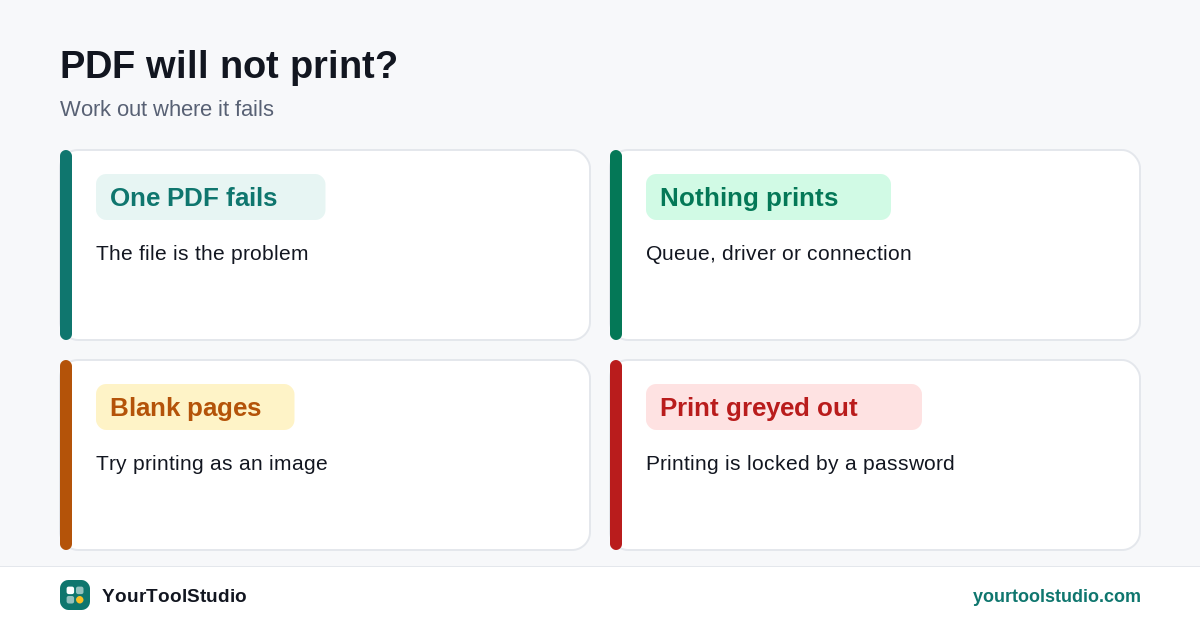
A PDF usually will not print for one of four reasons: the file itself is damaged or uses fonts and graphics the printer struggles with, a stuck job is blocking the print queue, the printer driver or connection has a fault, or the file's owner has locked printing with a password. One quick test tells you which group you are in: try printing a different document to the same printer.
Start with the two minute test
Before changing any setting, answer two questions. They narrow the cause more than any other step.
| What happens | Where the problem is | Go to |
|---|---|---|
| Other files print, this PDF does not | The PDF file | Fixes for a problem file |
| Nothing prints from any app | The printer, queue, driver or connection | Fixes for the printer and queue |
| The PDF prints from one app but not another | The PDF app or browser | Try a different viewer |
| Print is greyed out or missing | A print permission set in the file | When printing is locked |
| Pages come out blank, cut off or garbled | Fonts, graphics or page size | Blank, cut off or garbled pages |
Fixes for the printer and queue
When nothing prints at all, the PDF is rarely to blame. Microsoft's printer troubleshooting page for Windows lists these steps in order:
- Turn the printer off, unplug it, wait 30 seconds, then plug it back in and turn it on.
- Check the USB cable, or check that the printer is on the same wireless network as the computer.
- Remove the printer and add it again. In Windows 11 this is under Settings, Bluetooth & devices, Printers & scanners.
- Install the latest driver from the printer maker's website.
- Clear the print spooler: stop the Print Spooler service, delete the files in the spool PRINTERS folder, then start the service again.
Adobe's article on why a PDF will not print adds two more checks: make sure the printer shows as online in your device settings, and cancel every pending or failed job in the queue before you try again. A single failed job at the top of the queue can hold back everything behind it, which is why the PDF seems to vanish when you press Print.
Fixes for a problem file
If other documents print but one PDF does not, work through these from quickest to slowest. The first three come from Adobe's article above; the last two are our own suggestions.
- Download it again. A file that was cut short during download or copied from a failing drive can open on screen but fail when it is sent to the printer.
- Print it as an image. Adobe lists printing as an image, found in the print settings, as a fix for damaged files, font problems and distorted graphics. The printer then receives a picture of each page instead of the fonts and drawing instructions.
- Save a new copy. Use Save As to write a fresh file, then print the copy.
- Rebuild the file. Run it through Repair PDF, which rewrites the file structure in your browser, then print the repaired copy.
- Flatten forms and annotations. Filled form fields and comments sometimes print differently from how they look on screen. Flatten PDF turns them into ordinary page content.
Rebuild a damaged PDF on your own device, with no upload, then print the fixed copy.
Blank, cut off or garbled pages
When paper comes out but the result is wrong, match the symptom to the cause.
| Symptom | Likely cause | What to try |
|---|---|---|
| Blank pages, or text missing while pictures print | Fonts the printer cannot render | Print as an image; Adobe also suggests making sure fonts are embedded |
| Pictures or shapes look broken | Complex graphics or transparency | Print as an image, lower the print quality, or flatten the file |
| Edges cut off | The paper size does not match the page size | Pick the matching paper size and turn on Fit to page or Scale to fit |
| Pages tiny in the corner | Scaling set wrong | Turn on Scale to fit, then check print preview |
| Pages sideways | Orientation or rotation | Turn on auto rotate, or fix the page with Rotate PDF |
On a Mac, Apple's guide to printing PDFs in Preview shows where these settings are: choose File, Print, then use Auto Rotate, and Scale to Fit with either Print Entire Image or Fill Entire Paper. If pages keep turning sideways after saving, our guide on PDFs that keep saving sideways explains why.
When printing is locked
A PDF can carry permissions that its creator sets with an owner password. Apple's guide to password protecting a PDF in Preview shows that printing is one of the actions a creator can leave unchecked, so that it needs the owner password. The file opens and reads normally, but Print is unavailable or refused.
- If you made the file, open its permissions and allow printing. In Preview this is File, Edit Permissions, then Apply.
- If someone else made it, ask them for a copy that allows printing. Removing a restriction you are not authorised to remove is not the right fix.
- If the file is yours or you have permission to change it, Unlock PDF can save a copy without the printing restriction, and Protect PDF can add a new one later.
Try a different viewer
If the PDF prints from one app but not another, the viewer is the problem, not the printer. Open the file in a second app and print from there. In Chrome, open the PDF and press Ctrl+P on Windows or Command+P on a Mac, as Google's Chrome printing help describes, then pick the printer as the destination. Adobe also recommends checking for updates in Acrobat and restarting afterwards if Acrobat is the app that fails.
The Adobe, Microsoft, Apple and Google pages on this page were checked on 20 November 2026. Menu names can differ between versions of each app.
Frequently asked questions
Why will my PDF not print when other files do?
The PDF itself is the problem. Download it again, save a new copy, or print it as an image so the printer receives a picture of each page.
Why does my PDF print blank pages?
Usually fonts or graphics the printer cannot render. Printing as an image is the most reliable workaround, and lowering print quality can help with complex graphics.
Why is Print greyed out in my PDF?
The creator probably set an owner password that restricts printing. Ask them for a printable copy, or change the permissions if you made the file.
Why does my PDF print cut off at the edges?
The paper size does not match the page size. Choose the matching paper and turn on Fit to page or Scale to fit, then check print preview.
Why does nothing happen when I press Print?
A stuck job is often blocking the queue. Cancel all pending jobs, restart the printer, and on Windows clear the print spooler if it still hangs.