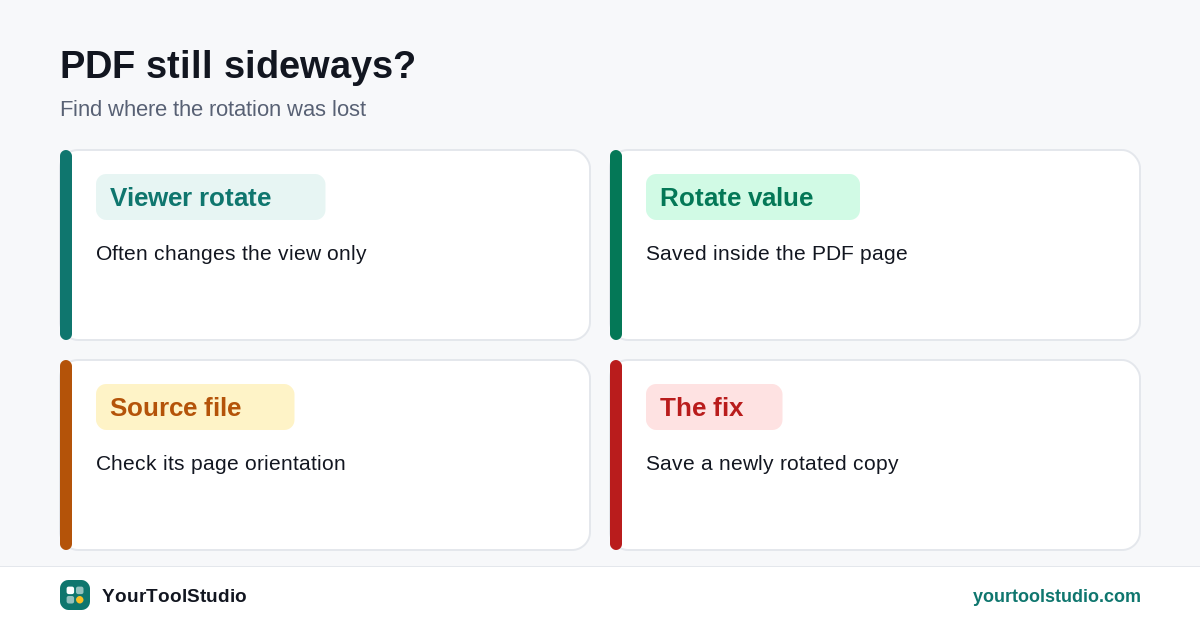
Your PDF keeps saving sideways because the rotate button in your viewer probably changed only the screen view, so the file itself never changed. Save the turn into the page with an editor such as Rotate PDF, then open the new copy to confirm it. If every new export comes out sideways, correct the page orientation in the original document instead.
View rotation and saved rotation are different
A PDF page can carry an instruction called Rotate. The ISO 32000 definition, quoted by iText, says it is the number of degrees a page is turned clockwise when displayed or printed, and that the value must be a multiple of 90. Microsoft's Windows PDF reference describes the same clockwise, 90-degree system.
A viewer button does not have to touch that value. It can simply draw the page at another angle for as long as the window stays open. Nothing about the document changes, which is why the old orientation returns the moment you reopen it.
What we measured
On 19 November 2026 we tested Chrome 157 and Word 16.0 on Windows, plus the live Rotate PDF tool. We read the page size and Rotate value stored in every resulting file.
| Test | Stored page size (points) | Stored Rotate value | Result |
|---|---|---|---|
| Chrome viewer: pressed Rotate, then Download | 612 × 792 | 0 | The download was byte-for-byte identical to the original |
| Rotate PDF tool: file already at 90, turned right once | 612 × 792 | 180 | The turn was saved and added to the earlier value |
| Word: landscape document exported as PDF | 792 × 612 | 0 | Landscape page with no rotation needed |
| Word: portrait document exported as PDF | 612 × 792 | 0 | Portrait page |
| Chrome: web page with a CSS landscape rule saved as PDF | 842 × 595 | 0 | A4 landscape page |
| Test file: portrait page with Rotate 90 | 612 × 792 | 90 | Displays as 792 × 612, so it appears landscape |
| Test file: landscape page with Rotate 270 | 792 × 612 | 270 | Displays as 612 × 792, so it appears portrait |
| Test file: text drawn sideways on a portrait page | 612 × 792 | 0 | The page reports no rotation even though the text is sideways |
The first row is the important one. Chrome's on-screen page did turn from portrait to landscape, yet the file it downloaded matched the original exactly. The last row explains a second kind of confusion: a page can look wrong while its stored rotation is 0, because the content was placed sideways when the file was created.
Find your cause
| What you notice | Likely cause | What to do |
|---|---|---|
| It looks right until you close and reopen it | The viewer rotated only the screen view | Save a rotated copy with Rotate PDF |
| Every export from the same document is sideways | The source page is set to the wrong orientation | Change the page setup, then export again |
| Only a few pages in a long file are turned | Pages came from mixed sources or were fed in differently | Rotate those pages individually |
| A scanned document comes out on its side | The paper direction did not match the scan setting | Rotate this copy, then adjust the scanner for next time |
| A PDF made from phone photos is sideways | The photos may rely on an orientation flag | Fix the photos with Rotate Image, or rotate the finished PDF |
| The page is upright, but a table or chart is turned | That content was placed sideways on the page | Correct it in the source file, because rotating the page turns everything |
Save the rotation permanently
- Open Rotate PDF and add the file. It is processed on your device and is not uploaded.
- Use the arrows on a page to turn it, or select All left or All right to turn the whole document.
- Check that every preview is upright.
- Select Rotate PDF, then Download PDF. The new file ends in -rotated.pdf.
- Close the original, open the download and scroll through it.
Turn one page or all of them in your browser, with no upload and no watermark.
Which way should you turn it?
Look at where the top edge of the page is pointing, then use this table. Each turn is added to any rotation the page already has, so judge by the preview and not by a number.
| Top of the page points | Turn needed | Button to use |
|---|---|---|
| Left | 90° clockwise | Rotate right once |
| Right | 90° counterclockwise | Rotate left once |
| Down | 180° | Rotate right twice |
| Up | None | Leave the page alone |
Stop the problem at the source
Rotating a finished PDF treats the symptom. If you will export the document again, fix the setting that produced it.
- Microsoft Word: open Layout, select Orientation and choose the direction you want before exporting. Our landscape test exported as a true landscape page, so no rotation was needed.
- Web pages: choose the layout in the print dialog. Site designers can also set it with the CSS page size rule, which is what produced the A4 landscape page in our test.
- Scanners: check the paper direction and page size before scanning. The labels differ between models, so run a one-page test before a long batch.
- Combined files: rotate pages that need it before or after using Merge PDF, then scroll through the final document.
If the page is still sideways after saving
Work through these checks in order:
- Confirm you opened the new file. The original keeps its old orientation, and a recent-files list can easily reopen it.
- Try a second app. Open the copy in another browser or PDF reader. If it is upright there, the first app may be showing an earlier view.
- Download it again from the source. When a website or shared folder supplied the PDF, make sure your corrected copy is the one you are sending or uploading.
- Remove any password first. If the file will not open in the tool and you are allowed to remove its protection, use Unlock PDF.
- Check for sideways content. Page rotation turns the whole sheet, so it cannot straighten one chart on an otherwise upright page.
Landscape is not always a mistake
A wide spreadsheet or slide may be meant to sit sideways on a portrait printout, and turning it can make the text harder to read on screen. Decide by how the document will be used. For reading on a screen, the top of the text should face up. For printing, check the preview in your print dialog before you change the file. If the sideways pages are only part of a larger report, you can also take them out with Split PDF or rearrange them with Organize PDF.
Frequently asked questions
Why does my PDF go back to sideways after I rotate it?
Your viewer most likely rotated only the screen view. In our Chrome 157 test, pressing Rotate and then Download produced a file identical to the original. Save the turn with a PDF editor instead.
How do I permanently rotate a PDF?
Use a tool that writes the rotation into the file, such as Rotate PDF. Turn the pages, download the new copy, then reopen it to confirm the pages stay upright.
Does rotating a PDF in Chrome save it?
Not in our test. Chrome 157 turned the page on screen, but the downloaded file was byte-for-byte identical to the original.
Why is only one page of my PDF sideways?
Each PDF page has its own size and rotation, so a single page can differ from the rest. Rotate only that page and leave the others unchanged.
Can a PDF be rotated by 45 degrees?
Not with the page Rotate setting. The ISO 32000 definition requires a multiple of 90, so pages can be set to 0, 90, 180 or 270 degrees.