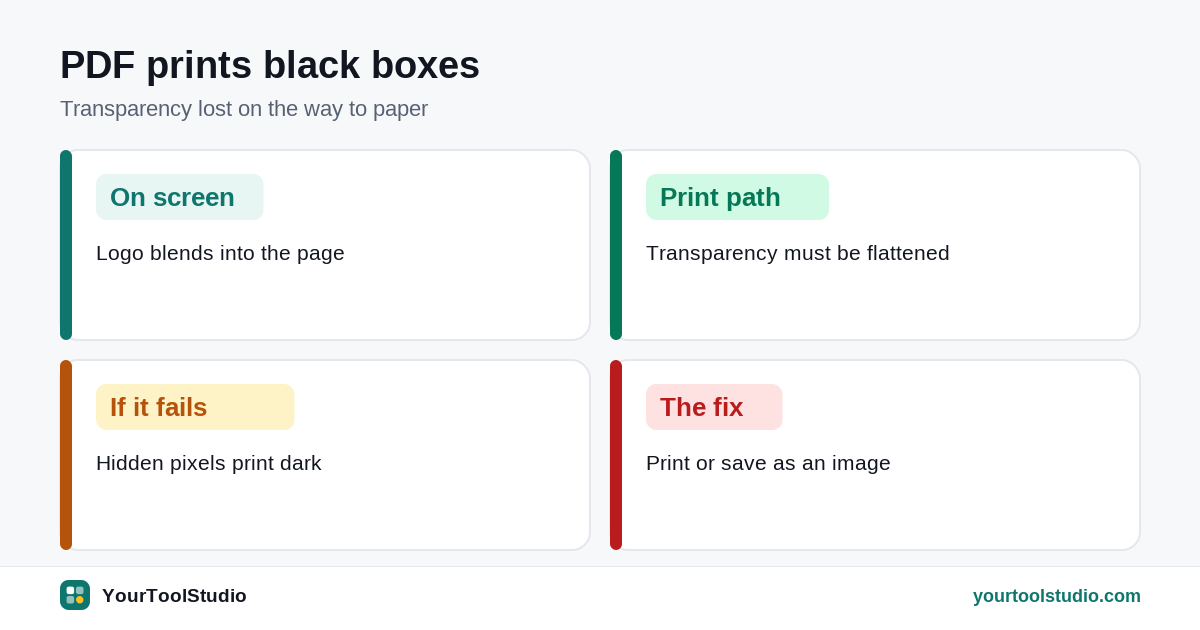
A PDF prints with black boxes when it contains transparent artwork, such as a logo with a see-through background, a drop shadow or a faded picture, and something between the PDF viewer and the printer fails to flatten that transparency correctly. The quickest fix is to print the page as an image, which sends the printer a finished picture of the page with nothing left to blend. The Adobe help pages and the W3C PNG specification used in this guide were read on 27 November 2026.
Why transparency can turn into black boxes
Paper has no transparency. A printer can only put ink down or leave a spot blank, so any artwork that is partly see-through has to be worked out before it prints. Adobe calls this flattening: its Acrobat help says transparent artwork usually needs to be flattened to be output, and that flattening divides the artwork into vector areas and rasterized areas. The more the page mixes images, text, vector shapes and effects, the more complex that step becomes.
Adobe lists what counts as a source of transparency: objects with partial opacity, images with alpha channels, objects with blending modes and objects with opacity masks, and it notes that styles and effects can contain transparency too. In ordinary office files that means logos saved as PNG, clip art, drawn or scanned signatures, shadows, glows and pictures set to fade.
The black comes from what is hidden underneath. In a PNG, the alpha sample sets how opaque a pixel is, and zero means fully transparent; the pixel still stores red, green and blue values. The W3C PNG specification even has a name for the common case where all four values are zero: a fully transparent black pixel. If the transparency information is dropped or mishandled on the way to the printer, those stored colours are printed as they are, and a logo on a clear background turns into a logo on a black or dark grey rectangle.
The search results for this problem are almost all forum threads on the Adobe Community, HP Support and Canon Community sites, with titles such as boxes around logos, black boxes behind clip art and black squares around images. They describe the same pattern: correct on screen and in print preview, wrong on paper, and often only with one printer or one app.
Find out where the boxes come from
Before changing settings, spend two minutes narrowing it down. Each test removes one part of the chain.
| Test | If the boxes disappear | If the boxes stay |
|---|---|---|
| Print the same PDF from a different app, such as your browser instead of Acrobat or Preview | The first viewer's print path is the problem: use the app that works or Print as Image | The PDF content or the printer driver is the cause |
| Print to a different printer | Your printer or its driver is the cause: update the driver | The file itself is the cause |
| Print to PDF (Microsoft Print to PDF or Save as PDF on a Mac) and look at the new file | The second PDF is clean, so the physical printer adds the boxes | The boxes are created when the page is rendered for printing |
| Zoom in to 400 percent on screen around a box | Nothing is there on screen, so it is a print-only problem | A visible edge or a dark background is part of the picture itself |
Fix 1: Print as Image
Adobe's own page on printing errors puts Print as Image under problem PDF files. In Acrobat or Acrobat Reader:
- Choose Print this file from the top bar.
- In the Print dialog box, select Advanced.
- Tick Print as Image.
- Select OK, then Print.
The viewer now draws each page itself, transparency included, and sends the printer a finished picture. The printer has nothing to blend, so there is nothing for it to get wrong. The cost is that text is printed as part of a picture rather than as sharp outlines, so very small type can look slightly softer, and large documents take longer to print.
Fix 2: Choose a flattener preset (Acrobat Pro)
If Print as Image is not good enough, for example because fine print looks soft, Acrobat Pro lets you control the flattening instead of skipping it. Open File > Print, select Advanced, choose Output on the left, then pick a preset in the Transparency Flattener Preset menu. Adobe describes the three built-in presets like this:
| Preset | Adobe says it is for | Use it when |
|---|---|---|
| High Resolution | Final press output and high-quality proofs | Printing to a professional or high-end colour printer |
| Medium Resolution | Desktop proofs and print-on-demand on PostScript colour printers | An office colour laser printer still shows boxes |
| Low Resolution | Quick proofs on black-and-white desktop printers and web documents | A quick draft where speed matters more than detail |
To see which objects are transparent before you print, Acrobat Pro has a Flattener Preview: choose All tools > Use print production > Flattener preview. Adobe says transparent content is highlighted in red and the rest appears in grey, so you can see at a glance which logo or shadow is causing the trouble.
Adobe also warns about stitching, visible seams where rasterized and vector parts of an object meet, and adds that some print drivers process raster and vector art differently. It suggests that disabling some driver-specific colour management settings may reduce the problem. If your boxes look more like faint outlines or seams than solid rectangles, that is the setting to look for in the printer's own Properties dialog.
Fix 3: Save a flattened copy without Acrobat Pro
If you need a file that prints cleanly on any printer, for example to send to someone else or to a print shop counter, turn the pages into images yourself. Your browser draws the page with transparency already blended, so the saved pictures have nothing left to flatten.
- Black and white output: open Grayscale PDF, choose Convert pages to images and pick 300 DPI. Every page becomes a grey picture inside a new PDF.
- Colour output: convert the pages with PDF to JPG at the 300 DPI Print setting, then put them back together with JPG to PDF.
- File too big afterwards: run the result through Compress PDF, but check a printed page, because strong compression adds its own blur.
Converts pages to grey pictures at 150, 200 or 300 DPI in your browser, so transparency is already blended before the printer sees it. No upload.
Two things change in the copy: text can no longer be selected or searched, and form fields stop being fillable. Keep the original for editing and use the image copy only for printing. Note that our Flatten PDF tool is a different kind of flattening: it merges form fields and comments into the page and leaves transparency as it is, so it will not cure black boxes on its own.
Fix 4: Update or change the printer driver
Adobe's printing error page recommends getting the latest driver for your exact model from the printer maker's website, installing it and restarting, and testing another printer to see whether the problem is the device. If the maker's download page offers more than one driver for your model, try each one with the same PDF and keep the one that prints pictures cleanly.
If you made the PDF yourself
The lasting fix belongs in the original document, so the next person does not hit the same problem:
- Use a logo with a white background when the page is white anyway. There is then no transparency to flatten, and the logo prints the same on every printer.
- Avoid shadows, glows and soft edges on pictures in Word and PowerPoint documents that will be printed in an office.
- Check the PDF settings when exporting. Adobe notes that transparency is kept without flattening only in PDF 1.4 (Acrobat 5.0) or later. Files saved to older PDF versions, or printed through older paths, have to be flattened somewhere along the way.
- Run Preflight in Acrobat Pro. Adobe suggests All tools > Use print production > Preflight, searching for syntax and running Report PDF syntax issues with Analyze and fix when a file misbehaves.
Troubleshooting other dark marks
| What you see on paper | Most likely cause | What to do |
|---|---|---|
| Solid black rectangle around a logo or signature | Transparency dropped on the way to the printer | Print as Image, or save the pages as images |
| The whole page prints with a black background | A dark page background in the file, or a colour option in the viewer or driver | Zoom in on screen first, then check the colour options in the Print dialog and the printer Properties; see why a PDF will not print |
| Grey boxes around scanned text | The scan has a faint grey background that the printer darkens | Clean the scan, or print in black and white with Grayscale PDF |
| Thin lines or seams across a picture | Stitching between rasterized and vector parts | Disable driver colour management, or print as an image |
| Pictures missing or blank areas | A damaged image or a slow printer timing out | Save a new copy of the PDF, then print as an image; see why a PDF is blank |
Sources and dates
| Page | Read | Used for |
|---|---|---|
| Adobe: Transparency flattening (Acrobat Pro) | 27 November 2026 | Why flattening is needed, sources of transparency, Flattener Preview, presets, stitching and driver colour management, PDF 1.4 |
| Adobe: Error while printing PDFs in Acrobat | 27 November 2026 | Print as Image steps, driver updates, testing another printer, Save As a new copy, Preflight syntax check |
| Adobe: Print color composites in Acrobat Pro | 27 November 2026 | Where the Transparency Flattening menu sits in Advanced Print Setup |
| W3C: PNG Specification, Third Edition | 27 November 2026 | Alpha zero means fully transparent; definition of a fully transparent black pixel |
Frequently asked questions
Why does my PDF print black boxes around pictures but look fine on screen?
The pictures contain transparency, such as a logo with a clear background. Your screen blends it, but the printer path has to flatten it, and when that fails the hidden dark pixels behind the clear area are printed. Print as Image usually fixes it.
How do I print a PDF without black boxes?
In Acrobat or Reader open Print, select Advanced and tick Print as Image. If that is not available, print from another app or save the pages as 300 DPI images with Grayscale PDF or PDF to JPG and print that copy.
Does Flatten PDF remove black boxes?
Not on its own. Flatten PDF on this site merges form fields and comments into the page. Black boxes come from transparency, which is removed by printing or saving the pages as images.
Is it my printer or the PDF?
Print the same file to another printer and from another app. If the boxes go away on another printer, update or change your printer driver. If they appear everywhere and are visible when you zoom in, the picture itself has a dark background.
Why does Print as Image make text look softer?
The page is sent to the printer as a picture, so text is printed as pixels instead of sharp outlines. At normal printer resolutions the difference is small, but very small type can look slightly less crisp.