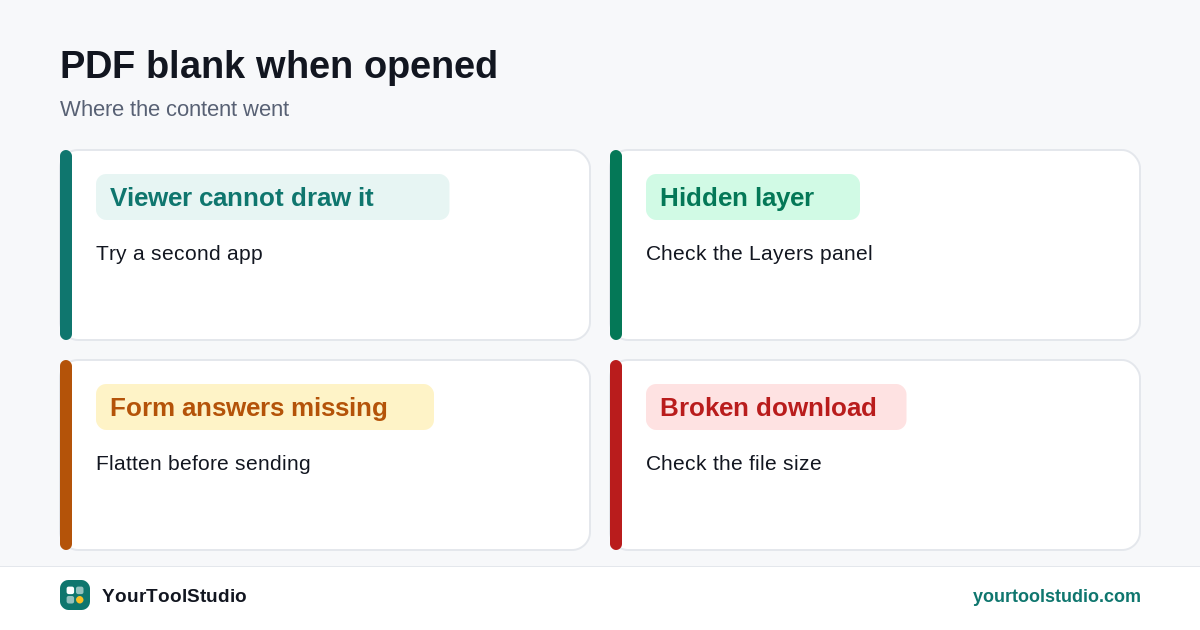
A PDF usually opens blank because the app showing it cannot draw part of the page, because the content sits on a layer that is hidden or set never to appear on screen, because filled form answers are not displayed by the app opening the file, or because the file was only partly downloaded or saved. Open the same file in a second PDF app first: if it shows there, the problem is the viewer, not the file. The Adobe and Apple pages used in this guide were read on 23 November 2026.
When we checked the search results for this question, the top answers were forum threads and software vendor pages, and each covered only one cause. This guide puts them in order, starting with the test that takes ten seconds.
Match what you see to the likely cause
| What happens | Most likely cause | Go to |
|---|---|---|
| Blank in the browser, email preview or Quick Look, fine in a PDF app | That viewer cannot draw the page | Test 1 |
| Blank in every app, but the page count and file size look normal | Content on a hidden or never visible layer | Test 2 |
| Your answers show for you, the form arrives empty for someone else | Form field values the other app does not display | Test 3 |
| Blank everywhere and the file is tiny or 0 KB | Incomplete download, interrupted save or damaged file | Test 4 |
| Some pages blank, others fine | Pages that really are empty, or content that only those pages hide | Test 5 |
| Shows on screen, prints blank | A printing problem rather than a display one | Why a PDF will not print |
If the PDF will not open at all, or the browser shows an empty tab with no pages, start with why a PDF is not opening instead. This guide is for files that do open, but show nothing.
Test 1: open it in a second app
Built-in previews are made to be quick, not complete. An email app showing an attachment, a phone file browser, a browser tab and a desktop quick look window each use their own PDF engine, and a page that uses features an engine does not handle can come out white. The fastest way to tell a viewer problem from a file problem is to open the same file somewhere else:
- Save the attachment or download to your device first, instead of viewing it inside the email or the website.
- Open the saved file in a full PDF app such as Adobe Acrobat Reader.
- If you only have a phone, try a different PDF app from the one that showed it blank.
- If it now displays, keep using that app for this file, or ask the sender for a simpler, flattened copy you can open anywhere.
A second quick check is to convert one page to an image with PDF to JPG. It draws the page in your browser and saves it as a picture, so if the JPG shows text and images, the content is in the file and the original viewer was failing to draw it.
Test 2: look for hidden layers
PDFs exported from design, drawing and engineering apps can contain layers, and each layer has its own visibility rules. Adobe explains that in Layer Properties the Default State sets whether a layer is on when the document opens, Visibility controls whether it shows on screen, and separate Print and Export options control printing and export. Adobe even gives the recipe for a watermark that prints but never appears on screen: Default State On, Visibility Never Visible, Print Always Prints. The same settings can hide real content by mistake, which gives you a page that looks blank on screen but prints normally.
- Open the PDF in Acrobat and select Layers in the right-side panel. Adobe notes that if it is not there, you can turn it on from Menu, View, Show/Hide, Side panels, Layers.
- Click the empty box next to any layer without an eye icon to show it.
- Open Options in the Layers panel and choose Apply Layer Overrides, which Adobe says displays all layers regardless of their individual settings.
- If the content appears, open Layer Properties for that layer and change its Default State or Visibility. Adobe points out that eye icon changes are only temporary; the Default State is what is saved with the file.
Test 3: form answers that disappear for the recipient
This is the cause behind searches such as why is my filled pdf blank when I email it. A fillable form keeps your answers in its form fields, and the app that opens the file has to draw those fields on the page. Your app shows them, but a phone preview, a web mail viewer or another PDF app may show the empty form underneath. The answers are often still in the file; they are just not being drawn.
The dependable fix is to send a flattened copy. Adobe describes flattening as merging annotations, form fields and checkboxes into a single layer, and lists better compatibility across other PDF readers and correct printing of form fields among the reasons to do it. After flattening, the answers are part of the page itself, so any viewer that can show the page shows them too.
- Fill in the form and save it in a full PDF app, then close and reopen it to confirm the answers are really saved.
- Make a flattened copy with Flatten PDF, which merges form fields and, if you choose, comments and stamps into the pages, in your browser.
- Open the flattened copy in a different app to check that every answer shows.
- Send the flattened copy and keep the original in case you need to change an answer later.
Adobe warns that a flattened PDF can no longer be edited, so only send a flattened copy when the recipient does not need to fill in anything else. If your answers vanish even for you after reopening the file, the problem is saving rather than display: see why a PDF form is not saving changes.
Test 4: a broken download or save
Check the file size. A multi-page document that comes out at a few kilobytes, or exactly 0 KB, did not finish downloading or saving. Typical causes are a dropped connection, a download that was opened before it finished, a sync folder that had only a placeholder on your device, or an app that crashed during save.
| Where the file came from | What to try |
|---|---|
| A website | Download it again and wait for the download to complete before opening it |
| An email attachment | Save the attachment to your device and open the saved copy; if it is still blank, ask the sender to send it again |
| A cloud folder | Make sure the file is fully downloaded to the device, not just listed |
| Your own export | Export it again from the original app and open the new file before deleting the old one |
| None of these work | Run a copy through Repair PDF, which rebuilds the internal structure and recovers every page it can read without changing the original |
Test 5: some pages blank, others fine
If only certain pages are white, look at them as thumbnails or convert them with PDF to JPG. A page that is white in every app and as an image is genuinely empty, often a spacer page from a scanner or a print to PDF that added an empty sheet. Remove it with Organize PDF. If the page has a tiny shape in one corner, the content was placed far from the visible area or the page was cropped badly; Crop PDF lets you see the page and set a new visible area.
Worked example: a filled form that arrives empty
You fill in a job application PDF, save it and email it. The employer replies that the form is blank. Reopen your saved copy in a full PDF app: the answers are there, so the file saved correctly. Make a flattened copy with Flatten PDF, open it in a second app, for example a phone PDF viewer, and confirm every answer and the signature appear. Send that copy, with a short note that the form is flattened, and keep your original in case they ask for changes.
Sources and dates
| Page | Read | Used for |
|---|---|---|
| Adobe: Manage PDF layers | 23 November 2026 | Layers panel, Apply Layer Overrides, locked layers, temporary eye icon changes |
| Adobe: Edit layer properties | 23 November 2026 | Default State, Visibility, Print and Export settings and the Never Visible example |
| Adobe: Flatten a PDF | 23 November 2026 | What flattening does, compatibility with other readers and loss of editability |
| Apple: Fill out and sign PDF forms in Preview | 23 November 2026 | Filling forms and saving them before you send |
Frequently asked questions
Why is my PDF blank when I open it?
Usually the app showing it cannot draw the page, the content is on a hidden layer, the form answers are not displayed, or the file did not finish downloading. Open it in a second PDF app first to see which.
Why is my filled PDF blank when I email it?
The recipient app shows the empty form instead of your saved answers. Send a flattened copy, which turns the answers into part of the page so any viewer shows them.
Why does my PDF show on screen but print blank?
A layer may be set to print differently from how it shows, or the printer or driver is failing. See our guide on why a PDF will not print for the print side.
Can a blank PDF still contain the content?
Yes. Hidden layers and undrawn form fields leave the content in the file. Converting a page to JPG or opening it in another app often shows it.
How do I fix a PDF that is blank in every app?
Check its size. If it is tiny or 0 KB, download or export it again. If the size looks right, try Apply Layer Overrides in Acrobat, then a repair tool on a copy.