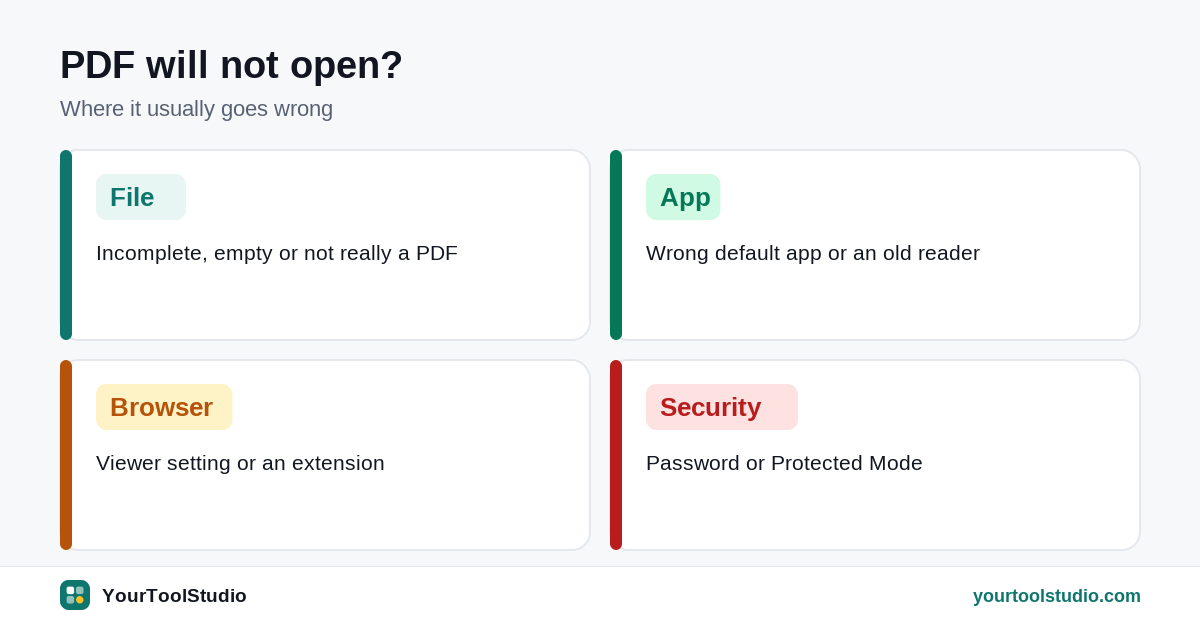
Your PDF is usually not opening because the download is incomplete, the file is opening in the wrong app, or a browser or security setting is blocking it, rather than because the document is truly damaged. Check the file size, download a fresh copy, and try a second app: those three tests find the cause in a couple of minutes. The Adobe, Google Chrome, Apple and Library of Congress pages behind this guide were read on 22 November 2026.
Start with a one minute triage
Before changing settings, find out where the fault lives. Open the PDF in two different places, for example your usual PDF reader and a web browser. The result tells you which section of this guide you need.
| What you see | Where the problem is | Go to |
|---|---|---|
| Opens in one app but not in another | The app that fails | Fix the app on a computer |
| Blank tab, endless loading, or it downloads instead of showing | The browser or the website | When the PDF will not open in a browser |
| Asks for a password, or says Access Denied | Protection on the file or in the reader | Passwords and Protected Mode |
| Fails everywhere, file is 0 KB or tiny | The download or the copy you received | Check that the file is really a PDF |
| Fails everywhere, size looks normal | The file itself | When the file really is damaged |
Check that the file is really a PDF
A surprising number of PDFs that will not open are not PDFs at all. A download that was interrupted leaves a short file, a link that needed you to sign in saves the sign-in page instead of the document, and some email systems rename attachments. You can check this in seconds:
- Look at the file size. A file of 0 KB has nothing in it, and a 40 KB file that should be a 30 page report is almost certainly cut short.
- Open the file in a plain text editor such as Notepad or TextEdit and look at the very first characters. The Library of Congress format description for PDF 1.7 gives the file signature as
%PDF-followed by a version number, such as%PDF-1.7. - If the first line shows HTML tags such as
<!DOCTYPE html>instead, you saved a web page, not the document. Go back to the site, sign in if it asks you to, and download the file again. - Close the text editor without saving, so you do not change the file.
When the PDF will not open in a browser
Browsers have their own PDF viewers, and a setting can stop them from showing files at all. In Google Chrome the choice is in one place. Chrome's Download a file help page says you can choose whether PDFs download to your device or open in Chrome: open Settings, then Privacy and security, Site Settings, Additional content settings and PDF documents, and pick Download PDFs or Open PDFs in Chrome.
If PDFs are set to open in Chrome and the tab stays blank, try these in order:
- Rule out extensions. Ad blockers, privacy tools and download managers can step in when a PDF loads. Turn them off one at a time and reload the page; if the PDF appears, you have found the culprit.
- Download the file instead and open it from your downloads, using the Save Link As method above. This separates a website problem from a file problem.
- Try another browser. If the file opens in Edge, Firefox or Safari but not in Chrome, the fault is in that one browser's settings or extensions, not in the PDF.
- Wait for big scans to load. Chrome's help page notes that its viewer converts scanned PDFs into searchable text on your device, and that a scan with many pages can take some time while it shows Extracting text from PDF. A slow first load is not a failure.
Fix the app on a computer
When a PDF opens in the browser but not when you double-click it, the computer is sending it to the wrong program, or the reader is out of date. Adobe's troubleshooting page sets out these steps for Acrobat and Acrobat Reader:
| Problem | Windows | Mac |
|---|---|---|
| Wrong default app | Right-click the PDF, choose Open With, then Choose another app, pick the reader and select Always use this app to open .pdf files | Select the file in Finder, choose File, Get Info, pick the reader under Open With, then choose Change All |
| Old version of the reader | Help, then Check For Updates | Help, then Check For Updates |
| Damaged installation | Help, then Repair Installation | Adobe lists the repair option for Windows only, so reinstall the app instead |
Adobe also notes that if both Acrobat and Acrobat Reader are installed, you should choose Acrobat as the default. The same idea applies to any reader: pick one app, set it as the default for .pdf files, and keep it updated.
Passwords and Protected Mode
Some PDFs are locked on purpose. If the file asks for a password to open, you need that password from whoever sent it; there is no legitimate shortcut. If you know the password and are tired of typing it, Unlock PDF removes it once you enter it, and it can also remove printing and copying restrictions from a PDF that opens without a password.
A different block comes from the reader itself. Adobe says Acrobat may show an Access Denied error when it opens a PDF in Protected Mode, a security feature that can stop files from opening, especially files from external locations. Adobe's fix is to open Preferences, choose Security (Enhanced), clear Enable Protected Mode at startup, confirm, and restart Acrobat. Do this only for a file you trust, and consider switching it back on afterwards.
Adobe also warns that Reader and Acrobat block PDFs that do not conform to certain industry standards or may contain harmful content. If you see that kind of warning on a file you were not expecting, check with the sender before you go any further.
On an iPhone
An attachment that will not preview in Mail or Messages can usually be opened in Books. Apple's iPhone User Guide says to tap the PDF attachment, tap the share button, then tap Books. Apple notes that Books is not available in every country or region. If the file still shows a blank page in Books, the same size and signature checks above apply: save it to Files, look at its size, and ask for a fresh copy if it is suspiciously small.
When the file really is damaged
If the file has a normal size, starts with %PDF- and still fails in every app, the internal structure is probably broken. Adobe's position is blunt: a corrupt PDF cannot be repaired directly in Acrobat, and the answer is to recreate it from the original source file. That is the best fix when you made the PDF yourself, or when you can ask the sender to export it again.
When there is no original, Repair PDF is worth a try. It runs in your browser, rebuilds the cross-reference table and trailer that readers rely on to find each page, recovers every page it can read and saves a new copy, leaving your original untouched. Once it opens, you can compress the PDF if it is too large to send back, and our guides to a PDF that will not print and a PDF form that will not save cover the next problems people hit.
Frequently asked questions
Why does my PDF open in the browser but not on my computer?
Your computer is sending .pdf files to an app that cannot open them, or the reader is out of date. Set a working reader as the default app for .pdf files, then update it. On Windows, Acrobat and Reader also have Help, Repair Installation.
Why does my downloaded PDF say it is damaged?
Most often the download did not finish, or you saved a web page instead of the file. Check the size, open it in a text editor to see whether it starts with %PDF-, and download it again with Save Link As.
Why does Chrome download PDFs instead of opening them?
Chrome has a setting for this. Go to Settings, Privacy and security, Site Settings, Additional content settings, PDF documents, and choose Open PDFs in Chrome.
Can I open a password protected PDF without the password?
No. A PDF that needs a password to open is encrypted, and you need the password from its owner. If you know it, you can remove it so you do not have to type it every time.
What does Access Denied mean in Adobe Acrobat?
Adobe says this can come from Protected Mode, a security feature that may block files from external locations. It can be turned off under Preferences, Security (Enhanced), but only do that for files you trust.