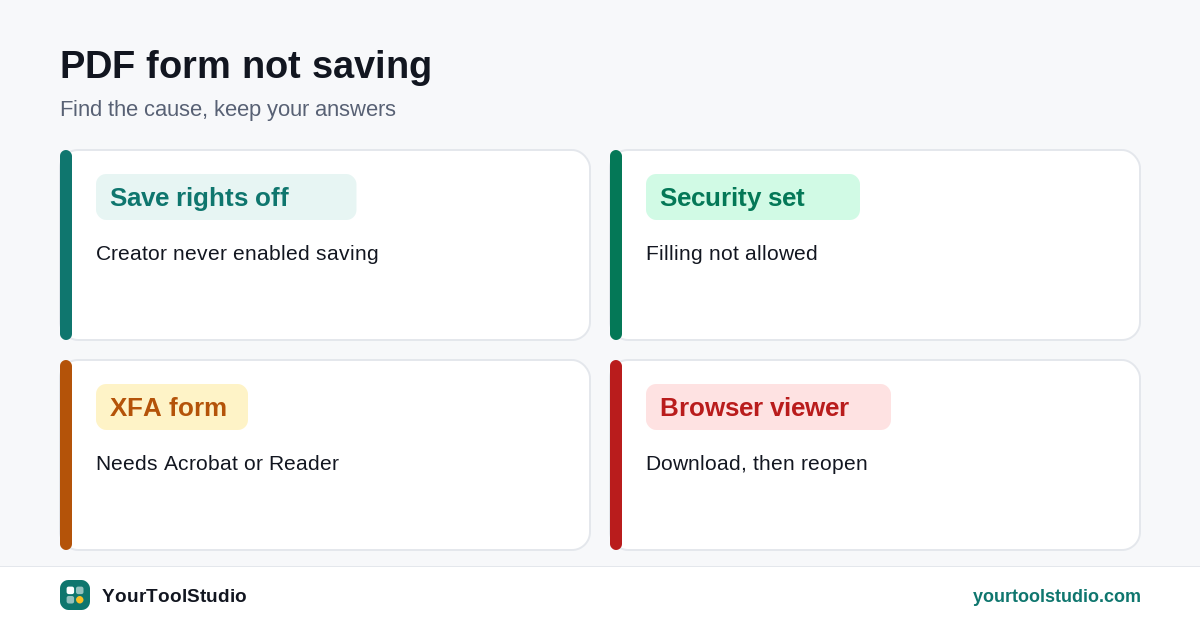
A PDF form usually fails to save your changes because the person who made it never enabled saving for Acrobat Reader users, its security settings block form filling, it is an XFA form, or you filled it in a viewer that does not write the answers back into the file. The quickest fix is to use Save As with a new name, reopen that copy in a different app, and if the answers are missing, refill it in a desktop PDF app or a tool that writes real form data into the file.
Below are the seven causes we see most often, how to tell which one you have, and the fix for each. Adobe's help pages on filling in forms in Acrobat Reader and forms that cannot be filled back up the Acrobat steps.
First, check whether the answers were saved at all
Many "not saving" reports are really "saved, but not showing". Before changing anything, run this two minute test:
- Choose Save As and save the form under a new name, such as form-filled.pdf. Do not overwrite the original.
- Close the app completely.
- Open the new copy in a different app. If you filled it in a browser, open it in Acrobat Reader or Preview, and the other way round.
- If the answers appear, the file is fine and the first app was showing an old copy or a cached version. If they are missing, work through the causes below.
The 7 causes and how to fix them
| Cause | How you can tell | Fix |
|---|---|---|
| 1. Saving not enabled for Reader users | Reader lets you type, but the saved copy is blank or Reader warns about saving | Ask the sender for a version saved with Reader saving enabled, or fill it in a tool that writes the data into a new file |
| 2. Security blocks form filling | Document properties, Security shows Filling of form fields as Not Allowed | Ask the creator for an unrestricted version |
| 3. XFA form | The form opens only in Acrobat or Reader, other apps show a 'please wait' page or a blank page | Fill and save it in Acrobat or Acrobat Reader on a computer |
| 4. Filled in a browser viewer | You typed into the PDF inside a browser tab, then the downloaded file was blank | Download the PDF first, open it in a desktop app, fill and save |
| 5. Flat form, typed in the wrong place | The fields never highlighted and text was added as a note or comment | Use Fill & Sign or add real fields, then save |
| 6. Script resets the form | Every time you open the file the fields clear, even in Acrobat | Ask the sender, or save a flattened copy straight after filling |
| 7. Saved over a read-only or synced file | No error, but the file in OneDrive, Drive or email is unchanged | Save a new copy to your desktop, then upload or attach that copy |
1. The creator never turned on saving for Reader
This is the classic cause on older forms. Adobe explains that in Acrobat Pro a form can be saved as a Reader Extended PDF with the option Enable More Tools (includes form fill-in & save), which, in Adobe's words, allows Reader users to save data they have entered. If the creator skipped that step, an older version of Reader may let you type but not keep the answers. If you made the form yourself in Acrobat Pro, the menu path is Menu, then Save As Other, then Reader Extended PDF on Windows, or File, then Save As Other on a Mac.
If you are the person filling it in, you can still finish it. Open the form in Fill PDF Form, type into the fields and save. The tool writes your answers into a new file named with -filled on the end, so there is no save permission to fight with, and the original stays untouched.
2. Security settings block form filling
Adobe's troubleshooting page says to open the PDF, choose Document properties, then Security, and make sure Filling of form fields is set to Allowed. If it is not allowed, Adobe's advice is to contact the form creator for an unrestricted version. Removing a permissions password from a form someone else owns may break their terms, so asking is the right first step. If it is your own file and you know its password, Unlock PDF removes the restrictions on your device.
3. It is an XFA form
Some government and company forms are built with XFA, a format that, according to Adobe's XFA help page, stores XML data that defines the form's structure, layout and behaviour. Many browsers, Preview and online editors do not fully support XFA, so they may show a placeholder page or a blank sheet, and answers typed there may not be saved back into the form. Fill these in Acrobat or Acrobat Reader on a computer. Adobe warns that its workarounds for editing an XFA form, printing to Adobe PDF or saving as EPS, flatten the file and remove every form field, button and script, so only use them on a copy once the answers are final.
4. You filled it in a browser tab
Adobe's Reader guide notes that a common way to see a form is in a web browser after following a link, and its advice is to save the form on your computer and then open it directly in Acrobat or Acrobat Reader. Browser viewers differ: some write field values into the downloaded file, others only show them on screen, and some do not support every field type. The safe routine is to download first, then fill, and run the reopen test above before you send the file.
5. It is a flat form
Not every form has real fields. Adobe calls these flat forms, and its tell is simple: hover over the blanks, and if they do not highlight, the form is not interactive. Text you add with a comment or note tool can be hidden by other apps. Use Fill & Sign in Acrobat Reader, the text box in Preview on a Mac, which Apple suggests when a PDF will not let you type into the form, or the Add fields mode of Fill PDF Form, which can detect blank lines and turn them into proper fields.
6. A script clears the form when it opens
Forms can contain JavaScript, and a reset action that runs when the document opens will wipe every answer even though the save worked. You can spot this when the fields clear in Acrobat too, straight after reopening. Ask the sender for a version without the script, or fill the form and immediately save a flattened copy with Flatten PDF so the answers become page content that no script can clear.
7. You saved over a file you cannot change
Opening an attachment straight from email, or a file inside a synced folder that is still downloading, can leave you editing a temporary copy. The save appears to work, but the file you later attach is the old one. Save to your desktop with a new name, check it, then attach that copy.
Which app to use
| Situation | Best choice | Why |
|---|---|---|
| XFA government or tax form | Acrobat or Acrobat Reader on a computer | Only Adobe apps run XFA forms |
| Ordinary fillable form, no app installed | Fill PDF Form | Writes the answers into a new standard PDF in your browser |
| Mac user with a normal form | Preview | Fills fields and adds text boxes, as Apple's guide shows |
| Form must not change after sending | Fill, then Flatten PDF | Answers become part of the page |
Before you send a filled form
- Reopen the saved copy in a second app and read every answer.
- If the form will be printed, check that the answers print too; our guide to PDFs that will not print covers forms that print blank.
- If it needs a signature, see how to sign a PDF.
- Keep the blank original in case you need to start again.
The Adobe and Apple help pages linked here were checked on 20 November 2026.
Frequently asked questions
Why does my fillable PDF go blank after I save it?
Usually the form was not enabled for saving in Acrobat Reader, it is an XFA form opened outside Adobe apps, or it was filled in a browser viewer that did not write the answers into the file.
How do I save a PDF form I cannot save?
Use Save As with a new name and reopen it in another app. If the answers are missing, fill the form in a desktop PDF app or a tool that writes the data into a new file.
How do I know if a PDF form is XFA?
XFA forms open properly only in Acrobat or Acrobat Reader. In browsers and Preview they usually show a placeholder message or a blank page.
How can I make a PDF form savable in Acrobat Reader?
In Acrobat Pro, choose Save As Other, then Reader Extended PDF, then Enable More Tools (includes form fill-in and save).
Why can I type in a PDF form but not save it?
The security settings or the creator's save rights may block it. Check Document properties, then Security, and see whether Filling of form fields is Allowed.