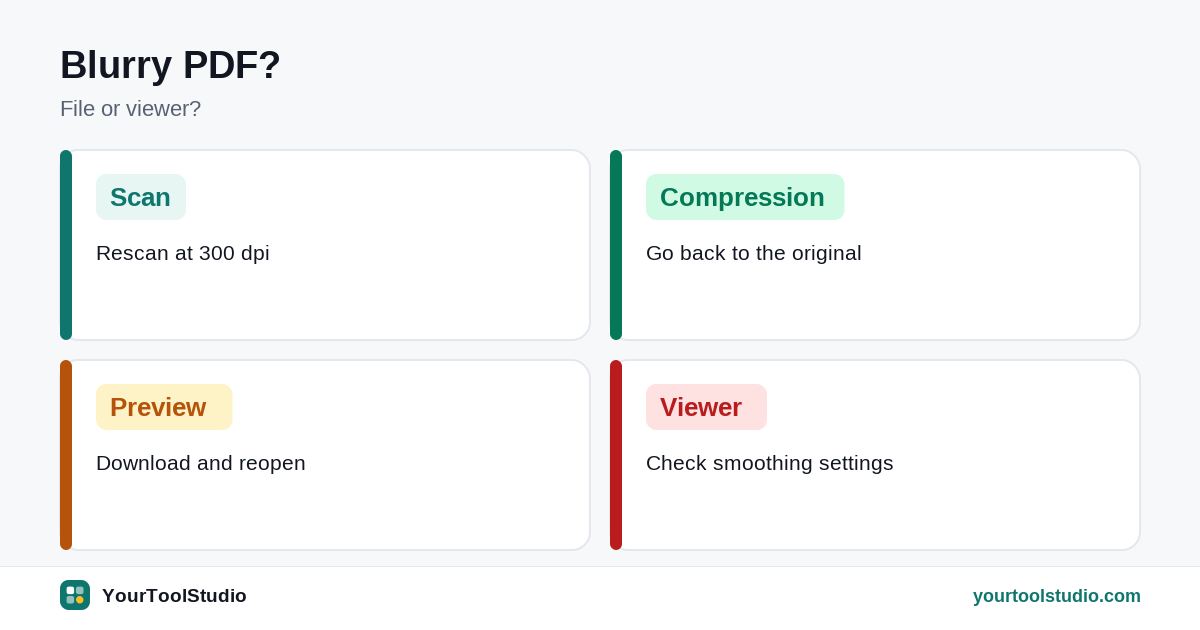
Your PDF is blurry because either the pages contain low resolution images (a scan, a photo or a picture that was shrunk by compression), or because the app showing it is rendering it softly, such as a browser preview or a viewer setting. Download the file and open it in a desktop PDF reader: if it is sharp there, the file is fine and only the viewer is the problem.
The 30 second test: is it the file or the viewer?
- Download the PDF instead of reading it in an email, cloud drive or website preview.
- Open it in a desktop PDF reader, then in a second app or browser.
- Set the zoom to 100 percent and look at small text.
- Try to select a single word with the text tool.
| What you see | What it means | Go to |
|---|---|---|
| Sharp in the downloaded copy, soft in the online preview | The preview is rendering a reduced copy | Cause 3 |
| Soft in one desktop app, sharp in another | A display or smoothing setting | Cause 4 |
| Soft everywhere and you cannot select text | The page is a low resolution image | Causes 1, 2 and 5 |
| Text is sharp but photos and logos are soft | Images were downsampled or were small to start with | Causes 2 and 6 |
| Fine on screen, blurry on paper | Image resolution too low for print | Cause 7 |
Real text in a PDF is drawn from font outlines, so it stays crisp at any zoom. If text gets blocky as you zoom in, it is not text at all, it is a picture of text, and the fix is always a better source image.
Cause 1: the document was scanned at a low resolution
A scan can only hold the detail the scanner captured. Adobe's scanned PDF settings page (last updated 22 October 2026) recommends scanning grayscale or color documents at 300 dpi and black-and-white documents at 600 dpi for the best results. Phone scanning apps and office copiers often default to lower settings to keep files small.
- Rescan at 300 dpi in color or grayscale. That is the only real fix for detail that was never captured.
- Lay the page flat and keep the phone parallel to it. Motion and angle blur cannot be removed later.
- In Acrobat, Adobe lists a Text Sharpening filter for scans with a default of Low, and suggests increasing it if text appears blurry or is hard to read.
Cause 2: compression shrank the images
Compressing a PDF makes it smaller mainly by downsampling and recompressing its images. Adobe's advanced size reduction page (last updated 28 October 2026) says the Images panel reduces file size by downsampling and compressing images, and that the Mobile preset downsamples color and grayscale images to a lower resolution than Standard. Apple's Preview guide warns that a compressed PDF may be of lower quality than the original; its Reduce File Size Quartz Filter is a common cause of soft Mac PDFs.
Compression cannot be reversed. Go back to the uncompressed original and compress it again more gently. In our Compress PDF tool, Less keeps the highest quality and is meant for printing, Recommended balances size and quality, and Extreme reduces images the most. Only images are re-encoded, so real text and vector drawings stay sharp at every level.
Pick Less, Recommended or Extreme. Text and vectors stay sharp, and the file never leaves your device.
Cause 3: you are looking at a preview, not the file
Email apps, cloud drives, chat apps and some websites show a quick preview that is drawn at a lower resolution to load faster. Several users on the Dropbox community forum report that the same PDF looks clear once downloaded but soft in the browser preview. Always judge quality from a downloaded copy opened in a proper PDF reader. If you share the file, tell people to download it rather than read the preview.
Cause 4: a viewer display setting
Desktop readers smooth text, line art and images so they look good on screen. Adobe's Acrobat preference reference lists separate smoothing (anti-aliasing) settings for text, line art and images under Preferences, Page Display, Rendering, along with Use page cache. If one reader shows a file softly while another shows it sharply, check those options, try zoom levels of exactly 100 or 200 percent, and make sure the reader is up to date.
Cause 5: the PDF was made from a screenshot or photo
A PDF made from a screenshot holds exactly as many pixels as the screenshot, often too few for a full page. When you build a PDF from images, start with the largest version you have. Our JPG to PDF tool keeps each image at its original pixel size: PNG images stay lossless and JPG images are re-encoded at high quality (95 percent), so the PDF is as sharp as the images you give it.
Cause 6: Word or PowerPoint compressed the pictures
Office apps can reduce picture quality before the PDF is even made. When you save as PDF from Excel or PowerPoint, Microsoft's save as PDF page says to choose Standard (publishing online and printing) if you need high print quality, and Minimum size only if file size matters more. Microsoft also explains how to turn off picture compression under File, Options, Advanced, Image Size and Quality. For blur that appears after you put a PDF on a slide, see how to insert a PDF into PowerPoint.
Cause 7: sharp on screen, blurry when printed
Paper shows more detail than a screen, so an image that looks fine on a monitor can print soft. Here is the arithmetic, which is ours rather than from a vendor: a photo 1,200 pixels wide printed 8 inches wide gives 1,200 divided by 8, which is 150 pixels per inch. To print that width at 300 pixels per inch you need 2,400 pixels. If prints come out blank or wrong rather than soft, see why won't my PDF print.
Fix it by situation
| Situation | Best fix |
|---|---|
| Scanned contract or form | Rescan at 300 dpi color or grayscale, or 600 dpi black and white |
| PDF went soft after you compressed it | Compress the original again at a gentler level |
| Blurry only in Gmail, Drive or a website | Download and open it in a PDF reader |
| One PDF app shows it soft | Check smoothing and zoom settings, or try another reader |
| PDF built from photos or screenshots | Rebuild it from larger originals |
| You only have the blurry PDF | Export the pages with PDF to JPG at 300 DPI and see if unblurring a picture helps |
No tool can add detail that was never in the file. Sharpening can make edges look crisper, but small text that was lost in a 100 dpi scan will not come back. If the file is too big to send at good quality, read why is my PDF file so large before you reach for heavy compression. The Adobe, Apple and Microsoft pages linked above were checked on 20 November 2026.
Frequently asked questions
Why is my PDF blurry when I zoom in?
If text turns blocky as you zoom, the page is an image, such as a scan or screenshot, not real text. Real PDF text stays sharp at any zoom. Rescan or rebuild the PDF from a higher resolution source.
Why is my PDF blurry in the browser but fine when downloaded?
Many browser and cloud previews draw a lower resolution copy so the page loads faster. The file itself is fine; open the downloaded copy in a PDF reader.
What resolution should I scan a PDF at?
Adobe recommends 300 dpi for grayscale or color documents and 600 dpi for black and white documents.
Can you unblur a PDF?
Only partly. Sharpening can make edges look crisper, but detail that was never captured or was removed by compression cannot be restored. Going back to the original source is the real fix.
Does compressing a PDF make it blurry?
It can. Compression mostly downsamples images, so photos and scanned pages lose detail. Real text and vector graphics are not affected by image compression.