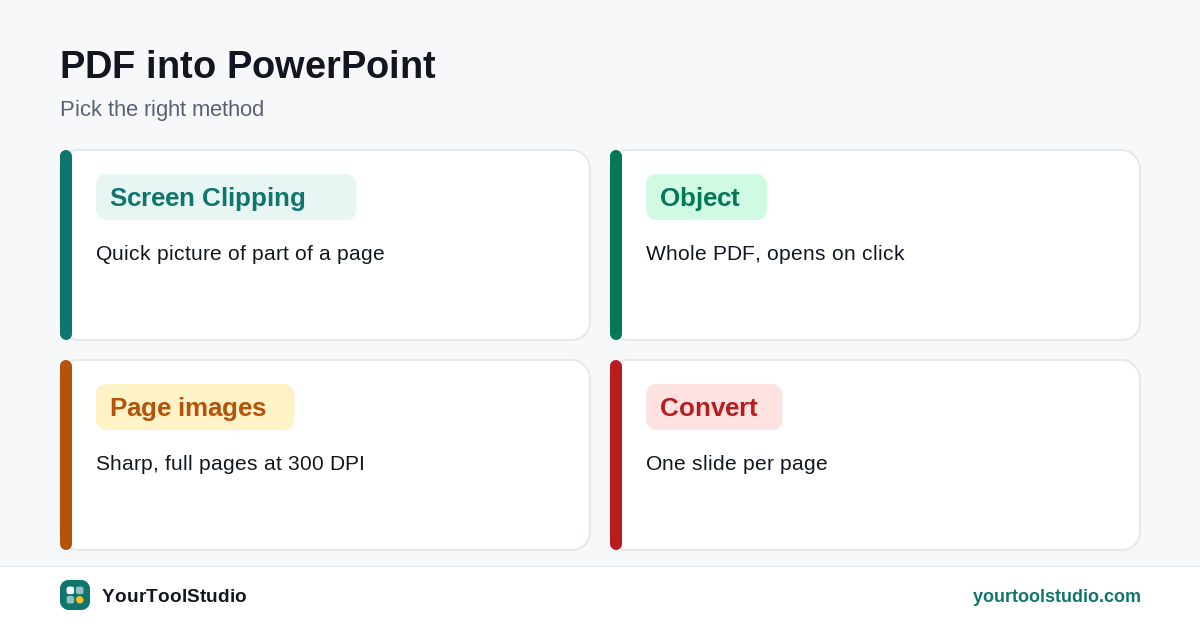
To insert a PDF into PowerPoint, either place a picture of the page on your slide or add the whole PDF file as an object with Insert, Object, Create from file. For the sharpest result, convert the PDF pages to PNG images at 300 DPI first and insert those as pictures, because Microsoft says the object method reduces the quality of the PDF shown on the slide.
Which method should you use?
Microsoft's support page Insert PDF file content into a PowerPoint presentation offers two options. We add two more that people usually want when they search for this: full page images and a page by page conversion.
| You want to | Best method | Looks sharp? | Editable? |
|---|---|---|---|
| Show a chart, table or paragraph from a PDF | Screen Clipping (Microsoft method 1) | Only as sharp as your screen zoom | No, it is a picture |
| Carry the PDF inside the deck as a handout | Insert as Object (Microsoft method 2) | No, Microsoft says quality is reduced | No, but it opens in full on double-click |
| Show whole pages that stay crisp on a projector | Convert pages to PNG at 300 DPI, then Insert Pictures | Yes | No, it is a picture |
| Turn a multi-page PDF into a deck you can edit | Convert the PDF to PowerPoint | Yes | Yes, in editable text mode |
Method 1: insert part of a PDF as a picture
This is Microsoft's quick method for a single chart or block of text. It works in the desktop versions of PowerPoint, not in PowerPoint for the web.
- Open the PDF and zoom so everything you want to capture is visible. Do not minimize the window.
- Switch to PowerPoint, select the slide, then choose Insert, Screenshot.
- Under the window thumbnails, choose Screen Clipping. PowerPoint minimizes and shows the PDF.
- When the screen turns frosted and the pointer becomes a crosshair, drag a box around the content. Press Esc to cancel.
- The clipping lands on the slide as a picture you can move, resize and crop.
The catch is resolution. A screen clipping holds only the pixels on your monitor at the moment you capture it. If the PDF was zoomed out to fit, then stretched across a slide, small text goes soft. Zoom the PDF in so the area you need fills most of the screen before you capture, and avoid enlarging the clipping afterwards.
Method 2: insert the whole PDF as an object
- Close the PDF. Microsoft notes that an error can appear if the file is open.
- In PowerPoint, select the slide and choose Insert, Object.
- Choose Create from file, then Browse to the PDF and select OK.
The PDF becomes part of the presentation file, so it travels with the deck when you email it. Microsoft is clear that the image on the slide has reduced quality, but double-clicking it in Normal view opens the full PDF. To open it during a Slide Show, select the PDF icon or image, choose Insert, Links, Action, pick Mouse Click or Mouse Over, then Object action and Open.
Method 3: insert whole pages without losing quality
For pages that must look crisp on a big screen, turn them into high resolution images first. This method is our recommendation rather than one Microsoft describes, and it gives you full control over sharpness.
- Open PDF to JPG, drop in the PDF, choose PNG and the Print quality, which is 300 DPI.
- Pick All pages, or Choose pages and type a range such as 2-4, 7.
- Download the ZIP and extract it.
- In PowerPoint, choose Insert, Pictures, This Device, and select one or several images.
Here is why 300 DPI matters, using our own arithmetic. A US Letter page is 8.5 x 11 inches. At 96 DPI it becomes 816 x 1,056 pixels, which is smaller than a 1080p projector is tall once the page fills the slide. At 300 DPI it becomes 2,550 x 3,300 pixels, more than enough for any screen. PNG keeps text edges clean; JPG is smaller and fine for photo-heavy pages. The tool runs in your browser, so the PDF is not uploaded, and it caps each page at about 16 million pixels to avoid running out of memory.
PNG or JPG at 96, 150 or 300 DPI, all pages or a range, downloaded as one ZIP. Files stay on your device.
Keep PowerPoint from softening the images
Microsoft says the default image resolution in PowerPoint is already set to high fidelity, which applies minimal compression. If pictures still look soft after saving, Microsoft's Turn off picture compression page explains the switch: File, Options, Advanced, then under Image Size and Quality tick Do not compress images in file. It applies only to the presentation selected in that list, and Microsoft warns that uncompressed pictures can make files very large.
Method 4: turn every PDF page into a slide
If you want the PDF to become the presentation, convert it instead of inserting it. Our PDF to PowerPoint tool makes one slide per page. Editable text mode keeps images and shapes as the slide background and turns each line of text into a text box in its original colour and size. Exact look mode places each page as a single image, which matches the PDF exactly but cannot be edited. Open the PPTX, then copy the slides you need into your own deck.
Troubleshooting
| Problem | Likely cause | Fix |
|---|---|---|
| Inserted PDF looks blurry | Object preview or a low resolution screen clipping | Insert 300 DPI page images instead |
| Error when inserting as an object | The PDF is open in another program | Close the PDF and try again |
| No Object or Screenshot option | You are in PowerPoint for the web | Use the desktop app, or insert page images |
| PDF does not open during the Slide Show | No action attached | Insert, Links, Action, Object action, Open |
| Only part of a long PDF is needed | Whole file inserted | Cut it down first with Split PDF |
The Microsoft steps on this page were checked against the linked support pages on 20 November 2026. Menu names can differ slightly between PowerPoint versions and between Windows and Mac.
Frequently asked questions
Can you insert a PDF into PowerPoint?
Yes. You can place a picture of part of a page with Insert, Screenshot, Screen Clipping, or add the whole file with Insert, Object, Create from file.
How do I insert a PDF into PowerPoint without losing quality?
Convert the pages to PNG at 300 DPI and insert them with Insert, Pictures. Microsoft says the object method reduces the quality of the preview on the slide.
How do I insert a PDF with multiple pages into PowerPoint?
Convert all pages to images and insert them together, or convert the PDF to a PowerPoint file so each page becomes its own slide.
Can I insert a PDF in PowerPoint for the web?
Microsoft says inserting PDF content is not possible when editing in PowerPoint for the web. Use the desktop app, or insert page images instead.
Why can I not insert my PDF as an object?
The most common cause is that the PDF is open. Close it in every program, then try Insert, Object again.