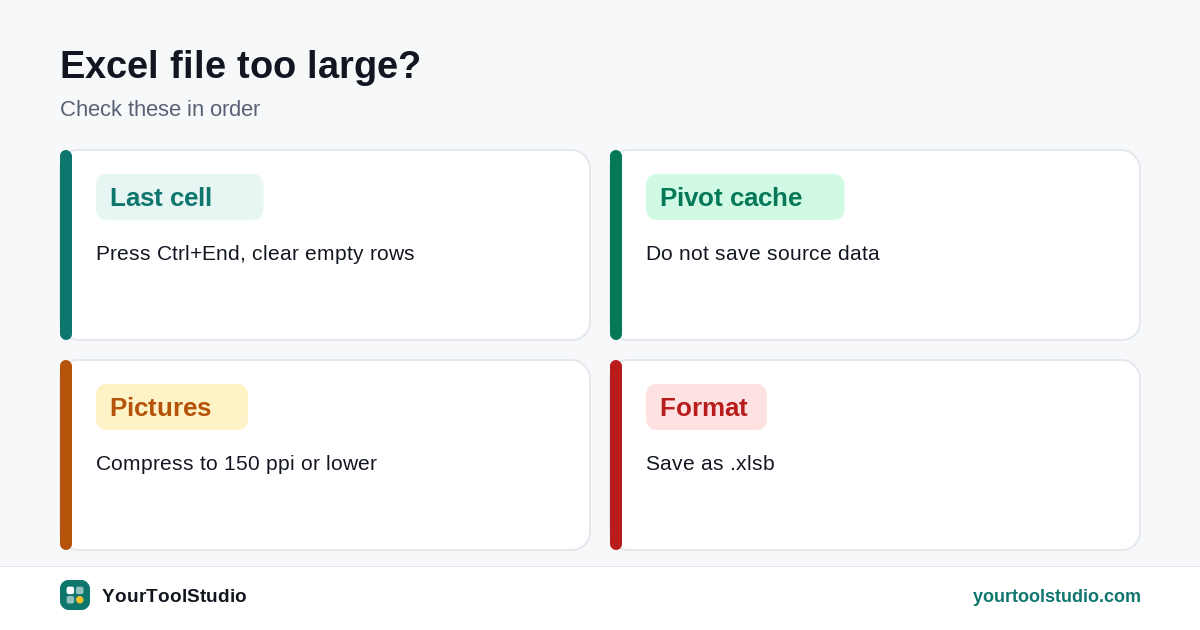
An Excel file is usually large because Excel saves formatting far beyond your real data, or because pivot tables store a full copy of their source data inside the workbook. Pictures, unused worksheets and the default XLSX format add the rest. That is why a sheet with little data can still be tens of megabytes, and why the size can jump all of a sudden after one paste or one formatting change.
The most common cause: the last cell is far away
Microsoft explains in Locate and reset the last cell on a worksheet that when a workbook is saved, Excel stores the part of each worksheet that contains data or formatting. If empty cells carry formatting, the last cell falls outside the range that holds data, the file becomes larger than necessary, and printing can produce extra pages.
This is the answer to "why is my Excel file so large with little data". A typical way it happens: someone selects whole columns and applies a border, a fill color or a font. A worksheet has 1,048,576 rows by 16,384 columns, according to Microsoft's Excel specifications and limits, so formatting a few full columns can mark millions of cells as used.
- Open the sheet and click any cell.
- Press Ctrl+End. Excel jumps to the last cell that holds data or formatting.
- If that cell is far below or to the right of your data, click the first empty row heading under your data and press Ctrl+Shift+End. Do the same for the first empty column heading.
- On the Home tab, in the Editing group, open the arrow next to Clear and choose Clear All.
- Save the workbook, close it and open it again. Press Ctrl+End to confirm the last cell now sits at the end of your data.
- Repeat for every worksheet. One bloated sheet is enough to make the whole file large.
All the causes, and what to do about each
| What you find | Why it makes the file large | Fix |
|---|---|---|
| Ctrl+End lands far past your data | Formatted empty cells are saved as part of the sheet | Clear All on the empty rows and columns, then save and reopen |
| Pivot tables | The source data cache is saved inside the file | Untick Save source data with file |
| Pictures, logos and screenshots | Images are kept at high resolution, plus editing data | Compress Pictures and lower the default resolution |
| Old or hidden worksheets | Every data point stored adds to the size | Delete sheets you no longer use |
| Large pasted data that was later deleted | Formatting from the paste can stay behind | Reset the last cell as above |
| Very big data in the default format | XLSX is XML based | Save as Excel Binary Workbook (.xlsb) |
Stop pivot tables saving their source data
Microsoft's guide to reducing Excel file size says you can avoid saving the pivot table source data cache with the file and let it refresh on opening instead:
- Select any cell in the pivot table.
- On the PivotTable Analyze tab, in the PivotTable group, choose Options.
- On the Data tab, untick Save source data with file.
- Tick Refresh data when opening the file, then save.
The trade-off, in our experience: opening the file takes a little longer because the pivot rebuilds, and the source data must still be available to the workbook.
Compress pictures
The same Microsoft page gives two picture settings. First, in File, Options, Advanced, under Image Size and Quality, tick Discard editing data, make sure Do not compress images in file is not ticked, and set Default resolution to 150 ppi or lower. Microsoft notes that once editing data is discarded the picture cannot be restored to its original state.
Second, select a picture, open Picture Format, choose Compress Pictures in the Adjust group, clear Apply only to this picture so every picture is included, tick Delete cropped areas of pictures and choose Use default resolution. Cropped areas removed this way cannot be brought back.
A screenshot pasted into a dashboard is often several times larger than it needs to be. You can shrink images before inserting them with Compress Image or Resize Image, which both run in your browser.
Reduce JPG, PNG and WebP files on your own device, with no upload.
Save as an Excel Binary Workbook
Microsoft says the default XLSX format is XML based, which matters when other programs read your data, but that for most purposes the binary format is enough and saves to a smaller file. Choose File, Save As and pick Excel Binary Workbook (*.xlsb). To make it the default, go to File, Options, Save and choose it in Save files in this format. Microsoft's page spells the extension .xslb in places; the file type Excel shows is .xlsb.
If the file is in a SharePoint library and Save As is missing, Microsoft suggests saving a copy to your own drive, saving that copy as binary, and replacing the original.
Which fix to use for which goal
| Your goal | Best option | Trade-off |
|---|---|---|
| Email the workbook | Reset the last cell, drop the pivot cache, compress pictures | Pivots refresh on opening |
| Share a read-only report | Convert with Excel to PDF | Readers cannot edit or filter |
| Hand data to another program | Export the sheet as CSV | Formatting, formulas and other sheets are lost |
| Keep a fast working file | Save as .xlsb | Some third-party tools read only XLSX |
For the size your mail service will accept, see our email attachment size limits chart. Word and PowerPoint have their own causes, covered in why is my Word document so large and why is my PowerPoint so large.
If it is still too large
These are our own troubleshooting suggestions, not Microsoft steps:
- Check every sheet with Ctrl+End, including hidden ones. Right-click a sheet tab and choose Unhide to see them.
- Look for copied sheets that repeat the same pivot table or picture.
- Compare sizes after each fix using Save As with a new name, so you know which step helped.
- Copy only the data into a new blank workbook as a last resort, then rebuild the formatting you need.
The Microsoft steps on this page were checked against the linked pages on 20 November 2026. Menu names can differ between Excel versions and between Windows and Mac.
Frequently asked questions
Why is my Excel file so large with little data?
Usually because formatting reaches far beyond the data. Press Ctrl+End to find the last cell Excel saves, clear the empty rows and columns, then save, close and reopen.
Why did my Excel file get large all of a sudden?
A recent paste, a whole column format, a new pivot table or a pasted picture are the usual triggers. Check Ctrl+End and the pivot cache first.
Does saving as XLSB make Excel files smaller?
Microsoft says the binary workbook format saves to a smaller file and is sufficient for most purposes, though some other programs expect XLSX.
Does deleting rows reduce Excel file size?
Only if the rows held data or formatting. Use Clear All on the empty area below your data, then save, close and reopen the workbook.
Do pivot tables make Excel files bigger?
Yes, they can save a copy of their source data. Untick Save source data with file in PivotTable Options to stop it.