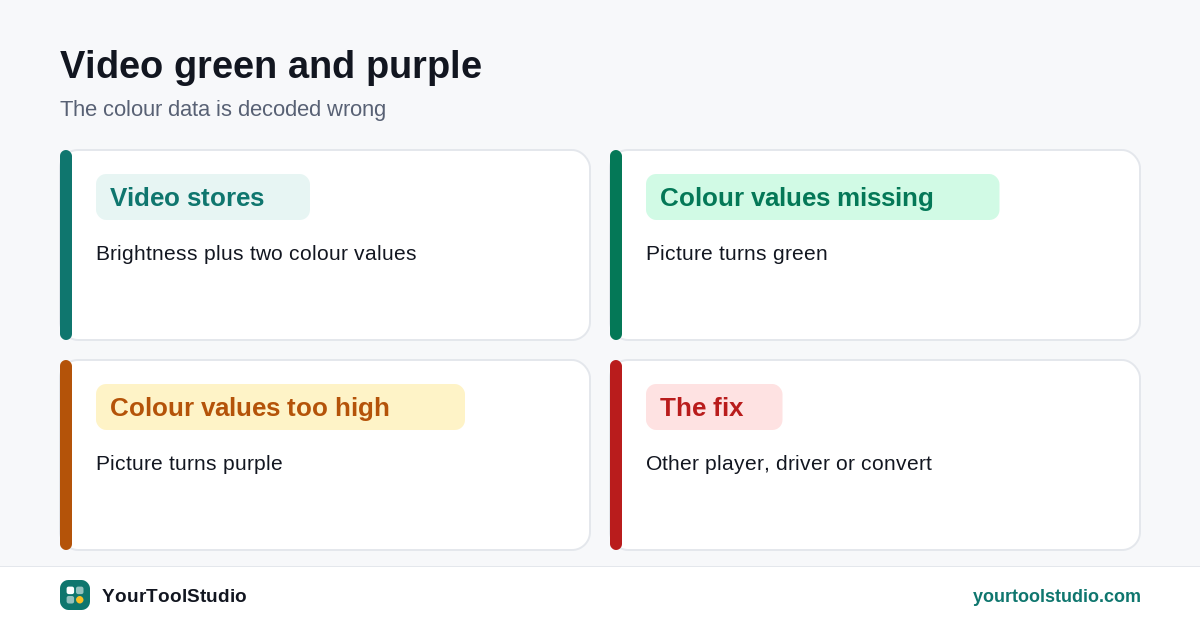
A video turns green, or green and purple, when the player decodes the brightness of the picture correctly but loses or misreads the two colour values that go with it. Missing colour data comes out green, colour data pushed too far comes out pink or purple, and in most cases the file is fine and the fault is in the app, the graphics driver or a codec the device handles badly. The Microsoft video format documentation and the Mozilla and Movavi help pages used in this guide were read on 27 November 2026.
Why green and purple, and not some other colour
Almost all digital video stores each pixel as three numbers, but not as red, green and blue. Microsoft's guide to YUV video explains that digital video uses a form called Y'CbCr, usually just called YUV: one value, luma, holds the brightness, and two colour difference values, Cb and Cr, hold how far the colour leans towards blue and towards red. In 8-bit video luma runs from 16 to 235, and the colour values run from 16 to 240 with 128 meaning no colour at all. Your screen needs red, green and blue, so the player converts every pixel back with a fixed formula.
That formula explains the two colours. We put a few values through the BT.601 conversion formula that Microsoft publishes for 8-bit YUV to RGB, with results clipped to 0 to 255:
| Y (brightness) | Cb | Cr | Red, green, blue on screen | What you see |
|---|---|---|---|---|
| 16 | 128 | 128 | 0, 0, 0 | Black, as expected |
| 128 | 128 | 128 | 130, 130, 130 | Mid grey, as expected |
| 235 | 128 | 128 | 255, 255, 255 | White, as expected |
| 0 | 0 | 0 | 0, 136, 0 | Green: a frame where every value is zero |
| 128 | 0 | 0 | 0, 255, 0 | Bright green: colour values lost, brightness kept |
| 128 | 255 | 255 | 255, 0, 255 | Magenta or purple: both colour values pushed to the top |
When a decoder fails, the memory it hands to the screen is often still full of zeros, and an all-zero YUV frame converts to green. When the colour planes are read from the wrong place, at the wrong size or with the wrong layout, the colour values swing far from 128 in both directions, so you get patches of green next to patches of pink and purple. The outlines of people and objects survive because the brightness values are still right, which is why you can still recognise the scene through the tint.
Find out where the fault is
The same symptom can come from the file, the app, the graphics chip or the cable. A few quick tests tell you which:
| Test | If the picture is normal | If it is still green or purple |
|---|---|---|
| Play the file in a different player or browser | The first app or its decoder is the cause | Keep testing: the driver or the file |
| Play it on another computer or phone | Your device, its driver or its codec support is the cause | The file itself is likely damaged |
| Turn off hardware acceleration in the app and restart | The graphics chip decoder or its driver is the cause | Decoding in software fails too, so suspect the file |
| Drag the window to a second monitor | The first display path is the cause, such as a cable, adapter or monitor setting | The problem is in decoding, not the screen |
| Watch a different video in the same app | Only this file, or this codec, is affected | The app or driver breaks every video |
Fix 1: Turn off hardware acceleration
Players, editors and browsers often hand video decoding to the graphics chip because it is faster. If the driver mishandles a format, the result is exactly the green or purple picture described above. Mozilla's help page for Firefox says hardware acceleration lets Firefox use the graphics processor to display videos, and that turning it off can help with video playback issues and crashes related to graphics drivers. In Firefox open Settings, go to the Performance section, untick Use recommended performance settings, untick hardware acceleration and restart Firefox. Mozilla notes the option is hidden when the graphics driver is not compatible.
Other browsers, video players and editing apps have a similar switch, usually called hardware acceleration, graphics acceleration or hardware decoding. Search the app's settings for the word acceleration, turn it off, restart the app and play the video again. If that fixes it, you can leave it off for now and turn it back on after updating the driver.
Fix 2: Update the graphics driver
A green or purple tint that appears after a system update, in several apps at once, points at the graphics driver. Download the current driver from the maker of your computer or of its graphics chip, install it and restart. On laptops with two graphics chips, update both. If the trouble started right after a driver update, rolling back to the previous version is the quickest test.
Fix 3: Convert the video to a common format
Some phones record in codecs or settings that particular apps or devices decode badly. Movavi's support article on this exact symptom in its Clips app says it usually means a compatibility problem between the app and the video codec on the device, is most common on Samsung phones, and that the files themselves are fine; its fix is to convert the video to a standard format such as MP4. Converting rewrites the picture in a codec the app understands.
- Open Video Converter and drop in the video.
- Choose MP4. On this site MP4 is written with H.264 whenever your browser can encode it, the codec that almost every phone, computer, TV and website plays.
- Convert, download the new copy and open it in the app that showed the green picture.
Converts MP4, MOV, WebM, MKV and phone videos in your browser, with no upload, so apps that misread the original get a format they decode properly.
The conversion runs on your own device. If the browser you use for it decodes the original wrongly as well, the new copy will be green too, so try the conversion in a different browser, or after turning off hardware acceleration. If the file is too big to send afterwards, Compress Video can shrink it; see why a video file is so large.
Fix 4: Check the cable and the display path
If the tint affects everything on one screen, not just video, or appears only when the picture goes through a capture card, an HDMI adapter or a long cable, the colour data is being damaged on the way to the screen rather than in decoding. LiveU's support article on green and purple video in its streaming equipment blames electrical interference in the HDMI cable, and says the cause is often how the shield in the plug connects to the shield in the cable, so even expensive cables sold as shielded can be affected. Reseat the cable, try another port and, if the tint keeps coming back, test with a cable of a different make.
When the file itself is damaged
If every player, every device and a conversion all show the same green frames, the stored data is broken, for example after an interrupted copy, a full memory card or a recording that stopped when the battery died. Often only some frames are hit, and the picture recovers a little later in the video. In that case:
- Go back to the source. Copy the video again from the phone, camera or cloud backup instead of the copy that was sent or downloaded.
- Cut out the bad part. If only a few seconds are green, keep the good parts with Trim Video.
- Ask for the original. Movavi notes that some messaging apps change the video codec when a video is sent, so the version you received may differ from what the sender recorded.
Green or purple only in an editor
Editing apps are a common place to see this, because they decode many clips at once, often with hardware decoding, and add effects on the graphics chip. Typical patterns:
| What you see | Likely cause | What to try |
|---|---|---|
| Clips play green in the timeline but export fine | Hardware decoding or preview acceleration in the editor | Turn off hardware decoding in the editor preferences, update the driver |
| Only phone clips turn green | The editor handles that phone codec or colour format badly | Convert the clip to MP4 first, then import the copy |
| Export comes out green or purple | The export encoder or its hardware setting | Switch the export to software encoding, or try another format |
| Pink and green blocks after cutting | Cuts between keyframes in a damaged or unusual file | Re-encode the clip, then edit the new copy |
For other picture and sound faults, see why an MP4 plays only audio, why video and audio are out of sync and why a video is blurry after upload.
Sources and dates
| Page | Read | Used for |
|---|---|---|
| Microsoft Learn: About YUV Video | 27 November 2026 | Luma and colour difference values, Y'CbCr ranges, 128 as zero colour |
| Microsoft Learn: Recommended 8-Bit YUV Formats for Video Rendering | 27 November 2026 | BT.601 YUV to RGB formula used for the table of example values |
| Mozilla Support: Firefox performance settings | 27 November 2026 | Hardware acceleration setting and what turning it off can help with |
| Movavi Knowledge Base: Videos appear green and purple | 27 November 2026 | Codec compatibility cause on phones, conversion to MP4 as the fix |
| LiveU Solo help: green and purple colours in video | 27 November 2026 | HDMI interference as a cause in capture and streaming hardware |
Frequently asked questions
Why is my video green but the sound works?
The player is decoding the brightness but not the colour values of the picture. When the colour values are missing or zero, the conversion to screen colours produces green. Try another player, turn off hardware acceleration or update the graphics driver.
Is a green video file corrupted?
Usually not. If the video looks normal in another player or on another device, the file is fine and the first app or its driver is the problem. Only when every player shows the same green frames is the file itself damaged.
Why does my video have green and pink blocks?
Blocks of green next to pink or purple mean the colour values are being read wrongly, swinging too low in some places and too high in others. It is usually a decoder or driver fault, or missing data in part of the file.
Will converting the video fix the green colour?
Often, yes. Converting to MP4 with H.264 rewrites the picture in a codec almost every app decodes properly. Do the conversion in a browser or app that shows the video correctly, or the copy will be green as well.
Why is my video green only on one monitor?
Then decoding is fine and the problem is in the path to that screen, such as the cable, an adapter or a colour setting on the monitor or graphics card. Reseat or replace the cable and try another port.