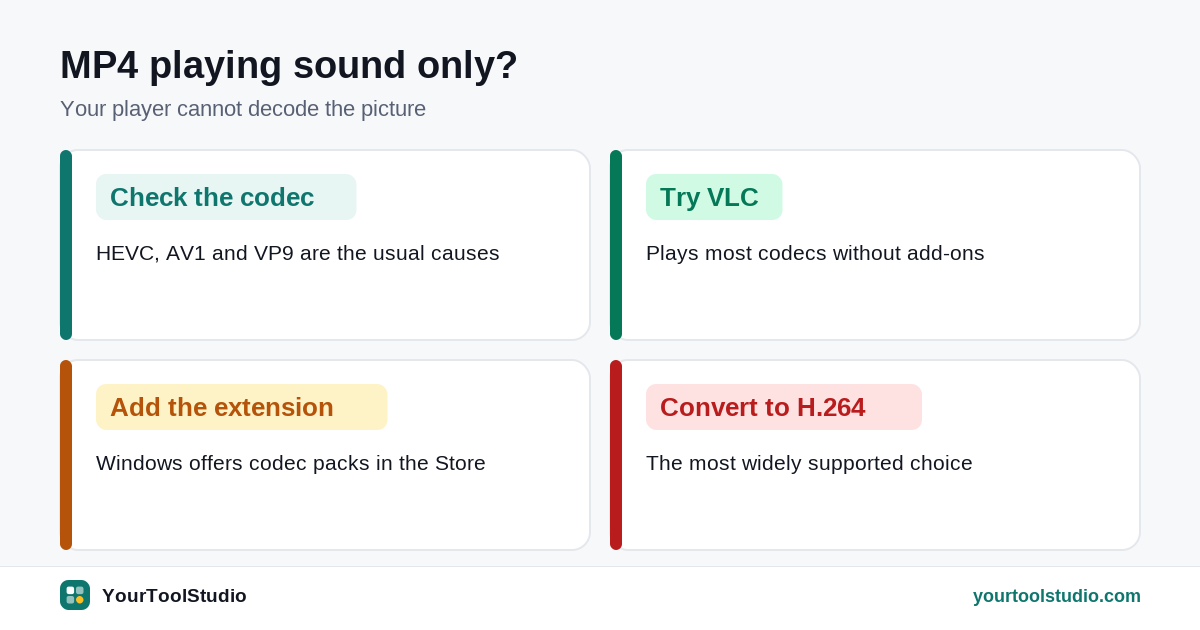
Your MP4 is only playing audio because your player can decode the sound but not the video codec inside the file. The usual culprits are HEVC (H.265), AV1 and VP9. To fix it, open the file in a player that supports the codec, install the missing codec, or convert the video to H.264 with Video Converter.
Why an MP4 can play sound without a picture
MP4 describes the package, not the picture inside it. An MP4 file holds separate video and audio tracks, and each track is compressed with its own codec. MDN's web video codec guide lists AVC (H.264), HEVC, AV1 and VP9 among the video codecs that can be stored in MP4.
That explains the symptom. Two files can both end in .mp4 while needing completely different decoders. If your player understands the AAC audio track but has no decoder for the video track, you hear everything and see nothing.
Phones are a common source of these files. Apple says iPhone 7 and later can capture video in HEVC, which saves storage but is less widely supported than H.264 on older devices and other operating systems.
Step 1: Find out which codec your file uses
Spend a minute on this first, because the codec decides which fix will work.
| Where you are | How to see the codec |
|---|---|
| Any computer with VLC | Open the file, then select Tools and Codec Information, as described in the VLC documentation |
| Mac | Open the file in QuickTime Player and choose Window, then Show Movie Inspector, or press Command-I. Apple's QuickTime guide lists the compression format there |
| Any modern browser | Add the file to Video Converter. If your browser cannot decode the video, the error message names the codec, such as hevc or av1 |
Step 2: Match the codec to the fix
| Codec you found | Built into Windows? | Best fix |
|---|---|---|
| H.264 (AVC) | Yes | The codec is not the likely cause. Update the player and graphics driver, then try VLC |
| HEVC (H.265) | No, added through the Microsoft Store | Install the HEVC Video Extension, use VLC or convert to H.264 |
| AV1 | No, added through the Microsoft Store | Install the AV1 Video Extension, use VLC or convert to H.264 |
| VP9 | No, added through the Microsoft Store | Install the VP9 Video Extension, use VLC or convert to H.264 |
| MPEG-2 | No, added through the Microsoft Store | Install the MPEG-2 Video Extension or use VLC |
The Windows column comes from Microsoft's Windows Media Player troubleshooting guide, which applies to Windows 10 and Windows 11. It lists H.264, H.263, VC-1, WMV, DV, VP8 and Motion JPEG as supported out of the box.
Fix it on Windows
- Note the codec from Step 1.
- Open the Microsoft Store and search for the matching extension, for example HEVC Video Extension. Check the price shown on the listing before you install it.
- Restart your media player and open the file again.
- If you would rather not add an extension, install VLC. VideoLAN describes it as free and able to play most codecs with no codec packs needed.
Avoid random codec packs from download sites. Microsoft's codecs FAQ points you to Windows itself, the Microsoft Store extensions or the codec provider, and those routes cover the formats in the table above.
Fix it on a Mac
Macs running macOS High Sierra or later support HEVC, so a sound-only file on a Mac often uses a different codec, such as AV1 or VP9. Try VLC first. If you have an HEVC video that needs to play on an older device, Apple gives two ways to make an H.264 copy:
- QuickTime Player: choose File, then Export As, and change Smaller File Size (HEVC) to Greater Compatibility (H.264). If you see an HEVC checkbox, deselect it before saving.
- Finder: Control-click the video, choose Services, then Encode Selected Video Files, and pick an H.264 option from the Settings menu.
Convert the video to H.264 in your browser
Converting is the right choice when other people need to watch the file, because you cannot install a codec on their devices. MDN describes AVC as broadly compatible and recommends MP4 with AVC and AAC as a widely supported combination.
- Open Video Converter in Chrome or Edge and add the MP4.
- Under Convert to, choose MP4.
- Set the quality to Best if you want to keep as much detail as possible. Smaller produces a lighter file.
- Press Convert video and download the result.
- Play the new copy on the device that failed before you delete the original.
Convert the video on your own device, with no upload to a server.
Expect the H.264 copy to be larger than an HEVC original at the same quality, since Apple notes that HEVC compresses better than H.264. If the new file is too big to share, reduce it afterwards with Compress Video. Keep the original too, because every conversion re-encodes the picture.
Why it plays in one browser but not another
Browsers rely on different decoders, and some depend on your hardware. This table summarises the notes in MDN's codec guide.
| Codec | Browser support notes |
|---|---|
| H.264 (AVC) | All versions of Chrome, Edge, Firefox, Opera and Safari. Firefox depends on the codecs provided by the operating system |
| HEVC (H.265) | Chrome needs hardware support on Windows, Linux and ChromeOS. Safari supports it on macOS High Sierra or later. Firefox support starts at version 134 on Windows, 136 on macOS and 137 on Linux and Android |
| AV1 | Supported in all major browsers. Safari needs a hardware decoder, found on M3 MacBooks and later, iPhone 15 Pro and iPhone 16 and later |
| VP9 | All versions of Chrome, Edge, Firefox, Opera and Safari |
This is why a video can work in Chrome on one laptop and show a black screen on another. The same browser version can behave differently when the graphics hardware has no HEVC decoder.
If the picture is still missing
| What you notice | Likely cause | What to try |
|---|---|---|
| VLC also shows no picture, and the Codec Information lists only audio | The file has no video track | Export or download the video again from the original source |
| Video Converter says the file has no video | The file really contains sound only | Go back to the original recording or export |
| VLC shows a black, white or garbled picture | VideoLAN says display drivers are the usual problem | Update your graphics driver, then switch Use GPU accelerated decoding on or off under Tools, Preferences, Input & Codecs |
| The picture stops partway through | The file may be incomplete | Compare the size with the original and copy or download it again |
Stop it happening with future iPhone videos
If you regularly send iPhone clips to people on older computers, change the recording format. Open Settings, tap Camera, tap Formats and choose Most Compatible. Apple says new photos and videos will then use JPEG and H.264. The trade-off is larger files, so switch back to High Efficiency when storage matters more than compatibility.
Working with a different format? Our guide to converting MOV to MP4 covers iPhone and QuickTime files. The details on this page were checked against the linked Apple, Microsoft, MDN and VideoLAN pages on 18 November 2026.
Frequently asked questions
Why does my MP4 have sound but no video?
Your player can decode the audio track but not the video codec. HEVC, AV1 and VP9 are common examples. Use a player that supports the codec, or convert the video to H.264.
Is my MP4 file corrupted if only the audio plays?
Usually not. Open it in VLC first. If the picture appears there, the file is healthy and your original player is missing a codec.
How do I play HEVC videos on Windows?
Install the HEVC Video Extension from the Microsoft Store, use a player such as VLC, or convert the video to H.264.
What is the most compatible video format?
MP4 with H.264 video and AAC audio. MDN describes this combination as broadly supported, which makes it a safe choice for sharing.
Will converting to H.264 reduce the quality?
Converting re-encodes the picture, so some detail can change. Choose the Best quality setting and keep the original file.