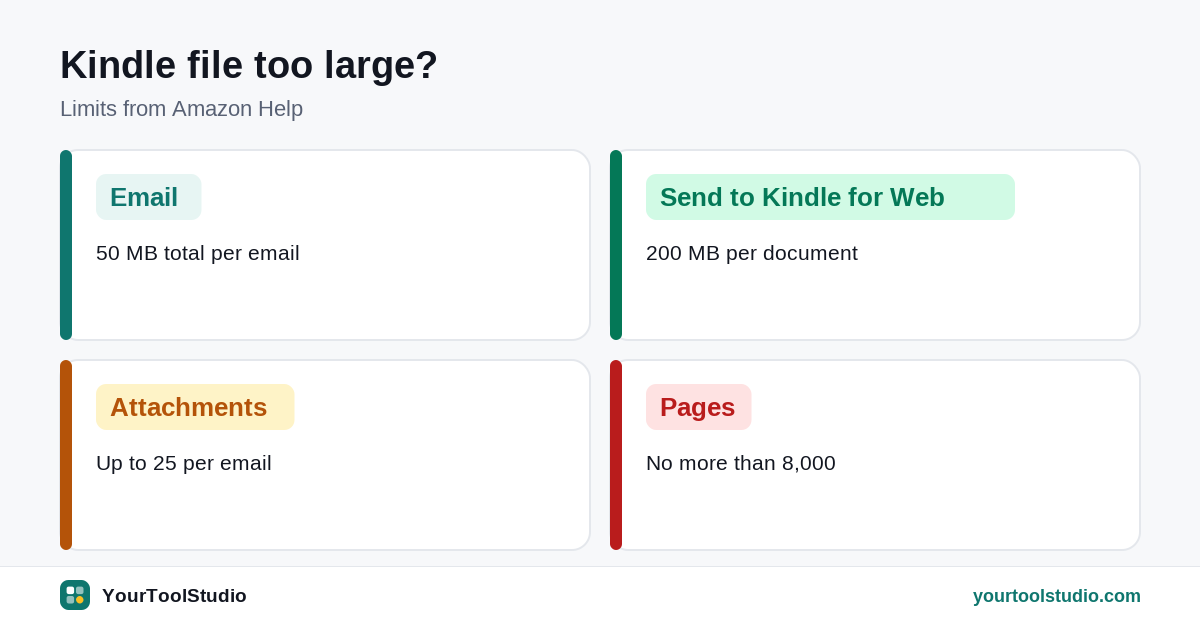
To send a large file to Kindle, upload it with Send to Kindle for Web, which Amazon says accepts documents of 200 MB or smaller, instead of emailing it. Email delivery is limited to 50 MB in total, so anything bigger than that has to go by the web uploader, be compressed, or be split into parts. Every limit on this page comes from Amazon help pages read on 21 November 2026.
Send to Kindle limits by method
Amazon lists several ways to get a document into your Kindle library, and they do not share one limit. This table puts the figures Amazon states side by side.
| Method | Size limit Amazon states | Other limits |
|---|---|---|
| Email to your Send to Kindle address | 50 MB total per email, each attachment under 50 MB before compression | Up to 25 attachments and 15 recipients per email; sender must be on your approved list |
| Send to Kindle for Web | 200 MB or smaller per document | Upload from your computer through a browser |
| Send to Kindle app for Mac and Windows | No limit stated on the help pages read | Desktop app |
| Kindle app for iOS and Android | No limit stated on the help pages read | Share a file into the app |
| Send to Kindle Chrome extension | No limit stated on the help pages read | Sends web pages from Chrome |
Two more rules apply whichever method you use. Amazon's troubleshooting page says a document must not exceed 8,000 pages, and that Send to Kindle cannot process secured files, so a password protected PDF is rejected even if it is small.
Which file types work
Amazon's page on sending documents lists these supported formats: PDF, EPUB, TXT, RTF, HTML and HTM, JPEG and JPG, GIF, PNG and BMP. Its troubleshooting page adds that Word files must be saved as DOC or DOCX from Word 97 or newer. MOBI is not on the supported list, so convert an old MOBI book to EPUB before sending it. If a document has audio, video or SVG images, the troubleshooting page advises removing that multimedia content, because it can stop the conversion.
Does zipping get around the 50 MB email limit?
Not reliably, and Amazon's own pages disagree. The help page on using your Send to Kindle email address says you can compress documents into a ZIP file to send more than 50 MB, and that the service opens ZIP files automatically. The troubleshooting page, however, says each attachment must be under 50 MB before compression, and that the 25 attachment limit also counts files before compression.
In practice this means a ZIP holding three 20 MB PDFs may arrive, because each file is under 50 MB on its own, but a ZIP holding one 80 MB PDF will fail, because that file is over the limit before it was zipped. PDFs and JPGs are already compressed, so zipping them barely shrinks them anyway. If one file is over 50 MB, use the web uploader or make the file itself smaller.
Worked examples
| Your file | Size | Best route |
|---|---|---|
| A novel as EPUB | 2 MB | Email it, or use any method |
| Ten PDF articles | 4 MB each, 40 MB total | One email with all ten attached, under the 50 MB total and 25 attachment limits |
| A scanned course pack PDF | 140 MB | Send to Kindle for Web, which takes up to 200 MB |
| A comic or photo book PDF | 320 MB | Compress or split it below 200 MB, then use the web uploader |
| A password protected bank statement | 1 MB | Remove the password first, because secured files are rejected |
| A 9,500 page document | Any size | Split it into parts of 8,000 pages or fewer |
How to shrink a large PDF before sending
Most oversized files sent to Kindle are scanned PDFs or PDFs full of photos. The text in them takes almost no space; the page images take nearly all of it. These steps are our own suggestions, ordered from least to most effort.
- Compress the PDF with Compress PDF, which runs in your browser, so the file is not uploaded to us.
- Check the new size. Under 50 MB can go by email; under 200 MB can go by the web uploader.
- If it is still too large, split it with Split PDF into parts, for example one file per chapter. Name them in order, such as Part 1 and Part 2, so they sort correctly in your library.
- For a book of photos, reduce the images before building the PDF with Compress JPG. A Kindle screen does not need full camera resolution.
Shrink scanned and image heavy PDFs on your own device, with no upload and no watermark.
Splitting has one cost: a book in three parts becomes three separate items in your library, each opened on its own. For a reference manual you dip into, that is fine. For a novel you read straight through, compressing is the better choice. Our guide to why PDF files get so large explains which parts of a PDF to target.
Sending by email: the setup that trips people up
If a small file still does not arrive by email, the size is not the problem. Check these, all taken from Amazon's help pages:
- Approved sender. The address you send from must be on your Approved Personal Document Email List, found under Preferences and then Personal Document Settings on the Manage Your Content and Devices page. Documents from other addresses are not delivered.
- Up to 15 approved addresses. Amazon says you can send from up to 15 approved email addresses.
- Device address. Each compatible Kindle and Kindle app on your account has its own Send to Kindle email address, so make sure you used the address of the device you are reading on.
- Delivery window. Amazon says delivery will be attempted for up to 60 days, so a Kindle that is offline receives the document once it reconnects.
- Limits per email. Keep to 25 attachments and 15 recipients.
Troubleshooting a large file that will not send
| What happens | Likely cause | What to do |
|---|---|---|
| Email bounces or an error arrives | Attachment total over 50 MB | Use Send to Kindle for Web, or compress the file |
| Web upload refuses the file | File over 200 MB, or an unsupported type | Compress or split below 200 MB; convert MOBI to EPUB |
| Error about a secured file | The PDF has a password or restrictions | Remove the protection with the original password, then send again |
| Conversion fails on a Word file | Old format or embedded media | Save as DOCX from a current Word, or convert with Word to PDF |
| Very long document fails | More than 8,000 pages | Split it with Split PDF |
For other services with their own caps, see our chart of email attachment size limits.
Sources and dates
| Amazon page | Read | Used for |
|---|---|---|
| Learn About Sending Documents to Your Kindle Library | 21 November 2026 | 200 MB web limit, supported file types, sending methods |
| Learn How to Use Your Send to Kindle Email Address | 21 November 2026 | 50 MB email total, 25 attachments, ZIP statement, 15 approved senders, 60 day delivery |
| Troubleshoot Send to Kindle Errors | 21 November 2026 | 50 MB before compression, 15 recipients, 8,000 pages, secured files, Word formats, multimedia |
| Add an Email Address to Receive Documents in Your Kindle Library | 21 November 2026 | Where the approved email list is |
The amazon.com copies of these help pages did not load when checked, so the addresses above are Amazon's own help mirror. The Send to Kindle desktop and mobile apps had no size limit stated on any page we read, so none is given here.
Frequently asked questions
What is the Send to Kindle file size limit?
Amazon says email delivery accepts 50 MB in total per email, with each attachment under 50 MB before compression. Send to Kindle for Web accepts documents of 200 MB or smaller.
How do I send a file larger than 50 MB to my Kindle?
Upload it with Send to Kindle for Web, which Amazon says takes documents up to 200 MB. If it is larger than 200 MB, compress or split it first.
Can I zip a file to get around the Kindle email limit?
Not for a single large file. One Amazon page says ZIP files can be used to send more than 50 MB, but the troubleshooting page says each attachment must be under 50 MB before compression.
How many files can I email to Kindle at once?
Amazon allows up to 25 attachments and 15 recipients per email, with a total size of 50 MB or less.
Why was my small PDF rejected by Send to Kindle?
The most common reasons are a password or restrictions on the PDF, which Send to Kindle cannot process, or sending from an address that is not on your approved email list.