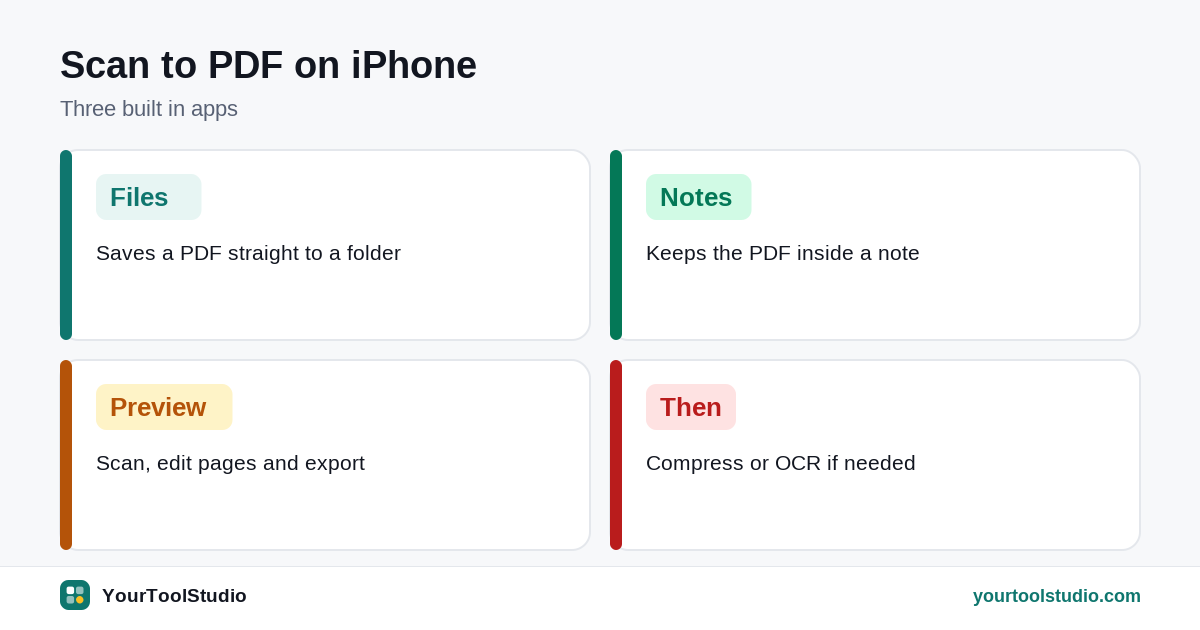
To scan a document on iPhone to PDF, open the Files app, tap the More button, tap Scan Documents, point the camera at the page and tap Save: the scan is stored as a PDF in the folder you choose. You can also scan from the Notes app, which keeps the PDF inside a note, or from the Preview app, which lets you reorder pages and export a smaller file. No extra app or account is needed.
Which app should you scan with?
All three use the same scanner, which finds the edges of the page, straightens it and lets you add more pages. The difference is where the PDF ends up and what you can do with it next.
| App | Where the PDF goes | Best for | Worth knowing |
|---|---|---|---|
| Files | A folder you pick, on the iPhone or in iCloud Drive | A PDF you will email, upload or attach to a form | You choose the location when you save |
| Notes | Inside a note | Receipts, notes and papers you want to keep together and search | You can sign the scan with Markup, and share or rename the PDF from the note |
| Preview | A PDF file in Preview | Multi page documents you want to tidy up before sending | Apple's Preview guide covers iOS 26 and iOS 27; it can insert, delete, rotate and reorder pages and export a compressed copy |
If you only need a file to send, Files is the shortest route. If you scan the same kind of paperwork often, Notes keeps everything in one searchable place.
Scan to PDF with the Files app
- Open Files and go to the folder where the PDF should live, for example iCloud Drive or On My iPhone.
- Tap the More button (the circle with three dots), then tap Scan Documents.
- Hold the iPhone over the page. In iOS 26 and later you can choose options such as flash or an image filter before you capture.
- In Auto mode the page is captured on its own. In manual mode, tap the shutter button or press a volume button, drag the corners to fit the page and tap Keep Scan.
- Scan any more pages, then tap Done.
- Choose a location, then tap Save.
The result is one multi page PDF. Rename it straight away, because a folder full of scans with default names is hard to search later.
Scan to PDF with the Notes app
- Open Notes and open a note or create a new one.
- Tap the Attachment button (the paper clip), then tap Scan Documents.
- Adjust settings such as Flash or Filters if you need them, then hold the iPhone steady. It captures the page when it detects the edges.
- To capture by hand instead, switch to manual, take the shot, adjust the corners and tap Keep or Retake.
- Scan the other pages, then tap Done. Apple says the document is saved as a PDF in the note.
To get the PDF out of Notes, tap the menu on the scan in the note. Apple lists copy, share, rename and delete there, so you can share it to Mail or save it to Files. In the Medium or Large preview size you can also rotate pages, change the filter, crop a page or insert a blank page, and Apple notes that Filters and Crop Page work only on scanned documents.
Scan to PDF with the Preview app
- Open Preview and tap Scan Documents.
- Point the camera at the page. iPhone captures it automatically; tap Auto to switch to Manual if you want to press the shutter yourself.
- Repeat for each page, and tap the thumbnails to crop, rotate or adjust the colour of a scan.
- Tap the done button. Preview creates the PDF, which you can rename, move or duplicate from the menu next to the filename.
Preview is the most useful app for a long document. You can touch and hold a page thumbnail to insert a blank page, insert another file, scan extra pages into the middle, or delete a page, and drag thumbnails to change the order.
Make the PDF smaller before you send it
Scans are photos inside a PDF, so a ten page colour scan can be too big for an email or an upload form. In the iOS 27 version of Apple's guide, Preview can export the PDF with Optimize Images for Screen, which lowers image resolution, and Save Images as JPEG, which stores the page images as JPEG; both make a smaller file. On any device you can also run the file through Compress PDF, which works in the browser on iPhone too.
| Problem | Quick fix |
|---|---|
| Upload form says the PDF is too large | Export from Preview with Optimize Images for Screen, or use Compress PDF |
| Text pages look grey and heavy | Rescan with a different image filter, or convert with Grayscale PDF |
| Several scans need to be one file | Combine them in order with Merge PDF |
| You need to search or copy the text | In Preview, export with Embed Text, which Apple says runs OCR, or use OCR PDF |
Pick a compression level and download a smaller copy. It runs in your browser, so the scan is not uploaded to a server.
Our guide to why a PDF file is so large explains in more detail why scanned pages weigh so much more than typed ones.
Tips for a clean scan
- Contrast helps edge detection. Put white paper on a dark table so the scanner can find the corners.
- Light from above, not behind. Even daylight beats a single lamp that throws your shadow across the page. Use the flash option only if the room is dark, because it can leave a glare spot on glossy paper.
- Hold the phone parallel to the page. The scanner corrects some tilt, but a steep angle stretches text at one end.
- Flatten creases and remove staples. Folds show up as dark lines that also add to the file size.
- Check each thumbnail before you save. It is quicker to retake a page now than to rescan the whole document later.
Troubleshooting
| What you see | Likely cause | Fix |
|---|---|---|
| Cannot find Scan Documents in Files | It sits in the More menu, not on a file | Tap the More button (three dots), or scan from Notes with the Attachment button instead |
| The scanner never captures the page | It cannot find the page edges | Use a darker background, or switch to manual and drag the corners yourself |
| The PDF is blurry | Movement or low light | Hold still with elbows on the table, add light, and retake the page |
| Pages are in the wrong order | Scanned out of sequence | Drag the thumbnails in Preview, or reorder with Organize PDF |
| A page is sideways | Scanned in landscape | Rotate it in Notes or Preview, or use Rotate PDF |
| The file will not open on a computer | Usually it does; if not, see the causes in our guide | Read why a PDF is not opening |
Already have the pages as photos rather than scans? Our guide to combining photos into one PDF covers that route, and JPG to PDF turns images into a PDF in the browser.
Sources and when they were checked
Read on 22 November 2026: Apple Support How to scan documents on your iPhone or iPad (published 13 February 2026); Apple iPhone User Guide pages Scan text and documents in Notes, Work with PDFs in Notes, Scan text and documents in Preview, Add, delete, rotate, move, or crop PDF pages in Preview, Save, rename, or move PDFs and images in Preview and Export or compress PDFs and images in Preview. Button names can change slightly between iOS versions.
Frequently asked questions
How do I scan a document on my iPhone and save it as a PDF?
Open Files, tap the More button, tap Scan Documents, capture the pages, tap Done, choose a folder and tap Save. The scan is saved as a PDF.
Does the Notes app save scans as PDF?
Yes. Apple says a document scanned in Notes is saved as a PDF in the note, and you can share, copy or rename it from there.
Do I need an app to scan to PDF on iPhone?
No. Files, Notes and Preview all have a Scan Documents option built in, with no download or account needed.
How do I make a scanned PDF smaller on iPhone?
Export it from Preview with Optimize Images for Screen or Save Images as JPEG turned on, or use Compress PDF in the browser.
Can I scan several pages into one PDF?
Yes. Keep scanning after the first page and tap Done at the end; all the pages are saved in a single PDF.