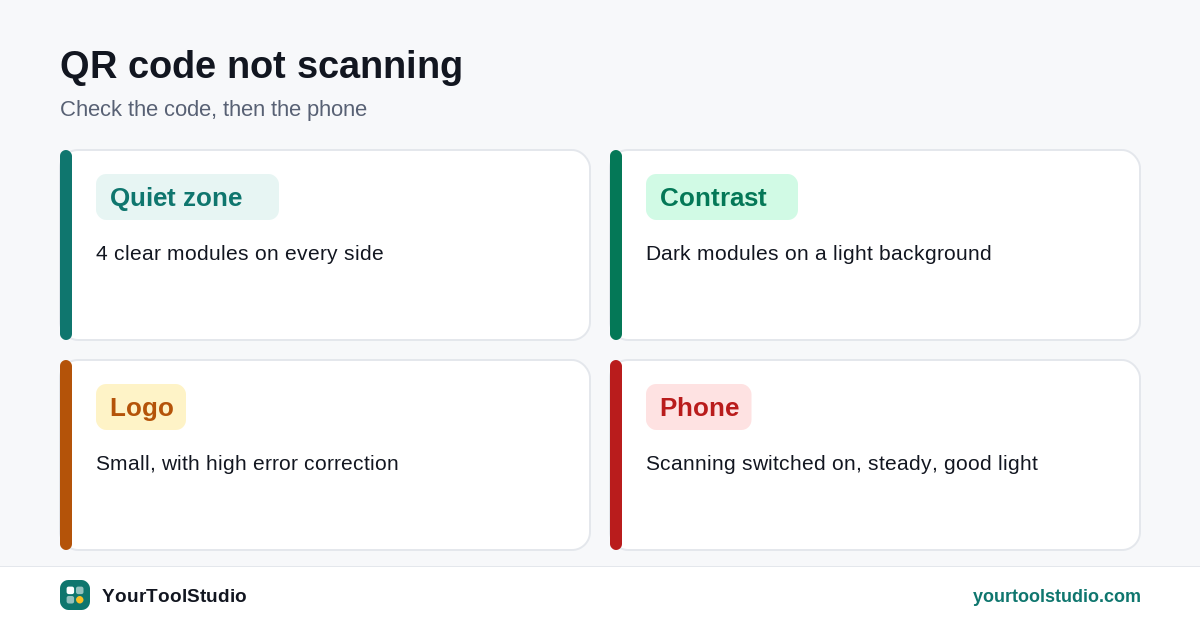
A QR code usually fails to scan because the reader cannot find its edges or cannot tell dark modules from light ones: the clear margin around it is missing, the contrast is too low, the colours are inverted, a logo covers too much of it, or it is printed too small for the distance. If the same code scans on another phone, the code is fine and the problem is a setting, the lens or the light on the first phone. The DENSO WAVE pages, Apple and Google help pages used in this guide were read on 27 November 2026. DENSO WAVE invented the QR Code and runs the official qrcode.com site.
First, find out whether it is the code or the phone
| Test | If it scans | If it still fails |
|---|---|---|
| Scan with a second phone or a different scanning app | The code is fine: fix the first phone (see the phone section below) | The code itself has a problem: work through the causes below |
| Upload a screenshot or photo of the code to the QR Code Scanner | The code is readable; the trouble is focus, light or distance with the camera | The image of the code is unreadable, so check margin, contrast and damage |
| Scan it on screen instead of on paper, or the other way round | The print or the display is the problem: glare, blur, size or ink | The design of the code is the problem |
| Scan it, then look at what opens | If the phone reads it but the page fails, the code is fine and the link is broken | Keep going down this page |
Cause 1: No quiet zone
DENSO WAVE says a QR Code needs a margin, called the quiet zone, where nothing is printed, and that it must be four modules wide on all sides. A module is one of the small squares that make up the code. The quiet zone is how the reader finds where the code starts and stops, so a code cropped tight against a coloured box, a photo or a line of text is the most common reason a good-looking design will not scan.
We tested this with the same open-source decoder (jsQR) that our scanner falls back to, on a clean digital image of a 33 by 33 module code surrounded by black. With no margin it failed; with one module of white it read. Do not take that as permission to cut the margin: a clean computer image is the easiest case there is, and a phone photo of a printed code at an angle is much harder. Keep the full four modules. In our QR Code Generator the Quiet zone slider is set to 4 by default for this reason.
Cause 2: Not enough contrast
Readers turn the picture into black and white before decoding, so the dark and light modules must be clearly different. DENSO WAVE explains that its scanners use red light, so a red code on a white background cannot be read at all, because both reflect red light the same way, and a blue code on a green background fails too. Its advice is to print QR Codes in black on white and to test any colour combination carefully first.
Phone cameras see colour differently from a red-light scanner, but contrast still matters. In our test, grey modules on white read at a contrast ratio of about 4.4 to 1 (grey value 120 out of 255) and failed at about 3.8 to 1 (grey value 130), even on a perfect digital image. Pale greys, pastel colours, gold on cream and grey on silver are the designs most likely to fail.
Cause 3: Inverted colours
A light code on a dark background looks stylish, but it is the reverse of what many readers look for. In our test, an inverted code was not found when the decoder only searched for dark-on-light, and was read when it was told to try both ways. Some phone cameras try both and some apps do not, which is why an inverted code can work on your phone and fail on a customer's. When your browser has no built-in barcode reader, our QR Code Scanner falls back to jsQR set to try both ways, but for anything printed for the public, use dark modules on a light background.
Cause 4: A logo that covers too much
QR Codes can repair damage thanks to Reed-Solomon error correction, and DENSO WAVE describes four levels, L, M, Q and H. Raising the level makes the code tougher but also larger, and DENSO WAVE says level M at 15 percent is the one most often chosen. A logo in the middle is damage on purpose, so it uses up that repair budget. DENSO WAVE also warns that putting an illustration on a code can make reading slow or impossible.
We covered the centre of the same web address code with a white square and tried each level:
| Error correction | Code size for our test link | Centre 15% of the width covered | Centre 22% covered | Centre 30% covered |
|---|---|---|---|---|
| L | 29 by 29 modules | Read | Failed | Failed |
| M | 33 by 33 modules | Read | Failed | Failed |
| Q | 37 by 37 modules | Read | Read | Read |
| H | 41 by 41 modules | Read | Read | Read |
A logo that is 22 percent of the width only covers about 5 percent of the area, yet it was enough to break the code at levels L and M. That is why our generator switches to the highest level automatically as soon as you add a logo, and keeps the logo inside a box of about 22 percent of the width. If your code came from another tool with a big logo, make the logo smaller or create the code again at level Q or H.
Cause 5: Too small for the distance
DENSO WAVE says the larger each module is, the more stable and easier to read the code becomes, and recommends printing it as large as the space allows. Its worked example shows how to calculate the size: a version 3 code has 29 modules per side, and at 0.254 mm per module plus a four-module margin on each side, the whole area is a 9.398 mm square. It also notes that on a common laser printer the smallest printable module is about 0.17 mm, but a code that small needs a reader that can resolve it.
Work out your own code the same way. Our test link at level M is 33 modules wide, plus 8 for the margins, so 41 modules. At 0.5 mm per module that is about 20.5 mm across; at 1 mm per module, about 41 mm. A code that people scan from across a room or from a car needs far bigger modules than one on a business card held in the hand. Long links make it worse, because more data means more modules, so the same printed size gives smaller modules. Shorten the link before you make the code, and see how to make a QR code for a PDF for linking to a file.
Cause 6: Print, screen and surface problems
- Glare. Gloss paper, laminated menus and phone screens reflect light across the code. Tilt the code or the phone slightly, or print on matte paper.
- Curved or crumpled surfaces. DENSO WAVE notes that codes on bags are often skewed, which makes reading harder, and that codes on transparent material reflect too little light from the areas meant to be white.
- Blurry or stretched images. A low-resolution QR image enlarged for print gets soft edges. Download it as SVG or as a large PNG; our generator offers SVG and PNG up to 4096 by 4096 pixels.
- Rounded or dotted styles. Round dots with gaps between them can be harder to read than square modules. Our rounded style keeps the modules touching and the three corner squares solid for this reason.
Cause 7: The phone is not set up to scan
If no code scans at all on one phone, check its settings before blaming the code.
| Phone | What to check | Source |
|---|---|---|
| iPhone | Open Camera in Photo mode so the code sits inside the frame, then tap the link at the bottom of the screen. You can also add the Scan Code control to Control Center and tap the flashlight there for more light | Apple iPhone User Guide and Apple Support |
| Pixel | In the Camera app open Settings, then More settings, and make sure Camera scan suggestions is on. There is also a Scan QR code button in Quick Settings | Pixel Phone Help |
| Phones with Camera from Google | Use the QR mode or the normal photo mode. Google says you cannot scan a QR code in portrait or video mode | Camera from Google Help |
| Any phone | Google suggests holding steady, using good light without shadows or glare, cleaning the lens and moving closer while keeping the whole square on screen | Pixel Phone Help |
If the code is on your own screen, for example in an email, you cannot point the same phone at it. Use the steps in how to scan a QR code from a screenshot.
Cause 8: It scans, but nothing opens
When the phone reads the code but shows an error page, the code is doing its job and the destination is the problem. Check the address for typing mistakes, missing https or a page that has moved. A dynamic QR code from a paid service holds a short link to that service, not your real address, so it stops working if the service or account ends. A static code holds the real address itself: the codes from our QR Code Generator are static, so they keep working as long as the page they point to exists.
Static codes with a 4-module quiet zone, adjustable error correction, a contrast warning and automatic high error correction when you add a logo. Free, in your browser.
Cause 9: Damage and dirt
Error correction lets a code survive some scratches and stains, and DENSO WAVE suggests level Q or H where codes get dirty. But damage to the three large corner squares is far worse than damage elsewhere, because the reader uses them to locate the code. If a printed code is torn, faded or covered by a sticker, replace it rather than hoping the error correction copes.
Sources and dates
| Page | Read | Used for |
|---|---|---|
| DENSO WAVE: Point for determining the code area | 27 November 2026 | Four-module quiet zone, worked size example |
| DENSO WAVE: Point for setting the module size | 27 November 2026 | Larger modules read more reliably, print as large as possible, printer and module sizes |
| DENSO WAVE: Error correction feature | 27 November 2026 | Levels L, M, Q, H, level M at 15 percent, higher levels make the code larger |
| DENSO WAVE: Information capacity and versions | 27 November 2026 | Versions 1 to 40, 21 to 177 modules, more data needs more modules |
| DENSO WAVE: QR Code FAQ | 27 November 2026 | Colours and red light, illustrations on codes, transparent bags, minimum module size |
| Apple: Scan a QR code with your iPhone camera and Apple Support 102680 | 27 November 2026 | Photo mode, Scan Code control, flashlight |
| Google: Scan QR codes with your Pixel phone | 27 November 2026 | Camera scan suggestions, Quick Settings button, troubleshooting tips |
| Google: Scan QR codes on Camera from Google | 27 November 2026 | QR mode, no scanning in portrait or video mode |
The scan tests were run by us on 27 November 2026 with the qrcode and jsQR libraries used by this site, on clean computer-generated images. Phone cameras and other apps can give different results, so always test a code on several phones before printing it.
Frequently asked questions
Why is my QR code not scanning on iPhone?
Open the Camera app in Photo mode, keep the whole code inside the frame and wait for the link at the bottom of the screen. If nothing appears, try the Scan Code control in Control Center. If another phone also fails, the code needs a wider margin, more contrast or a smaller logo.
How much white space does a QR code need?
DENSO WAVE, which invented the QR Code, says the quiet zone must be four modules wide on all sides. A module is one of the small squares in the code, so a code with bigger squares needs a wider margin.
Can a QR code be white on black?
It can be decoded by readers that try both ways, but many look only for dark modules on a light background. In our test an inverted code failed when the decoder only looked for dark on light. Use dark on light for anything printed.
Does a logo stop a QR code from working?
It can. In our test, covering the centre 22 percent of the width broke the code at error correction levels L and M but not at Q and H. Keep the logo small and use a high error correction level.
Why does my QR code scan but not open the page?
The code is being read, so the link inside it is the problem. Check for typing mistakes and moved pages. A dynamic code from a paid service stops working if the service or account ends, while a static code keeps the real address.