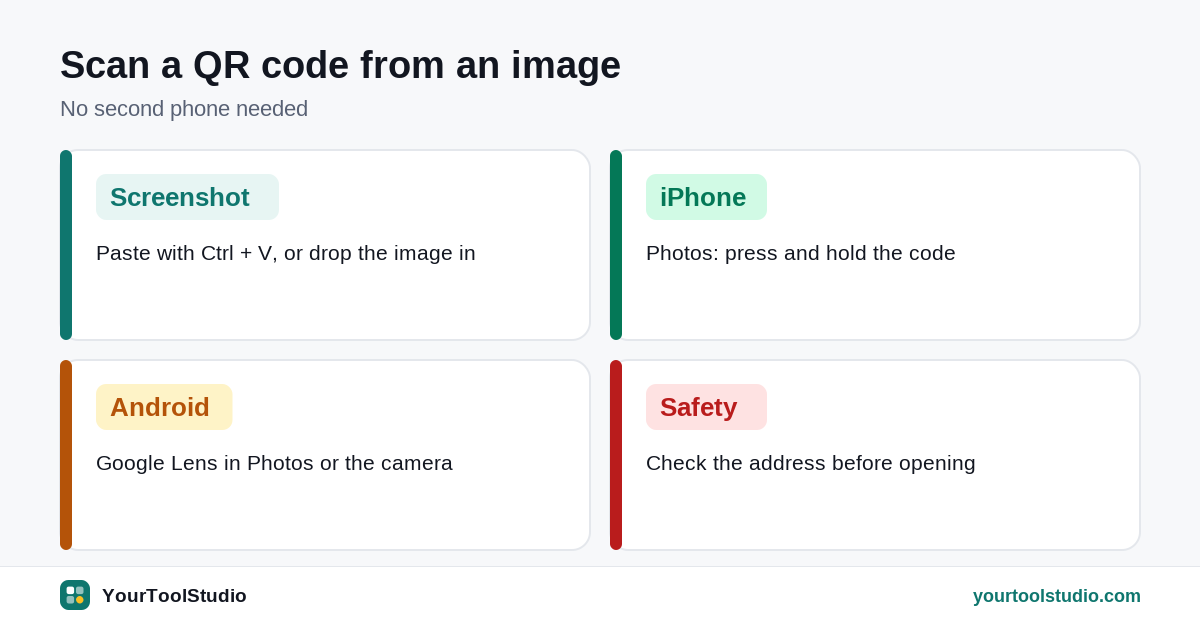
Open QR Code Scanner, choose Image or screenshot, then drop the picture in or paste a screenshot with Ctrl + V (Cmd + V on Mac). The content appears at once: a link, Wi-Fi details, a contact card or plain text.
Options on each device
| Device | Built-in way | Browser way |
|---|---|---|
| iPhone | Open the screenshot in Photos and press and hold the code, or tap the Live Text icon | QR Code Scanner, Image tab |
| Android | Google Lens from Photos, or the Lens button in the camera | QR Code Scanner, Image tab |
| Windows and Mac | No simple built-in option | Screenshot, then paste into QR Code Scanner |
| Code on a poster or another screen | Phone camera | QR Code Scanner, Camera tab |
Camera or screenshot. Nothing is uploaded.
Step by step on a computer
- Take a screenshot of the code: Win + Shift + S on Windows, Cmd + Shift + 4 on Mac.
- Open QR Code Scanner and press Ctrl + V.
- Read the result. Wi-Fi codes show the network and password; contact cards show name, phone and email.
- Copy the text, or open the link after checking it.
Stay safe from QR scams
- Read the full address before opening. Watch for misspelled brands, extra words and unusual domains.
- Be wary of stickers placed over the original code on parking meters, posters and restaurant tables.
- Never enter bank or card details on a page reached from an unexpected code; go to the official site or app instead.
- Payment requests, parcel notices and account warnings sent as QR codes are a common scam pattern.
Make your own codes
Need a code for a menu, a Wi-Fi network or reviews? Create one with the QR Code Generator; our guide to a Google review QR code walks through a common example.
Frequently asked questions
How do I scan a QR code that is on my phone screen?
Take a screenshot, then open it in Photos and press and hold the code on iPhone, use Google Lens on Android, or drop it into QR Code Scanner.
Can I scan a QR code on a laptop?
Yes. Take a screenshot of the code, open QR Code Scanner and paste it with Ctrl + V, or point the laptop camera at a printed code.
Can I read the Wi-Fi password from a QR code?
Yes. The scanner shows the network name, password and security type from Wi-Fi codes.
Why will the QR code not scan?
It may be blurry, cut off or too small. Crop around it and use a sharper image with all three corner squares visible.
Is it safe to scan QR codes?
Scanning is safe; opening the link is the risk. Check the address first and never enter payment details from an unexpected code.