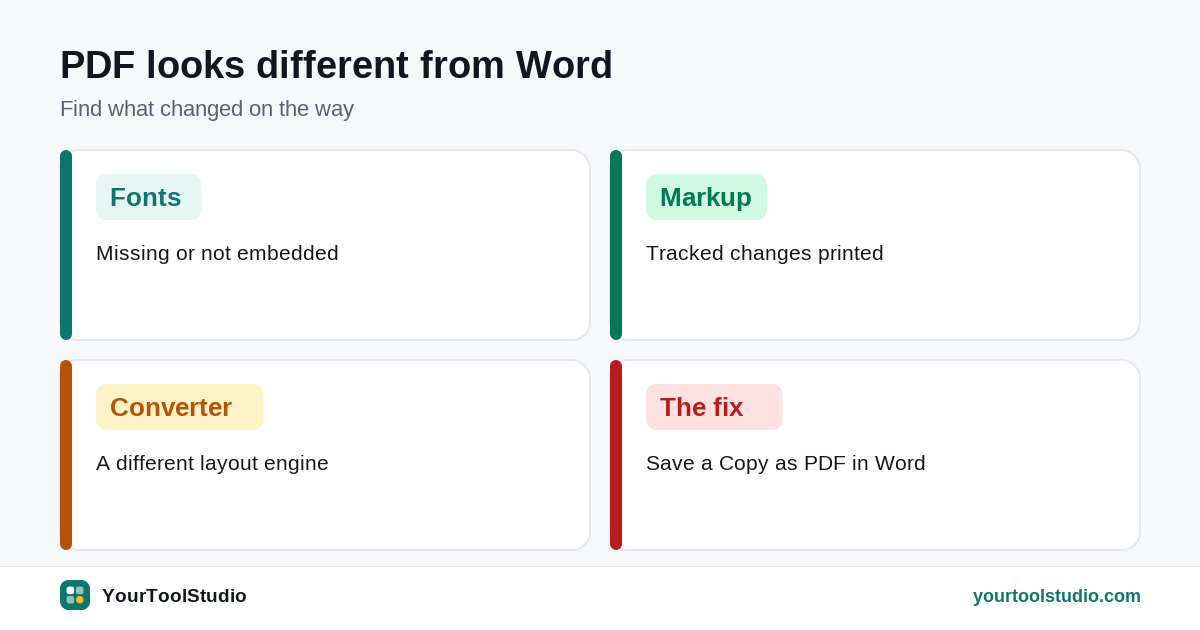
A PDF looks different from your Word document when the program that made it did not lay out the pages exactly as Word did: usually because a font was missing or could not be embedded, because tracked changes and comments were included, or because a converter other than Word worked out the layout. For the closest match, make the PDF from Word itself with File, Save a Copy, PDF, keep Publish what set to Document and tick the option that protects fonts that cannot be embedded. The Microsoft Support pages used here were read on 25 November 2026.
Spot the cause from what changed
Look at the PDF and the Word file side by side. The kind of difference tells you where it went wrong much faster than trying settings at random.
| What you see in the PDF | Most likely cause | Where to fix it |
|---|---|---|
| A different font, often plainer | The font was not on the computer or service that made the PDF, or it could not be embedded | Embed fonts in Word, or use the bitmap text option when saving |
| Lines and pages break in new places | A substitute font with different letter widths, or another program laying out the text | Make the PDF in Word with the original fonts available |
| Comment bubbles, coloured or crossed-out text | The PDF was made with markup showing | Accept or reject changes, or set Publish what to Document |
| Links do not work in a Mac PDF | The Mac Best for printing option | Use the other PDF option in Word for Mac and test the links |
| Only a basic PDF without bookmarks | Made from Word for the web through Print | Open in the desktop app for full options |
Cause 1: the fonts changed
This is the most common reason. A PDF can carry its fonts inside the file, but only if the font is available to the converter and its maker allows it to be embedded. Microsoft's page on embedding fonts explains that not every TrueType font can be embedded: font creators set an embedding level of Non-embeddable, Preview/Print, Editable or Installable. On Windows you can check a font in Control Panel, Fonts, where its Font embeddability is listed; on a Mac, Font Book shows it in the font information panel.
When a font cannot be embedded, Word has a fallback. In the PDF Options dialog, the setting Bitmap text when fonts may not be embedded stores pictures of that text so it looks the same. Microsoft notes that with the setting off, the reader may substitute another font, and a substitute with wider or narrower letters is exactly what pushes words onto new lines and tables onto new pages. The trade-off is that bitmap text cannot be selected or searched like normal text, so use the option only when you need the look preserved.
If the document travels as a Word file before anyone makes the PDF, for example to a colleague or a print shop, embed the fonts in the Word file itself: File, Options, Save, then tick Embed fonts in the file. Microsoft advises leaving Embed only the characters used off if other people will edit the file, because a font with only the used characters cannot be used for new text. Microsoft also suggests preferring OpenType or TrueType fonts and avoiding older PostScript fonts.
Cause 2: tracked changes and comments came along
If the PDF shows balloons in the margin, coloured insertions or struck-through text, it was made with markup showing. In the Word PDF options, Publish what offers Document and Document showing markup; only the second one includes tracked changes. The cleaner route is to finish the document first: on the Review tab, accept or reject every change and delete the comments, then save the PDF.
This matters even more when someone else's system makes the PDF, such as a submission portal that converts your DOCX for you. You cannot see its settings, so you cannot tell whether it shows markup. A document with no unresolved changes and no comments gives it nothing extra to print. Before uploading, use Review, Track Changes and switch to the view without markup to see the clean version that should appear.
Cause 3: another program laid out the pages
Word documents do not store finished pages. They store text, styles and rules, and each program works out the lines and pages when it opens the file. Word, Google Docs, LibreOffice, a phone app and an online converter all do this with their own layout engine, so the same file can break lines differently in each one. A PDF simply freezes the result of whichever engine made it.
| How the PDF was made | Who did the layout | How close to Word on your screen |
|---|---|---|
| Word desktop: Save a Copy or Save As, PDF | Word itself | Closest, if the fonts are available or embedded |
| Word for the web: Print, Save as PDF | Word for the web through the print path | Basic PDF; Microsoft points to the desktop app for more options |
| Google Docs, Pages or LibreOffice export | That program | Can differ in line breaks, spacing and tables |
| An online converter or a website upload | The converter's own engine | Varies by converter and by the fonts it has |
| Printing to a PDF printer | Word, then the print driver | Usually close, but links and bookmarks may be lost |
If you need a PDF that matches what you see in Word, make it in Word. When you do not have Word on the computer you are using, our Word to PDF converter is a free option that works in the browser without uploading the file. It runs LibreOffice on your device, which is a different layout engine from Word, so check a document with unusual fonts or a tight layout before you send the result.
Runs LibreOffice on your device, so the file is not uploaded. Free, no watermark, no sign up.
The Word settings that matter, in one place
These are the options in the Word for Windows PDF dialog that change how the PDF looks, as described by Microsoft Support. Open them with File, Save a Copy, choose PDF, then More Options and Options.
| Option | What it does | When to change it |
|---|---|---|
| Publish what: Document | Leaves tracked changes out | Keep it selected unless you want markup in the PDF |
| Publish what: Document showing markup | Includes tracked changes | Only for review copies |
| Bitmap text when fonts may not be embedded | Draws text in non-embeddable fonts as images so it looks the same | Tick it when a font keeps being swapped |
| ISO 19005-1 compliant (PDF/A) | Saves to the PDF/A archiving standard, which Microsoft says helps the document look the same on another computer later | For archives and submissions that ask for PDF/A |
| Create bookmarks using Headings | Turns your headings into PDF bookmarks | For long documents |
| Document structure tags for accessibility | Helps screen readers read the PDF | Leave it on |
| Page range | Saves only some pages | When you need part of the document |
On a Mac, Microsoft gives the path File, Save As or Save a Copy, then File Format, PDF. Its page notes a known issue: with Best for printing, hyperlinks may not convert correctly. If your links matter, test them in the finished PDF.
Troubleshooting checklist
- The font is still wrong after Save a Copy. Check the font's embeddability in Control Panel, Fonts, or Font Book. If it is Non-embeddable, tick the bitmap text option or switch to a font that allows embedding.
- One extra page appears at the end. Often a final empty paragraph pushed onto a new page by slightly wider text. Fix the font first, then remove trailing empty paragraphs or page breaks.
- The PDF from a website upload looks wrong but yours is fine. The site converted the Word file itself. Upload your own PDF instead of the DOCX if the site accepts it.
- The PDF is too big to send. Embedded fonts and images add size. Use Compress PDF, and read why a PDF file is so large for the usual causes.
- You need to edit the PDF later in Word. Keep the DOCX. Going back from PDF loses layout detail, as explained in how to convert PDF to Word.
- The word count also changed. Different programs count differently; see why word counts differ between Google Docs and Word.
Sources and dates
| Page | Read | Used for |
|---|---|---|
| Microsoft Support: Save or convert to PDF or XPS in Office desktop apps | 25 November 2026 | Menu paths on Windows, Mac and the web, every PDF option, the Mac hyperlink issue |
| Microsoft Support: Benefits of embedding custom fonts | 25 November 2026 | Embed fonts setting, embedding levels, how to check a font, font type advice |
Frequently asked questions
Why does my PDF look different than my Word document?
The program that made the PDF laid out the pages differently from Word, most often because a font was missing or could not be embedded, tracked changes were included, or a converter other than Word did the layout. Save a copy as PDF from Word itself.
Why does Word change my font when I save as PDF?
The font probably cannot be embedded because of its licence setting. Tick Bitmap text when fonts may not be embedded in the PDF options, or choose a font whose embeddability allows it.
How do I convert Word to PDF without changing the format?
Make the PDF in Word desktop with File, Save a Copy, PDF, keep Publish what set to Document, resolve tracked changes first and make sure the fonts are installed or embedded.
Why are comments showing in my PDF?
The PDF was made with Document showing markup. Choose Document under Publish what, or accept or reject the changes and delete the comments before saving.
Does PDF/A keep my formatting?
Microsoft says the ISO 19005-1 PDF/A option helps a document look the same when it is opened later on another computer. It is meant for archiving, so use it when a submission asks for it.