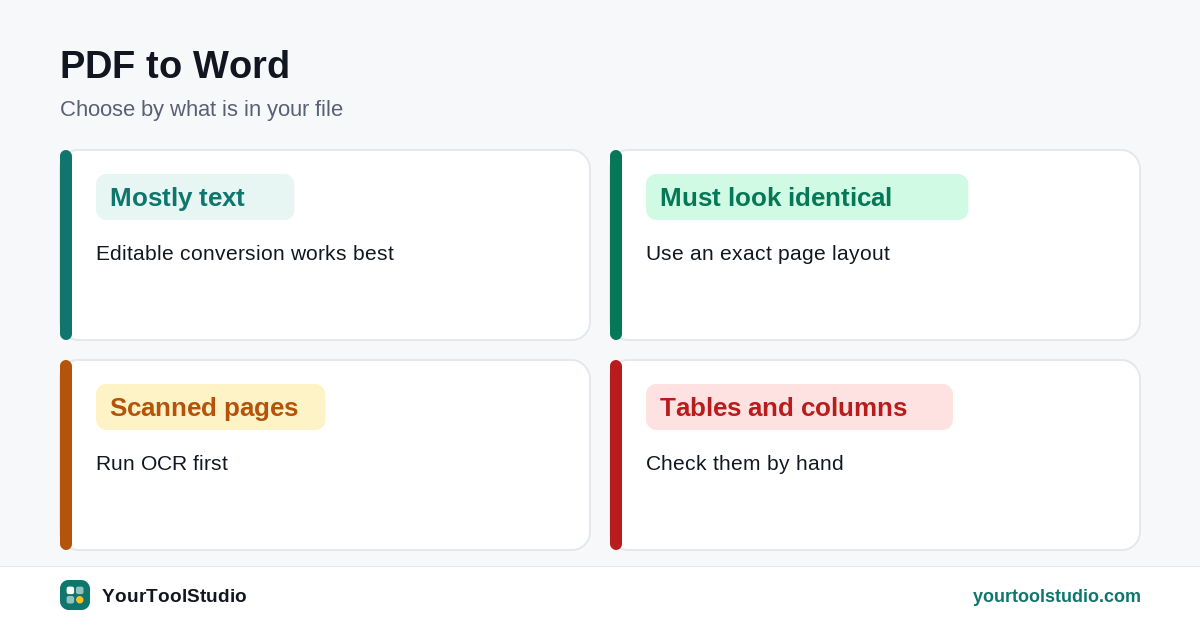
To convert a PDF to Word, open the PDF in Microsoft Word, open it with Google Docs from Google Drive, or use a browser tool such as our PDF to Word converter. Mostly text documents convert well with any of these. Tables, columns and scanned pages need extra checking, because the converter has to work out a structure the PDF never recorded.
Which method should you use?
| Your situation | Best method | Why |
|---|---|---|
| You have Microsoft Word | Open the PDF in Word | Word makes an editable copy and leaves the original PDF untouched |
| You work in Google Drive and the file is small | Open with Google Docs | Nothing to install, but Google lists a 2 MB limit for this conversion |
| You have neither, or want to avoid uploading | PDF to Word in Editable text mode | Runs in your browser, and the file stays on your device |
| The pages must look exactly like the PDF | PDF to Word in Exact layout mode | Each page becomes a picture, so nothing shifts |
| The PDF is a scan or a photo of a page | OCR PDF, then PDF to Word | A scan has no text to convert until OCR reads it |
Method 1: Convert a PDF in Microsoft Word
- Open Word, then open the PDF from inside it.
- Accept the message saying Word will convert the file.
- Review the converted copy and save it as a Word document.
Microsoft says this works best on files that are mostly text, such as business, legal and scientific documents. It also warns that pages made up mostly of charts or graphics may arrive as a single image you cannot edit. Its list of elements that convert poorly includes tables with cell spacing, page colors and borders, footnotes that span more than one page, endnotes, PDF bookmarks and PDF comments.
Method 2: Convert a PDF with Google Docs
- Upload the PDF to Google Drive.
- Right-click the file, then choose Open with and Google Docs.
- In the new document, choose File, then Download, and pick the Word file type.
Google's conversion guide says the file must be 2 MB or smaller. It expects bold, italics, font sizes, font types and line breaks to survive, while lists, tables, columns, footnotes and endnotes are unlikely to be detected. That makes Google Docs a reasonable choice for short, simple text and a poor one for reports full of tables. If your PDF is over the limit, Compress PDF or Split PDF can bring it down.
Method 3: Convert a PDF in your browser
- Open PDF to Word and add your file.
- Choose Editable text to change the wording, or Exact layout to preserve the appearance.
- Select Convert to Word, then download the DOCX file.
Create an editable DOCX or an exact page copy directly in your browser.
What survived our conversion test
On 19 November 2026 we made a one-page test report containing a title, three section headings, a bullet list, a link, a table, a two-column section and a chart. We ran it through the live tools in Chrome 157 on Windows, then read the contents of each DOCX file. The scanned copy was the same page saved as an image at about 192 pixels per inch.
| Content in the PDF | Text PDF, Editable text | Text PDF, Exact layout | Scanned copy, OCR then Editable text |
|---|---|---|---|
| 168 words | All 168 matched | Visible, but not editable | 153 of 168 matched |
| Title and headings | Rebuilt as Word headings | Visible as a picture | Title was lost |
| 3 bullets | Merged into one paragraph | Visible as a picture | Split across two paragraphs |
| Link | Text kept, link removed | Not clickable | Text kept, link removed |
| Table | Words kept as plain lines, no Word table | Visible as a picture | Table contents were lost |
| Two columns | Lines from both columns were mixed | Visible as a picture | Lines from both columns were mixed |
| Chart | Removed | Visible as a picture | Removed |
The result is useful but imperfect, and the pattern is the important part. Plain paragraphs came through word for word, while anything that relies on position needed repair. The output file sizes differed too: the 57 KB PDF became a 10 KB document in Editable text mode and a 172 KB document in Exact layout mode.
Why formatting breaks during conversion
Microsoft explains that a PDF records where text, images and graphics sit on a page, but usually not how they relate to one another. There is often no stored paragraph, column or table. A converter has to infer those objects from their positions, so two columns can look like one wide line of text, and a table can look like loosely spaced words.
How to fix common problems after converting
| Problem | What to do |
|---|---|
| The file will not convert, or says no text was found | The PDF is probably scanned. Run OCR PDF first, or use Exact layout if you only need the appearance |
| Columns are mixed together | Copy each column from the PDF separately, or convert a single-column version if you have one |
| A table became plain lines | Retype it using Word's Insert Table, or try PDF to Excel if the data is what you need |
| A chart or photo is missing | Save it with Extract Images from PDF and insert it into the document |
| Links stopped working | Select the text in Word and add the address again |
| OCR text has wrong words | Compare it with the scan, especially names, numbers, titles and table cells |
Check these before you send the document
- Numbers. Compare every total, date and table value with the PDF, because one misread digit can change the meaning.
- Reading order. Read multi-column pages from start to finish.
- Missing items. Look for lost charts, footnotes, headers and page numbers.
- Links. Test each link that needs to work.
- Permission. A password-protected file may need the password before it will open. Our Unlock PDF tool is for files you are allowed to change.
Going the other way? Use Word to PDF when your edits are finished, so the layout stays fixed for everyone who opens the file.
Frequently asked questions
How do I convert a PDF to Word for free?
Open the PDF in Microsoft Word if you have it, open it with Google Docs from Google Drive, or use our free PDF to Word tool in your browser. Choose Editable text if you need to change the wording.
Can I convert a PDF to Word without losing formatting?
You can keep the appearance by using Exact layout, but each page becomes a picture and the text cannot be edited. Editable conversions often change tables, columns, lists and links, so compare them with the original.
Why is my converted PDF not editable in Word?
The page is probably a scan or was placed as an image. Run OCR PDF first so the words become real text, then convert the result and check it carefully for recognition errors.
Can Google Docs convert a PDF to Word?
Yes. Open the PDF with Google Docs from Drive, then download it in Word format. Google lists a 2 MB limit for this conversion and says tables, lists and columns are unlikely to be detected.
Is it safe to convert a PDF to Word online?
It depends on the service, so check whether your file is uploaded. Our PDF to Word tool processes the file on your device and does not upload it to a server.