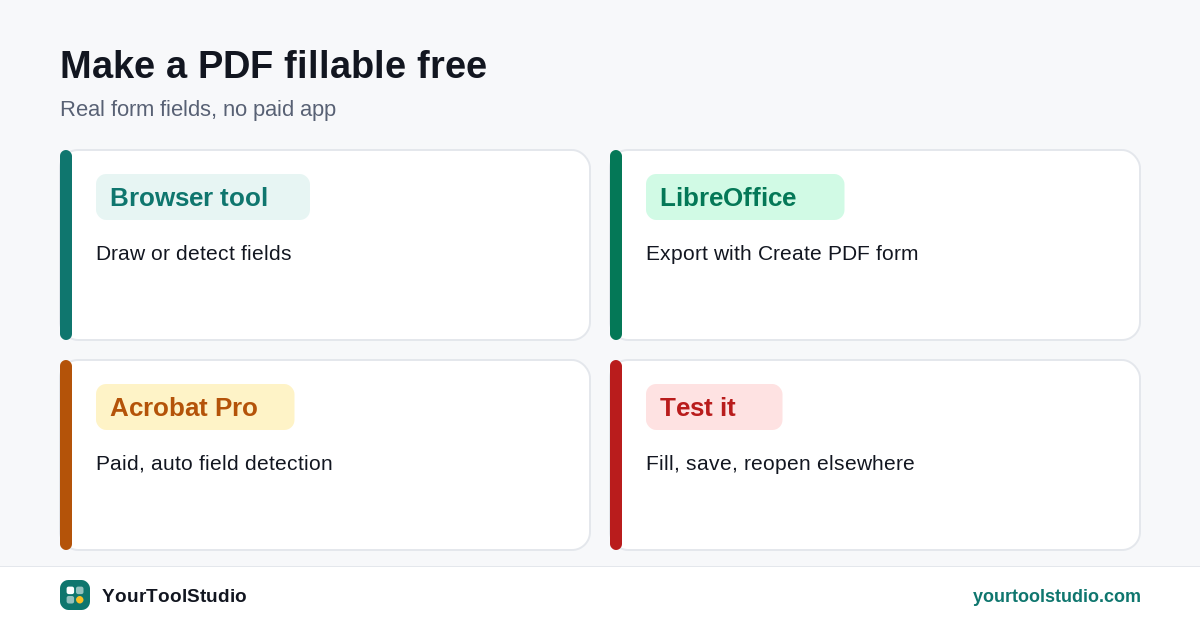
To make a PDF fillable for free, open it in a browser form builder such as Fill PDF Form, switch to Add fields, draw text fields, paragraph boxes and checkboxes where the answers go, then save the new copy. If you still have the original Word or Writer document, a second free route is to rebuild the form in LibreOffice and export it with the Create PDF form option ticked.
Paying is only worth it for complex forms. Adobe states on its flat forms help page that converting a flat form into a fillable one uses the Prepare a form tool in Acrobat Pro and that the feature is not available in the free Acrobat Reader. The rest of this guide covers the free methods, what each one can and cannot add, and how to check the finished form before you send it out.
Which free method to use
| Method | Cost | Best for | Field types you can add | Main limit |
|---|---|---|---|---|
| Fill PDF Form in your browser | Free, no account | An existing PDF with blank lines or boxes | Text field, paragraph (multi-line text), checkbox | No dropdowns, radio groups, calculations or scripts |
| LibreOffice Writer, then export as PDF | Free desktop app | A form you can rebuild from an editable document | The form controls Writer offers | You need the source file, or must retype the form |
| Acrobat Pro, Prepare a form | Paid subscription | Long forms, scans, calculations and signatures | Full set, including buttons and signature fields | Not available in free Acrobat Reader |
For a typical job such as an application form, a sign-up sheet or a client intake form, the browser method is the fastest because you start from the PDF you already have and nothing has to be retyped.
Method 1: add fields in your browser
Fill PDF Form has two modes. Fill form is for PDFs that already contain fields. Add fields is for flat PDFs, and the tool opens in that mode automatically when the file has no fields at all. The file is processed in your browser rather than uploaded.
- Drop the PDF into Fill PDF Form. The bar at the top shows no form fields yet for a flat file.
- Press Detect fields automatically. The tool scans the text of every page for runs of four or more underscores, such as ________, and for checkbox symbols such as ☐ and □, and places a field over each one. It tells you how many it found.
- Check each suggestion. Drag on the page to draw a missing field, or click once to drop a field at a standard size. Choose Text field for short answers, Paragraph for several lines and Checkbox for tick boxes.
- In the field list on the right, rename every field. The tool names them Text 1, Text 2 and Checkbox 1 by default; meaningful names such as Email or Agree to terms help anyone who later exports the answers. Use the cross next to a field to remove a wrong one.
- Press Create fillable PDF. You get a new file named after the original with -fillable on the end, and the original is left untouched.
Getting field sizes right
The field you draw is the area people can type into, so match it to the answer, not the printed line. A date needs a short box; an address needs a Paragraph field tall enough for three lines. Leave a little space around checkboxes so a tap on a phone lands inside the box. If the form has a signature line, leave it as it is and let people sign with Sign PDF, which our guide on how to sign a PDF explains.
Method 2: export a fillable form from LibreOffice
When you have the form as a Word or Writer document, it is often cleaner to build the fields at the source. LibreOffice is free, and its PDF export help page describes a Create PDF form option under Forms on the General tab, which produces a PDF that, in LibreOffice's words, can be filled out and printed by the user of the PDF document.
- Open the document in LibreOffice Writer and insert form controls, such as text boxes and check boxes, where the answers belong.
- Open the PDF export options and, on the General tab, tick Create PDF form.
- Pick a Submit format only if the form will send data somewhere. The help page lists FDF, PDF, HTML and XML.
- Leave Allow duplicate field names off unless you know you need it. With it off, LibreOffice exports duplicate names as generated unique names.
The trade-off is effort. If you only have the PDF, retyping it in Writer takes far longer than drawing fields on top of it in a browser.
Method 3: Acrobat Pro, when free is not enough
Adobe's page on converting documents to PDF forms describes the paid route: choose All tools, then Prepare a form, pick a file or scan a paper form, then select Create form. Acrobat identifies static fields automatically, and you can add buttons, signature fields and more form components afterwards. It is the right choice when you need dropdown lists, calculated totals, validation or a form that collects e-signatures, none of which the free browser method adds.
Test the form before you send it
A form that looks right on your screen can still fail for the person filling it in. Run this check on the finished file:
- Open the new PDF in a different app from the one that made it, for example Acrobat Reader, Preview on a Mac or a browser tab.
- Press Tab to move through the fields and type a test answer in each one.
- Save under a new name, close the app and reopen the copy. Every answer should still be there.
- Print the filled copy, or print to PDF, and check that the answers appear on paper.
If answers vanish after saving, the cause is usually the viewer rather than your fields; our guide on why a PDF form does not save changes covers each case.
Common problems and fixes
| Problem | Likely cause | Fix |
|---|---|---|
| Detect fields finds nothing | Scanned page with no text layer, or blanks drawn as graphic lines | Draw each field by hand |
| A field covers the printed label | Field drawn too wide | Remove it and drag a smaller one |
| Typed text is cut off | Single-line field used for a long answer | Use a Paragraph field instead |
| People can still change answers after signing | The form is still live | After filling, tick Flatten in Fill PDF Form or use Flatten PDF |
| You need to change printed text, not add fields | Wrong tool | Use Edit PDF; see how to edit a PDF |
Once the form is out, the same Fill PDF Form page lets people complete it: its Fill form mode types into existing text boxes, checkboxes, radio buttons and dropdowns, and can flatten the answers when they are final. The Adobe and LibreOffice help pages linked here were checked on 20 November 2026.
Frequently asked questions
Can I make a PDF fillable without Adobe Acrobat?
Yes. A free browser tool such as Fill PDF Form adds text fields, paragraph boxes and checkboxes to any PDF, and LibreOffice can export a fillable form from a document with Create PDF form ticked.
Can Acrobat Reader make a PDF fillable?
No. Adobe says converting a flat form into a fillable form uses the Prepare a form tool in Acrobat Pro and is not available in Acrobat Reader.
Why does automatic field detection find nothing in my PDF?
Detection looks for runs of underscores and checkbox symbols in the text of the page. A scanned form is an image with no text, so draw the fields by hand.
Will my fillable PDF work on a phone?
Standard text fields and checkboxes work in most PDF apps on phones. Make checkboxes large enough to tap and test the file on a phone before sending it.
How do I stop people changing a form after they fill it in?
Flatten the filled copy. The answers become part of the page, so they can no longer be edited as form fields.