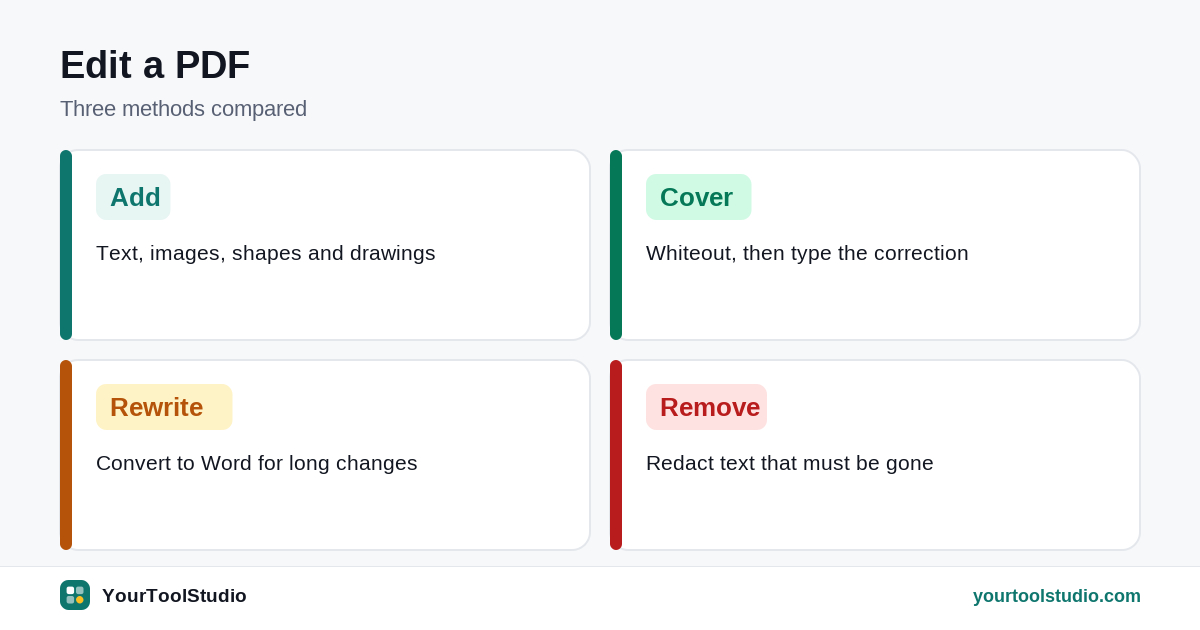
To edit a PDF for free, open Edit PDF, choose your file, pick a tool such as Text, Image or Whiteout, click or drag on the page, then select Save PDF. This adds new content on top of the page, which suits notes, corrections, logos and filled-in details. For rewriting long passages, convert the file to Word, edit it there and save it back as a PDF.
Pick the right method first
A PDF is built to look the same everywhere, not to be rewritten, so every method makes a trade-off. Match the job to the method before you start.
| What you need to do | Best method | Why |
|---|---|---|
| Add a note, date, name or arrow | Edit PDF | New text and shapes are placed exactly where you click, and the rest of the page is untouched |
| Fix a short figure or typo | Whiteout, then type the correction | Quick, but the original text stays in the file, as our test below shows |
| Rewrite paragraphs or reflow pages | PDF to Word, then Word to PDF | Text can be retyped and rewrapped, but the layout may shift |
| Fill in blank boxes on a form | Fill PDF Form | Answers go into the real form fields |
| Remove private details for good | Redact PDF | Covering text hides it, but only redaction removes it |
| Change a scanned page | OCR PDF first | A scan is a picture, so it has no text to select until OCR adds a text layer |
Add text, images, shapes and drawings, or white out content, with no account and no upload.
Edit a PDF in your browser, step by step
- Open Edit PDF and drop your file onto the page. Every page appears in a scrolling view.
- Choose Text, then click where the text should start. Type in the box in the side panel, then set the font, size, colour, bold or italic.
- To add a logo or photo, choose Image and pick a JPG, PNG or WebP file. Drag the corner handle to resize it in proportion.
- Use Rectangle, Ellipse or Line to draw attention to something, or Draw for freehand marks such as a tick.
- Select any added item to move, restyle or delete it. Press Delete to remove the selected item.
- Select Save PDF, download the copy and open it in your usual reader to check it.
Text uses Helvetica, Times or Courier. To make a correction blend in, pick the one closest to the document's own font and match the size by eye at a high zoom level.
What our test found
On 19 November 2026 we made a 2-page test invoice with a title, an author, a web link and a filled-in form field. We edited it with the Edit PDF tool in Chrome 157 on Windows, then read every saved file back with the pdf.js library. The tests ran on a local copy of the site built from the same code as the live tool, because the host's automated browser check blocks scripted browsers on the live address.
| Edit made | Changes | File size | Save time |
|---|---|---|---|
| Original file | None | 2,814 bytes | Not applicable |
| Whiteout over a figure, plus new text | 2 | 3,499 bytes | 0.35 seconds |
| Two lines of new text | 2 | 3,473 bytes | 0.33 seconds |
| Rectangle, ellipse, line and freehand drawing | 4 | 4,169 bytes | 0.17 seconds |
| One 3.6 KB PNG image | 1 | 6,169 bytes | 0.33 seconds |
In every saved copy the title, the author, the web link and the form field with its answer were still present, and both pages were kept. The file's producer field changed to YourToolStudio. After the file was opened, no request carrying data was sent from the page while editing or saving, which matches the tool's statement that files stay on your device.
Whiteout hides text but does not delete it
This is the result most people do not expect. We covered "Total due: 120.00 USD" with a whiteout box and typed "Total due: 150.00 USD" in its place. The page looked corrected, but the saved file's text layer still held both lines:
| Text found on page 1 after saving | Where it came from |
|---|---|
| Total due: 120.00 USD | The original text, now under a white box |
| Total due: 150.00 USD | The text we added on top |
Anyone who copies the page, searches it or runs it through a converter can still find the old figure. That is fine for a typo in a letter, but not for removing an account number, a salary or a name. For those, use Redact PDF, which rebuilds the marked pages as images so the hidden content is gone from the file.
Which characters can you type?
The added text uses standard PDF fonts, which cover Western European letters. We typed three test strings and read back what the saved file contained.
| Typed | Saved as | Result |
|---|---|---|
| Zoë Núñez | Zoë Núñez | Kept correctly |
| The euro sign € | ? | Replaced with a question mark |
| Chinese name 李明 | ?? | Replaced with question marks |
| Russian word Привет | ?????? | Replaced with question marks |
For other alphabets or symbols, write the text in a document or image editor, save it as a PNG and place it with the Image tool instead.
Edit a PDF in Word or Google Docs
For long rewrites, converting is the better route, as long as you accept some layout drift. Microsoft's Edit a PDF guide says Word makes a converted copy, leaves the original PDF unchanged and works best with files that are mostly text. It also warns that line and page breaks may fall in different places. Google's Drive conversion help page says a PDF should be 2 MB or smaller to convert with Open with Google Docs, and that lists, tables, columns, footnotes and endnotes are unlikely to be detected. Both pages were checked on 19 November 2026.
| Route | Good at | Watch out for |
|---|---|---|
| Word (File, then Open) | Retyping and rewrapping text-heavy files | Breaks moving, and scanned or book-style pages converting poorly |
| Google Docs (Open with) | Quick text edits on small files | The 2 MB limit and lost tables, lists and columns |
| PDF to Word on this site | Getting a .docx without installing anything | Complex layouts still need checking |
Our guide to converting a PDF to Word compares these converters in more detail.
Fix common editing problems
The first two messages below are the exact wording the tool showed during our tests.
| Problem | Cause | Fix |
|---|---|---|
| This PDF is password protected. Remove the password first, then try again. | The file needs a password to open | If it is yours, remove it with Unlock PDF |
| This PDF is password protected or restricted. Remove the protection first, then try again. | The file opens, but its owner blocked changes. In our test this appeared when saving | Ask the sender for an editable copy, or use Unlock PDF if you have permission |
| You cannot click into the existing text | The tool adds content on top rather than rewriting the page | Cover and retype short text, or convert to Word for longer changes |
| Nothing on the page can be selected | The page is a scan | Run OCR PDF first, or cover and retype |
| A form answer changes after you send it | Form fields stay editable after editing | Lock the answers with Flatten PDF |
| The edited file is too big to email | Large images were added, or the original was big | Shrink it with Compress PDF |
Before you send the edited file
- Open the downloaded copy, not the preview, and zoom in on every change.
- Select the text around a whiteout correction to see whether the old wording is still there.
- Do not edit a file that carries a certificate-based digital signature, because changing it is expected to invalidate that signature.
- Keep the original until the recipient confirms the edited copy is right.
Our test used purpose-built files in one desktop browser. Phones, tablets and very large or unusual files were not part of it, so check the result carefully on those.
Frequently asked questions
How can I edit a PDF for free?
Open Edit PDF, choose your file, pick Text, Image, a shape or Whiteout, click or drag on the page and select Save PDF. No account or software is needed.
Can I change the existing text in a PDF?
For short fixes, cover the old text with whiteout and type over it. For longer rewrites, convert the PDF to Word, edit it there and save it as a PDF again.
Does whiteout remove text from a PDF?
No. In our test the covered text was still in the saved file and could be found by copying or searching. Use Redact PDF to remove it for good.
Can I edit a PDF in Google Docs?
Yes, by right-clicking it in Google Drive and choosing Open with, then Google Docs. Google says the file should be 2 MB or smaller, and tables and columns are often lost.
Why can I not edit my PDF?
It may be a scan with no real text, or its owner may have restricted changes. Run OCR on a scan, or ask the sender for an unrestricted copy.
Does editing a PDF keep links and form fields?
In our test the web link, the form field and its answer, the title and the author were all kept after editing and saving.