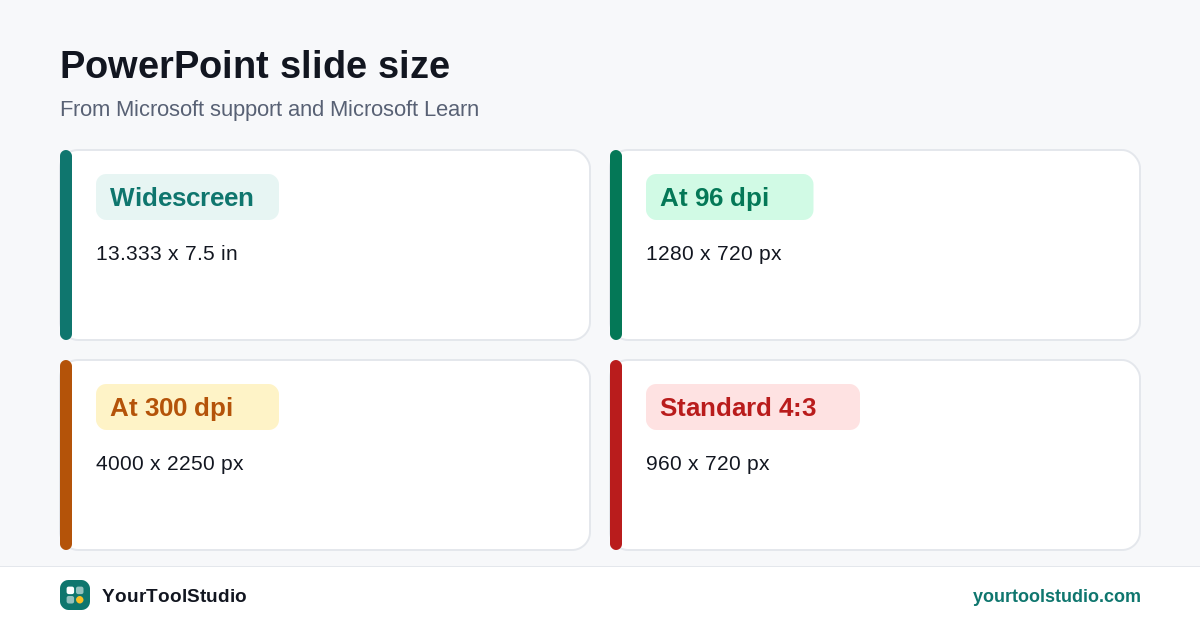
A default PowerPoint slide is Widescreen 16:9, 13.333 x 7.5 inches, which PowerPoint saves as a 1280 x 720 pixel picture at its default export resolution of 96 dpi. The older Standard 4:3 slide is 10 x 7.5 inches, or 960 x 720 pixels. Both figures come from Microsoft support and Microsoft Learn, read on 20 November 2026.
Why a slide has no fixed pixel size
A slide is a page measured in inches, and the text, shapes and charts on it are stored as vectors, so they stay sharp at any size. Pixels only appear when the slide becomes a picture: when you save it as PNG or JPEG, when a projector or screen shows it, or when a video is exported. The pixel count is the inch size multiplied by the dots per inch used for that picture. Microsoft says PowerPoint uses 96 dpi by default when you save a slide as a picture, which is why 96 is the multiplier in the chart below.
The practical result: if you design a background image for a Widescreen slide, make it 1280 x 720 px at the very least, and 1920 x 1080 px or larger if it will be shown on a Full HD screen or exported at a higher resolution. Both are exactly 16:9, so the image fills the slide with no gaps.
Every PowerPoint preset in inches and pixels
| Preset in Slide Size | Inches (width x height) | Centimetres | Pixels at 96 dpi |
|---|---|---|---|
| Widescreen (default) | 13.333 x 7.5 | 33.867 x 19.05 | 1280 x 720 |
| On-screen Show (16:9) | 10 x 5.625 | 25.4 x 14.288 | 960 x 540 |
| On-screen Show (16:10) | 10 x 6.25 | 25.4 x 15.875 | 960 x 600 |
| On-screen Show (4:3), Standard | 10 x 7.5 | 25.4 x 19.05 | 960 x 720 |
| Letter Paper (8.5 x 11 in) | 10 x 7.5 | 25.4 x 19.05 | 960 x 720 |
| Overhead | 10 x 7.5 | 25.4 x 19.05 | 960 x 720 |
| A4 Paper (210 x 297 mm) | 10.833 x 7.5 | 27.517 x 19.05 | 1040 x 720 |
| A3 Paper (297 x 420 mm) | 14 x 10.5 | 35.56 x 26.67 | 1344 x 1008 |
| Ledger Paper (11 x 17 in) | 13.319 x 9.99 | 33.831 x 25.374 | 1279 x 959 |
| B4 (ISO) Paper | 11.84 x 8.88 | 30.074 x 22.556 | 1137 x 852 |
| B5 (ISO) Paper | 7.84 x 5.88 | 19.914 x 14.936 | 753 x 564 |
| 35 mm Slides | 11.25 x 7.5 | 28.575 x 19.05 | 1080 x 720 |
| Banner | 8 x 1 | 20.32 x 2.54 | 768 x 96 |
The inch and centimetre columns are copied from the preset list on Microsoft support. The pixel column is our own arithmetic, inches times 96, rounded to whole pixels; it matches the two pixel sizes Microsoft prints itself, 1280 x 720 for Widescreen and 960 x 720 for 4:3. Notice that the paper presets are not the paper size: the A4 preset is 10.833 x 7.5 inches, smaller than a sheet of A4, so the slide prints with a margin.
There are two 16:9 presets. Microsoft explains that Widescreen and On-screen Show (16:9) have the same shape and look identical on screen, but Widescreen has more surface area, so the same 18 point text takes up less of the slide. If a template looks oddly zoomed in or text looks huge, it was probably built on the 10 x 5.625 inch version.
Export sizes at higher resolutions
| Export resolution | Widescreen 16:9 | Standard 4:3 |
|---|---|---|
| 50 dpi | 667 x 375 px | 500 x 375 px |
| 96 dpi (default) | 1280 x 720 px | 960 x 720 px |
| 150 dpi | 2000 x 1125 px | 1500 x 1125 px |
| 200 dpi | 2667 x 1500 px | 2000 x 1500 px |
| 300 dpi | 4000 x 2250 px | 3000 x 2250 px |
These rows are taken from the Microsoft Learn article on exporting high resolution slides. On Windows, the export resolution is changed with a registry value named ExportBitmapResolution, and Microsoft warns that registry edits must be made carefully, so back up first or ask your IT team. Microsoft also lists the upper limits:
- PowerPoint for Microsoft 365, 2019, 2016 and 2013: no fixed dpi limit, but the exported picture can be at most 100,000,000 pixels in total. That works out to about 1,000 dpi for a Widescreen slide and about 1,155 dpi for a 4:3 slide.
- PowerPoint 2010 and older: the longest edge is capped at 3,072 pixels, so a 4:3 slide tops out at 3072 x 2304 px, about 307 dpi.
Custom slide sizes and their limits
In Design, Slide Size, Custom Slide Size, PowerPoint accepts a width and height followed by a space and in, cm or px, and converts it to the unit your system uses. Microsoft lists a minimum of 1 in, 2.54 cm or 120 px and a maximum of 56 in or 142.24 cm for each side. The same Microsoft table shows 720 px as the pixel maximum, which does not match 56 inches at any common resolution, so set large custom sizes in inches or centimetres rather than pixels.
Every slide in a presentation shares one size and one orientation; Microsoft states PowerPoint cannot resize or rotate a single slide. When you shrink a deck, PowerPoint offers Ensure Fit, which scales content down so it all stays visible, or Maximize, which keeps content large and may push it off the edge.
Google Slides sizes
Google Slides offers the same three shapes plus custom. In File, Page setup, Google lists Standard (4:3), Widescreen (16:9), Widescreen (16:10) and Custom, and a custom size can be typed in inches, centimetres, points or pixels. Google's help page does not print the dimensions of its presets, so the reliable way to get an exact pixel size in Google Slides is to choose Custom and type it, for example 1920 x 1080 for a Full HD screen. Rulers and object sizes can be switched to pixels in Tools, Preferences by ticking the measurement unit option.
Fix common size problems
- Background picture blurry: export or crop it to at least the pixel size in the chart above with Resize Image, and use Crop Image at 16:9 so it fills the slide without stretching.
- Deck too heavy to email after adding large pictures: shrink the images first with Compress Image, then read why a PowerPoint file gets so large.
- Need the slides as a PDF handout: convert with PowerPoint to PDF; the PDF page keeps the slide's inch size.
- Need slide images for a website or a social post: save the deck as PDF and turn each page into an image with PDF to JPG.
Sources and dates
| Page | Date | Used for |
|---|---|---|
| Microsoft support: Change the size of your slides | No date shown, read 20 November 2026 | Every preset in inches and centimetres, Widescreen as the default, custom size units and limits, Ensure Fit and Maximize, one size per presentation |
| Microsoft Learn: How to export high-resolution slides from PowerPoint | No date shown, read 20 November 2026 | 96 dpi default, pixel sizes at 50 to 300 dpi, 100,000,000 pixel limit, 3,072 pixel limit in PowerPoint 2010 and older |
| Google Docs Editors Help: Change slide size and measurement units in Google Slides | No date shown, read 20 November 2026 | Google Slides presets, custom size units, measurement unit preferences |
Frequently asked questions
What is the PowerPoint slide size in pixels?
The default Widescreen slide is 13.333 x 7.5 inches, which PowerPoint saves as 1280 x 720 px at its default 96 dpi. The 4:3 Standard slide is 960 x 720 px.
Is a PowerPoint slide 1920 x 1080?
Not by default. Widescreen has the same 16:9 shape as 1920 x 1080, so a 1920 x 1080 image fills it exactly, but PowerPoint exports it at 1280 x 720 px unless the export resolution is raised to 144 dpi or more.
Can I set a PowerPoint slide size in pixels?
Yes. In Custom Slide Size, type the number followed by a space and px, and PowerPoint converts it to inches or centimetres. Microsoft lists 120 px as the minimum.
What size is a 300 dpi PowerPoint slide?
Microsoft lists 4000 x 2250 px for a Widescreen slide and 3000 x 2250 px for a 4:3 slide at 300 dpi.
What sizes does Google Slides offer?
Standard 4:3, Widescreen 16:9, Widescreen 16:10 and Custom, under File and Page setup. Custom sizes can be entered in inches, centimetres, points or pixels.