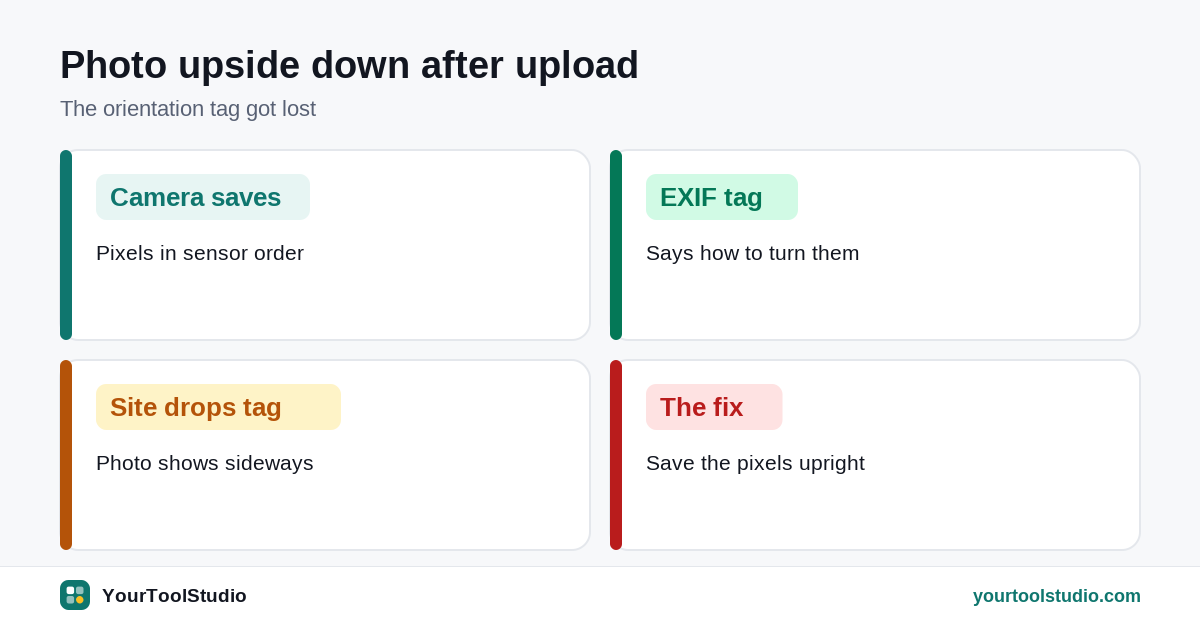
Your photo turns sideways or upside down after uploading because the camera stored it in one direction and added an EXIF orientation tag saying how to turn it, and the site you uploaded to ignored that tag or deleted it. Save a copy whose pixels are already upright, for example with Rotate Image, and the photo will look the same on every site, because it no longer needs the tag. The specifications and documentation used here were read on 25 November 2026.
What the orientation tag does
A phone camera sensor reads the picture in the same direction no matter how you hold the phone. Rather than turning millions of pixels every time you take a portrait or upside-down shot, the camera saves them as they came off the sensor and writes a single number into the photo's EXIF metadata: the Orientation tag, tag 0x0112 (274 in decimal). Any program that displays the photo is expected to read that number and turn the picture before showing it.
The tag can hold eight values. The four you will meet from phones are 1, 3, 6 and 8; the mirrored values appear mostly after front camera shots or editing apps.
| Value | Meaning as listed by ExifTool | What you see if a site ignores it |
|---|---|---|
| 1 | Horizontal (normal) | Nothing changes: the photo is already upright |
| 2 | Mirror horizontal | The photo appears mirrored, text reads backwards |
| 3 | Rotate 180 | The photo is upside down |
| 4 | Mirror vertical | Upside down and mirrored |
| 5 | Mirror horizontal and rotate 270 CW | On its side and mirrored |
| 6 | Rotate 90 CW | A portrait photo lies on its left side, top pointing left |
| 7 | Mirror horizontal and rotate 90 CW | On its side and mirrored |
| 8 | Rotate 270 CW | The photo lies on its right side, top pointing right |
So the most common report, a portrait photo that appears lying on its side after upload, is usually a value 6 photo shown by something that skipped the tag. An upside-down photo is usually value 3, taken with the phone turned the other way up.
Why it looks right on your phone but wrong after upload
Your phone gallery reads the tag, so you never see the raw sensor direction. Modern browsers read it too: the W3C CSS Images specification gives the image-orientation property an initial value of from-image, which means the browser turns the picture by the angle the EXIF data asks for. The same specification notes that the property previously used none as its initial value, so older browsers and older software displayed the raw pixels, which is where many of the old sideways-photo complaints came from.
When a photo goes wrong today, one of these usually happened on the way:
| Where it went wrong | What happened to the tag | Typical sign |
|---|---|---|
| The site resized or compressed your upload | It copied the pixels into a new file but did not copy or apply the tag | Thumbnail and full view both sideways |
| The site strips metadata for privacy | Location and camera data were removed, and the orientation tag went with them | Only photos from your phone are affected, screenshots are fine |
| An older app or plugin draws the photo itself | It never reads the tag at all | Correct in the browser, wrong in one app or editor |
| The page sets image-orientation to none | The browser is told to show the raw pixels | Wrong on one website only |
| You rotated the photo in an app that only changed the tag | The tag now disagrees with what another program expects | Right in one gallery, wrong in another |
The fix that works everywhere: save the pixels upright
The reliable cure is to stop depending on the tag. When a program applies the orientation, turns the actual pixels and saves a new file, the result has no turn left to perform, so every site, app and printer shows it the same way.
That is what our Rotate Image tool does. It opens each photo with the browser's createImageBitmap option imageOrientation: "from-image", which MDN describes as orienting the image according to its EXIF orientation metadata, so the preview matches your phone. You can then add a 90 degree, 180 degree or fine-angle turn if the photo really was taken crooked, and the download stores the pixels exactly as you see them. The work happens in your browser and the photo is not uploaded.
Applies the camera orientation, lets you turn or level the picture and saves upright pixels. Free, no upload, no watermark.
Other ways to get the same result:
- Resize or convert it first. Our Resize Image and Compress Image tools also turn each photo upright using its camera orientation before saving, so a smaller upload comes out the right way up too.
- Take a screenshot of the photo. A screenshot has no orientation tag, so it is stored upright. It lowers the quality to your screen resolution, so use it only when nothing else is available.
- Export from a desktop editor. Most editors apply the tag when they open the photo and write upright pixels when you export or save as a new file.
Platform by platform
| Where the photo goes wrong | What to try first |
|---|---|
| A form, job portal or school upload page | Save an upright copy with Rotate Image and upload that copy |
| A shop or marketplace listing | Use an upright copy; many listing tools re-encode photos and drop metadata |
| Your own website or blog | Check whether a plugin or theme resizes images; upload upright copies or update the plugin |
| Facebook or another social app shows a profile picture flipped | If it is mirrored rather than rotated, it is probably a front camera shot: use Flip in Rotate Image |
| An email attachment | The recipient's mail program may ignore the tag; send an upright copy |
| Printing or a photo book service | Upload upright copies so the layout and the print agree |
Mirrored is not the same as rotated
If text in the photo reads backwards, the picture is mirrored, not turned. Front cameras often show a mirrored preview, and some apps save the mirror image or use the mirrored orientation values 2, 4, 5 and 7. Rotating will not fix a mirror image: open Rotate Image and use Flip horizontal instead, then check the result before saving.
Should you remove metadata before uploading?
Removing EXIF data is a good idea before posting photos taken at home, because it can include the location. The catch is that a careless metadata stripper deletes the orientation tag too, which is one of the ways photos end up sideways in the first place. Our Remove EXIF Data tool removes location, camera and date details but keeps the orientation value, so the photo still displays the right way up. If you want to remove every trace of metadata and still be safe, run the photo through Rotate Image first so the pixels are upright, then strip the rest.
Troubleshooting
- The upright copy is still sideways on the site. Make sure you uploaded the downloaded copy. Phones and browsers often pick the original from a recent files list.
- The photo is upright in the preview but you wanted it turned. The photo may really have been taken at an angle. Add a 90 or 180 degree turn in Rotate Image, or use the fine angle to straighten a horizon.
- Only HEIC photos misbehave. Some upload pages cannot read HEIC at all. Convert with HEIC to JPG; see HEIC to JPG without losing quality for the settings.
- A sideways video, not a photo. Videos have their own rotation setting. Use Rotate Video or read how to rotate a sideways video.
- A PDF made from phone photos is sideways. Fix the photos first, or turn the finished pages with Rotate PDF.
For web developers
If your users report sideways uploads, check the image pipeline rather than the browser. Keep the default image-orientation: from-image; the W3C specification marks values other than none and from-image as deprecated and optional to implement. MDN adds a warning that image-orientation: none does not override the EXIF orientation of non-secure-origin images. On the server, apply the orientation before resizing and then either keep the tag at 1 or remove it, so the stored pixels and the metadata never disagree. In the browser, createImageBitmap with imageOrientation: "from-image" gives you upright pixels to draw on a canvas, while "none" ignores the tag, as MDN describes.
Sources and dates
| Page | Read | Used for |
|---|---|---|
| ExifTool: EXIF tag names | 25 November 2026 | Orientation tag 0x0112 and the meaning of values 1 to 8 |
| W3C: CSS Images Module Level 3, image-orientation | 25 November 2026 | Initial value from-image, previous initial value none, deprecated angle and flip values |
| MDN: image-orientation | 25 November 2026 | from-image and none behaviour, non-secure-origin warning |
| MDN: createImageBitmap() | 25 November 2026 | imageOrientation options from-image, flipY and none |
The official CIPA Exif standard download page showed only a disclaimer to accept when checked, so the tag values above come from ExifTool's tag reference.
Frequently asked questions
Why is my photo upside down when I upload it but fine on my phone?
Your phone reads the EXIF orientation tag that says which way is up, but the site you uploaded to ignored it or deleted it while resizing. Save a copy with upright pixels using Rotate Image and upload that copy.
What does EXIF orientation 6 mean?
Value 6 means Rotate 90 CW: the pixels must be turned 90 degrees clockwise to display correctly. A program that ignores it shows a portrait photo lying on its side with the top pointing left.
Why do my pictures upload sideways on Facebook or other sites?
Most often the site re-encoded the photo and lost the orientation tag, or the photo was mirrored by the front camera. Upload an upright copy, and use Flip rather than Rotate if text reads backwards.
Will removing EXIF data make my photo sideways?
It can, if the tool deletes the orientation tag along with location and camera data. Remove EXIF Data on this site keeps the orientation value, or you can save upright pixels with Rotate Image first.
Do browsers respect EXIF orientation?
Yes. The CSS image-orientation property now defaults to from-image, so current browsers turn photos by their EXIF tag. It used to default to none, which is why older software showed photos sideways.