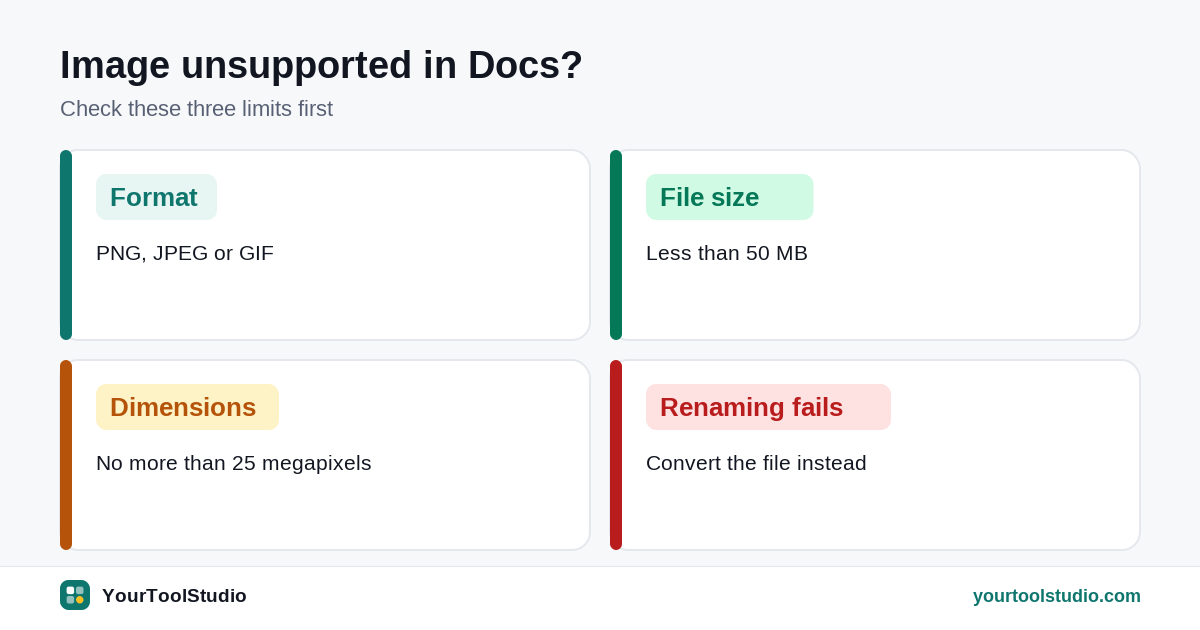
Your image is most likely unsupported on Google Docs because it is not a PNG, JPEG or GIF, it is 50 MB or larger, or it has more than 25 megapixels. Convert the file to JPG or PNG, reduce its size if needed, then insert the new copy. A WebP picture saved from a website, for example, can be fixed in seconds with WebP to JPG.
The limits Google publishes
Google's help page on inserting images explains the menus but does not list accepted formats. The clearest official figures are in the Google Docs API reference, which sets these rules for images added to a document through the API:
| Requirement | Published limit | How to check your file |
|---|---|---|
| Format | PNG, JPEG or GIF | Look at the file type in File Explorer, Finder or your phone's file details |
| File size | Less than 50 MB | Look at the size in the file details |
| Resolution | No more than 25 megapixels | Multiply width by height in pixels |
| Image link, when inserting by URL | Publicly accessible and no longer than 2 kB | Open the link in a private browser window |
Find out which problem you have
Work through this table from the top. Most failures are explained by the first row, because modern websites and phones often save pictures in newer formats.
| What you have | Why Docs may refuse it | Fix |
|---|---|---|
| WebP picture saved from a website | Not on Google's published format list | WebP to JPG, or WebP to PNG to keep transparency |
| iPhone photo ending in .heic | Not on the list | HEIC to JPG |
| AVIF image | Not on the list | AVIF to JPG, or AVIF to PNG to keep transparency |
| SVG logo or icon | Not on the list | SVG to PNG |
| BMP image | Not on the list | Resize Image, which saves BMP files as PNG |
| TIFF scan | Not on the list | Export it as PNG or JPG from your scanning or photo app |
| JPG or PNG of 50 MB or more | Over the file size limit | Compress Image |
| Very large photo or panorama | Over 25 megapixels | Resize Image |
Why renaming the file does not work
Changing photo.webp to photo.jpg only changes the label. The data inside is still WebP, so an app that reads the actual contents can still reject it. This also explains a confusing case: a file that ends in .jpg but fails anyway. It may have been renamed earlier, or a website may have served a WebP image under a .jpg address.
To test a suspicious file, add it to WebP to JPG. If it converts, save the new copy and use that in your document. Real conversion rewrites the picture in the new format, which is what Docs needs.
Convert the image, step by step
- Open the converter that matches your file, such as WebP to JPG or HEIC to JPG.
- Add the image. The conversion runs in your browser, so the picture is not uploaded to a server.
- Download the converted copy and open it once to confirm it looks right.
- In Google Docs, place the cursor where the image belongs.
- Select Insert, then Image, then Upload from computer, and choose the new file.
Convert the picture on your own device, with no upload and no watermark.
JPG or PNG: which should you choose?
Both are on Google's list, so choose by what the picture contains. MDN's image format guide explains the difference: JPEG uses lossy compression and has no transparency, while PNG is lossless and supports full transparency.
| Your image | Best format | Reason |
|---|---|---|
| Photo | JPG | Usually a much smaller file |
| Logo with a transparent background | PNG | JPG cannot keep the transparency |
| Screenshot, chart or diagram | PNG | Lossless compression keeps text and thin lines crisp |
| Short animation | GIF | The only animated format on Google's list |
Check the 25 megapixel limit
Megapixels are the width multiplied by the height, divided by one million. A file can be small on disk and still exceed this limit, which is why a compressed panorama may fail. These examples show what to enter in Resize Image when a picture is too large.
| Original size | Megapixels | Within the limit? | Example new size |
|---|---|---|---|
| 5000 × 5000 | 25.0 | Yes, exactly at the limit | No change needed |
| 6000 × 4000 | 24.0 | Yes | No change needed |
| 7000 × 4000 | 28.0 | No | 6500 × 3714 (24.1 MP) |
| 8000 × 6000 | 48.0 | No | 5600 × 4200 (23.5 MP) |
| 16000 × 3000 | 48.0 | No | 11000 × 2062 (22.7 MP) |
A document page is far smaller than these sizes, so you are unlikely to see any loss on screen or in a normal printout. Keep the aspect ratio locked while resizing so the picture does not stretch.
If the file meets every limit and still fails
Once the format, size and resolution are correct, the file is probably not the cause. These checks are our own troubleshooting suggestions, ordered from quickest to slowest:
- Try another insert method. Google's help page also lists Drive & Photos, By URL, drag and drop, and copy and paste.
- Upload it to Google Drive first. Then choose Insert, Image, Drive & Photos. If the upload itself fails, the problem is likely your connection or account storage.
- Open the document in a private window. If the image inserts there, a browser extension may be interfering.
- Test the image elsewhere. If no other app can open it, the file may be damaged, so download or export it again.
- Check your edit access. You need permission to edit the document before you can add anything to it.
Inserting an image by URL
The By URL option depends on Google being able to reach the picture. The API reference says the address must be publicly accessible and no longer than 2 kB. An image behind a login, or a long temporary link from a shopping or social site, may therefore fail even when the picture displays in your own browser. Download the image, check that you have the right to reuse it, and insert it from your computer.
The Google limits on this page were checked against the linked pages on 19 November 2026. For more on choosing a format, read our comparison of JPG, PNG and WebP.
Frequently asked questions
What image formats does Google Docs support?
The Google Docs API reference lists PNG, JPEG and GIF. Convert other formats, such as WebP, HEIC and AVIF, to one of those before inserting them.
Why does Google Docs say my JPG is unsupported?
The file may not really be a JPG. It may have been renamed from another format, or it may be 50 MB or larger or over 25 megapixels.
Can I put a WebP image in Google Docs?
WebP is not on the format list in the Google Docs API reference. Converting it to JPG or PNG is the most reliable way to insert it.
What is the maximum image size for Google Docs?
Google's API reference says images must be less than 50 MB and cannot exceed 25 megapixels.
Does renaming a WebP file to JPG fix the error?
No. Renaming changes only the file name, so the data remains WebP. Use a converter to create a real JPG.