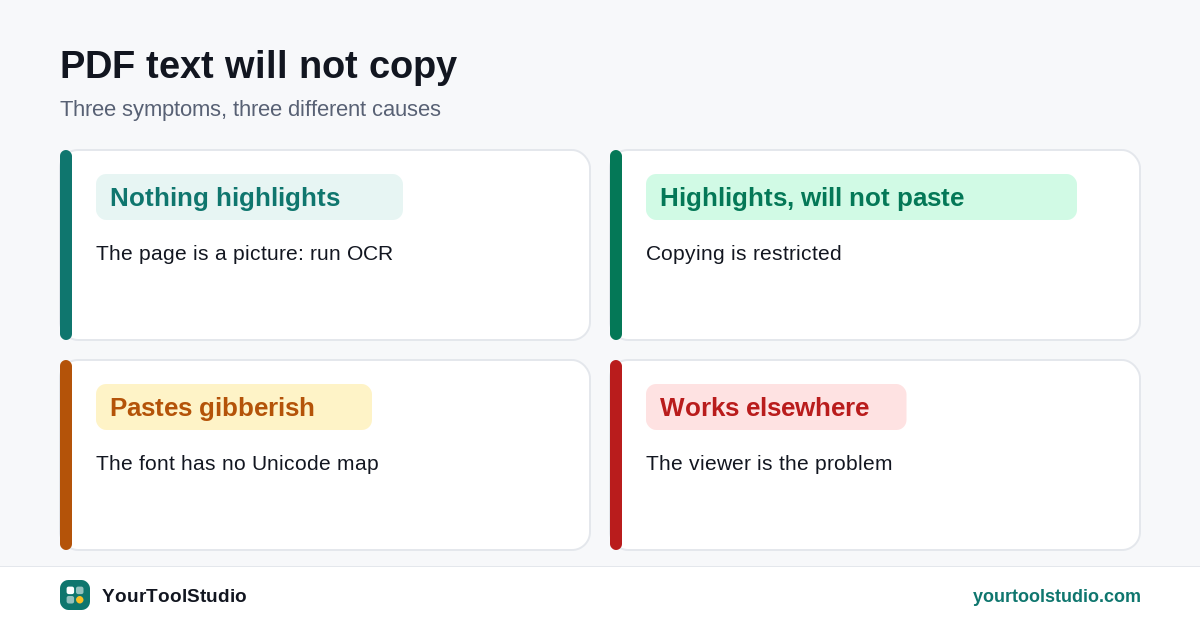
You usually cannot copy text from a PDF for one of two reasons: the page is a scanned picture with no text in it at all, or the person who made the file switched off copying with a permissions password. Less often, the text is there but its font has no map back to real letters, so it pastes as gibberish, or the app you are using handles selection badly. The Adobe help pages, the PDF Association article and the PDF.js code used in this guide were read and tested on 27 November 2026.
The 30 second test
Pick the text select tool (the I-beam cursor, not the hand), drag across one sentence, copy it and paste it into a plain text editor such as Notepad or TextEdit. What happens tells you which section of this guide you need.
| What you see | Most likely cause | Go to |
|---|---|---|
| Nothing highlights, or the whole page highlights as one block | The page is an image, such as a scan or a phone photo | Cause 1: the PDF is a scan |
| Text highlights, but Copy is greyed out or the paste is empty | Copying is restricted in the file permissions | Cause 2: copying is restricted |
| Text pastes, but as boxes, symbols or the wrong letters | The font has no usable Unicode map | Cause 3: the text pastes as gibberish |
| Text copies fine in another app | The first viewer, browser or phone app | Cause 4: the viewer |
| Some pages copy and others do not | A mixed file, with scanned pages inserted among real ones | Cause 1, page by page |
Cause 1: the PDF is a scan or a photo
A scanner, a phone scanning app or a fax system usually saves each page as a picture of the paper. You can read it because your eyes see letters, but the file only holds pixels, so there is nothing for a select tool to grab. The same happens when someone prints a document to an image printer, takes screenshots and saves them as a PDF, or converts slides to pictures before sharing.
We checked this with the same PDF.js library the tools on this site use. A one-line page written with real text returned all 25 characters of its text layer. A page drawn only as shapes, which is what a scan or outlined text looks like to software, returned 0 characters. There is no setting that reveals text that was never stored.
The fix is OCR (optical character recognition), which reads the shapes in the picture and adds an invisible text layer on top of them:
- Open OCR PDF and drop in the file. It runs in your browser, so the document is not uploaded.
- Tick only the languages actually used in the document. The tool supports English, Spanish, French, German, Portuguese, Italian and Dutch.
- Leave Skip pages that already have text ticked for mixed files. Pages with more than about 40 characters of real text are left as they are.
- Select Make PDF searchable. Each page is rendered at 300 DPI and read, which takes a few seconds per page.
- Download the searchable PDF, or the plain text file if you only need the words.
Adds a selectable text layer to scanned pages in your browser, keeps the page images exactly as they were, and gives you the text as a .txt file too.
OCR is a reading guess, not a copy of the original file, so check numbers, names and anything in small print. Clean, straight, high-contrast scans give the best results. If you only need a few lines from a single page, take a screenshot and use Image to Text instead. If you are making the scan yourself, the guide to scanning a document on iPhone to PDF covers getting a sharp page in the first place.
Cause 2: copying is restricted
A PDF can carry two kinds of password. Adobe describes a Document Open Password, which you need to open the file at all, and a Permissions Password, which lets the author restrict printing, editing, copying content and adding comments. A file with only a permissions password opens normally with no prompt, which is why the restriction comes as a surprise.
To check, Adobe says to open Menu > Document Properties on Windows or File > Document properties on a Mac, select the Security tab and read the Document Restrictions Summary. If content copying is listed as not allowed, that is your answer. Authors set this in Acrobat under Protect a PDF > Encrypt with Password, by leaving Enable copying of text, images, and other content unticked. There is a separate option, Enable text access for screen reader devices, so a file can block copying and still be read aloud.
We reproduced this: we took the text test page and restricted copying with an owner password and no open password. The text was still in the file, and PDF.js still read all 25 characters, but the permission list it reported no longer included copying, while the separate permission for accessibility stayed on. In other words, the restriction is a flag that tells the app not to let you copy, not a change to the text.
What to do depends on whose file it is:
- Someone else's document: ask the sender for an unrestricted copy, or for the permissions password. The restriction is a request from the author, and copying their content may breach the terms you received it under.
- Your own file, or one you have the right to change: Unlock PDF removes printing and copying restrictions from a file that opens without a password, and removes an open password you already know. It does not guess or crack passwords.
- You use a screen reader: the accessibility permission is often still on even when copying is off, so try your screen reader before anything else.
Cause 3: the text pastes as gibberish
Sometimes copying works, but you get boxes, accented letters, symbols or a mix of characters that look nothing like the page. The PDF Association explains why: a PDF stores text as references to glyphs, the drawn shapes in a font, and a separate table called a ToUnicode CMap records which real character each glyph stands for. When that table is missing, extraction software falls back to guesses, which can produce an empty result, replacement characters, or text that looks plausible but is wrong.
This is common in files made with custom or subset fonts, old publishing tools and some print-to-PDF drivers. Because the screen only needs the shapes, the page looks perfect, so nobody notices until they try to copy, search or translate it.
- Try search first. Press Ctrl+F or Cmd+F and search for a word you can see. If search fails too, the text layer is unusable and no viewer will fix it.
- Run OCR anyway. In OCR PDF untick Skip pages that already have text, so the broken pages are read from their pictures instead of their faulty text layer.
- Ask for the source file. If the PDF came from a Word, Google Docs or InDesign file, exporting it again from that program usually produces correct text.
- For a table, try PDF to Excel or PDF to Word after OCR, because copying a table straight from a PDF often loses its columns.
Cause 4: the viewer, browser or phone app
If the 30 second test gave odd results only in one place, open the same file somewhere else. Browser PDF viewers, email previews and phone file apps all have their own text selection code, and some show a quick preview image before the real text layer loads. Download the file instead of previewing it, open it in a full PDF reader, and make sure you have the select tool rather than the hand or pan tool. On a phone, press and hold on a word, wait for the selection handles, and drag them instead of tapping.
Cause 5: the text is a form field, comment or picture of text
Not everything that looks like text is part of the page. Text typed into a form field is stored in the field rather than in the page content, so to copy it, click into the field and use Ctrl+A or Cmd+A inside it instead. Comments and sticky notes have to be opened to copy their contents. Logos, headings made in design apps and charts are often images or outlined shapes, so they need OCR or Image to Text even when the rest of the page copies fine. If you want field text to behave like the rest of the page, Flatten PDF merges form fields and comments into the page.
Which fix to use
| Situation | Best fix | Keeps the layout |
|---|---|---|
| Whole document is a scan | OCR PDF, then copy or search | Yes, the page images stay the same |
| One paragraph from a scan or screenshot | Screenshot it, then Image to Text | No, you get plain text only |
| Your own file with copying restricted | Unlock PDF | Yes |
| Someone else's restricted file | Ask the sender for an open copy | Yes |
| Text pastes as gibberish | OCR with Skip pages that already have text unticked, or export again from the source | Yes with OCR |
| You need it editable in Word | PDF to Word, after OCR for scans | Partly; check the formatting |
Sources and dates
| Page | Read | Used for |
|---|---|---|
| Adobe: Password security overview | 27 November 2026 | Document Open Password and Permissions Password, and what a permissions password can restrict |
| Adobe: Restrict printing, editing, and copying PDFs | 27 November 2026 | Encrypt with Password steps, the copying option and the separate screen reader option |
| Adobe: Check security settings in PDF forms | 27 November 2026 | Where to find the Security tab and the Document Restrictions Summary |
| PDF Association: Why PDF/A conformance level b fails machine reading | 27 November 2026 | Glyphs versus characters, the ToUnicode CMap and what extraction returns without it |
| Mozilla PDF.js (pdfjs-dist 6.5 viewer code) | 27 November 2026 | The enablePermissions option is off by default; permission flag values in our own test |
Frequently asked questions
Why can I copy text from some PDFs and not others?
PDFs made from a word processor contain real text, while scans and photos contain only pictures of text. Some files also have copying switched off with a permissions password. Check Document Properties, then Security, and try selecting one sentence to tell which it is.
How do I copy text from a scanned PDF?
Run it through OCR, which reads the letters in the page images and adds a hidden text layer. OCR PDF on this site does this in your browser and also gives you the recognised text as a .txt file. Check numbers and names afterwards.
Why does copied PDF text paste as symbols or boxes?
The font in the PDF has no usable map from its glyphs back to real characters, so the copied codes do not match the letters you see. Run OCR with the option to skip text pages turned off, or export the PDF again from its source document.
Can I remove a copy restriction from a PDF?
If the file is yours or you have permission to change it, Unlock PDF removes copying and printing restrictions from a file that opens without a password. For someone else's document, ask the sender for an unrestricted copy.
Why can I select text but Copy is greyed out?
The PDF has a permissions password that blocks copying of content. The text is still in the file, but the app is following the file's permission flags. Look for Content Copying in the Document Restrictions Summary on the Security tab.