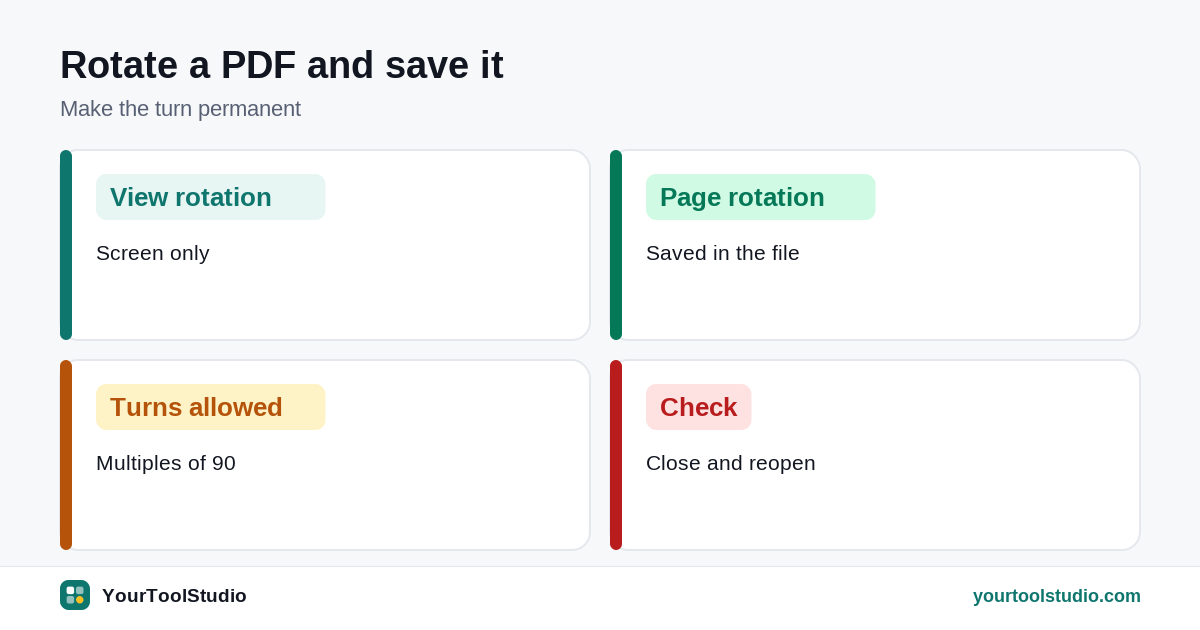
To rotate a PDF and save it that way, use a tool that changes the page rotation stored in the file, such as our free Rotate PDF tool, Preview on a Mac or Adobe Acrobat online, then save or download the result as a new PDF. The rotate buttons in many browser viewers only turn the page on your screen, so the file opens sideways again next time. Always close and reopen the saved copy to confirm the turn was kept.
Why the rotation does not stick
A PDF page has a rotation value stored with it, and every reader uses that value when it shows or prints the page. Apple's developer documentation for PDFKit, the PDF engine used across macOS and iOS, describes this page rotation in degrees and says it must be a positive or negative multiple of 90, with negative angles converted to positive ones, so -90 becomes 270. That is why every rotate tool turns pages in quarter turns.
A viewer can also turn the page on screen without touching that stored value. Microsoft lists Ctrl+[ and Ctrl+] (Command on a Mac) as Edge shortcuts that rotate a PDF 90 degrees counter-clockwise or clockwise, but its shortcut list says nothing about writing that turn into the file, and in a 2022 Microsoft Q&A thread a moderator replied that rotating only selected pages in the Edge PDF reader was not supported. When we checked the search results for this question, most top answers were forum threads and vendor sales pages, so here is the short version: if a tool does not produce a new or saved file, assume the rotation is temporary.
| Kind of rotation | What changes | Survives closing the file? | Examples |
|---|---|---|---|
| View rotation | Only how the page looks in that window | No | Rotate shortcuts in a browser PDF viewer |
| Page rotation | The rotation value saved with each page | Yes | Rotate PDF tool, Preview, Adobe Acrobat online |
| Re-printing to PDF | A new file is drawn from what is on screen | Yes, but text and links may suffer | Print dialog, Save as PDF |
Method 1: Rotate PDF in your browser, free
Our Rotate PDF tool writes the new rotation into each page and gives you a new file to download. It runs in your browser, so the PDF is not uploaded anywhere.
- Open Rotate PDF and drop your file onto the page, or click Select PDF file.
- Click a page thumbnail to turn it 90 degrees clockwise, or use the left and right arrows on each page.
- To turn the whole document, use All left or All right in the side panel.
- Press Rotate PDF. The tool reports how many pages were turned.
- Download the result. It is saved as your file name followed by -rotated.pdf, so the original is left as it was.
How it works: the tool copies each page into a new PDF and adds your quarter turns to the rotation the page already had. The text, images and links inside the page are copied as they are, not redrawn as a picture, so text stays selectable and image quality does not change. If you made a mistake, Reset rotation puts every page back before you save.
Method 2: Preview on a Mac
Apple's Preview guide gives these steps for rotating PDF pages:
- Open the PDF in the Preview app.
- To turn one page, click the Rotate Left tool. Keep clicking to keep turning. To turn right, hold Option and click the Rotate Right tool.
- To turn several pages, choose View, Thumbnails or View, Contact Sheet, select the pages, then click Rotate Left (or Option-click for right).
- Choose File, Save.
Apple says Preview saves changes automatically as you work and keeps earlier versions. If you want to keep the original as well, hold Option and choose File, Save As to save the rotated pages as a separate copy. If you rotate the wrong pages, File, Revert To, Browse All Versions lets you restore an earlier version of the file.
Method 3: Adobe Acrobat online
Adobe's free online rotate tool works in any browser. Adobe's own page describes the steps: select the page thumbnails (or tick Select all), click the rotate clockwise or rotate counterclockwise icon in the top toolbar, then select Save to apply the changes and download the new file or get a share link.
Unlike Method 1, the file is uploaded. Adobe says files are handled on its servers and deleted unless you sign in to save them, and lists limits of 1,500 pages across up to 100 files, at most 500 pages per file and 100 MB in total.
Which method to use
| Situation | Best choice | Why |
|---|---|---|
| Private or work document | Rotate PDF | Stays in your browser, no upload, no sign-in |
| You are on a Mac and want no website | Preview | Built in, saves versions you can go back to |
| Several files already in Adobe cloud | Adobe Acrobat online | Works with files stored in your Adobe account |
| Pages are also in the wrong order | Organize PDF | Move, delete and turn pages in one pass |
Rotate only one page
Scans and merged files often have a single landscape page in a portrait document. In Rotate PDF, click only that page thumbnail until it faces the right way and leave the others at 0 degrees; the page number under each thumbnail shows the angle you set. In Preview, select only that page in the Thumbnails sidebar before you click Rotate Left. If the sideways page came from merging several PDFs, it is often faster to rotate the one source file and merge again with Merge PDF; see our guide on how to merge PDF files.
Troubleshooting
| Problem | Likely cause | Fix |
|---|---|---|
| Pages are sideways again after reopening | The viewer turned only the screen | Rotate with one of the three methods above and save a new file |
| The tool will not open the PDF | The file is password protected | Remove the password you know, or editing restrictions, with Unlock PDF, then rotate |
| Page turned but text inside is still crooked | The scan itself is slightly tilted, not a quarter turn off | Rotation only works in 90 degree steps; rescan straight, or crop with Crop PDF to tidy the edges |
| Page prints in the wrong direction | The printer setting overrides the page | Set orientation to Auto or Portrait in the print dialog |
| The rotated file is much bigger | It was re-printed to PDF as images | Rotate with a page-rotation tool instead, or shrink it with Compress PDF |
Sources and dates
| Page | Read | Used for |
|---|---|---|
| Apple Developer: PDFPage rotation | 23 November 2026 | Rotation stored per page, multiples of 90, negative angles converted |
| Apple: crop or rotate a PDF in Preview | 23 November 2026 | Rotate Left tool, Option-click, Thumbnails and Contact Sheet |
| Apple: save files in Preview | 23 November 2026 | Automatic saving and Save As with the Option key |
| Apple: revert changes in Preview | 23 November 2026 | Revert To, Browse All Versions |
| Adobe Acrobat online: rotate PDF pages | 23 November 2026 | Steps, upload handling and limits |
| Microsoft Support: keyboard shortcuts in Edge | 23 November 2026 | Ctrl+[ and Ctrl+] rotate a PDF 90 degrees |
| Microsoft Q&A: rotating selected pages in Edge | 23 November 2026 | 2022 moderator reply that selected-page rotation was not supported |
Frequently asked questions
Why does my PDF go back to sideways after I rotate it?
The viewer most likely turned only the screen. Rotate the pages with a tool that saves the rotation in the file, then save or download a new copy.
Can I rotate just one page of a PDF?
Yes. In Rotate PDF click only that page thumbnail, or in Preview select only that page in the Thumbnails sidebar, then save.
Does rotating a PDF reduce quality?
Not when the page rotation value is changed. Rotate PDF copies the page content as it is, so text stays selectable and images keep their quality.
Can I rotate a PDF by 45 degrees?
No. PDF page rotation works only in multiples of 90 degrees. A slightly tilted scan needs rescanning or straightening as an image.
Can I rotate a PDF without uploading it?
Yes. Our Rotate PDF tool runs in your browser, and Preview works offline on a Mac. Adobe Acrobat online uploads the file to Adobe servers.