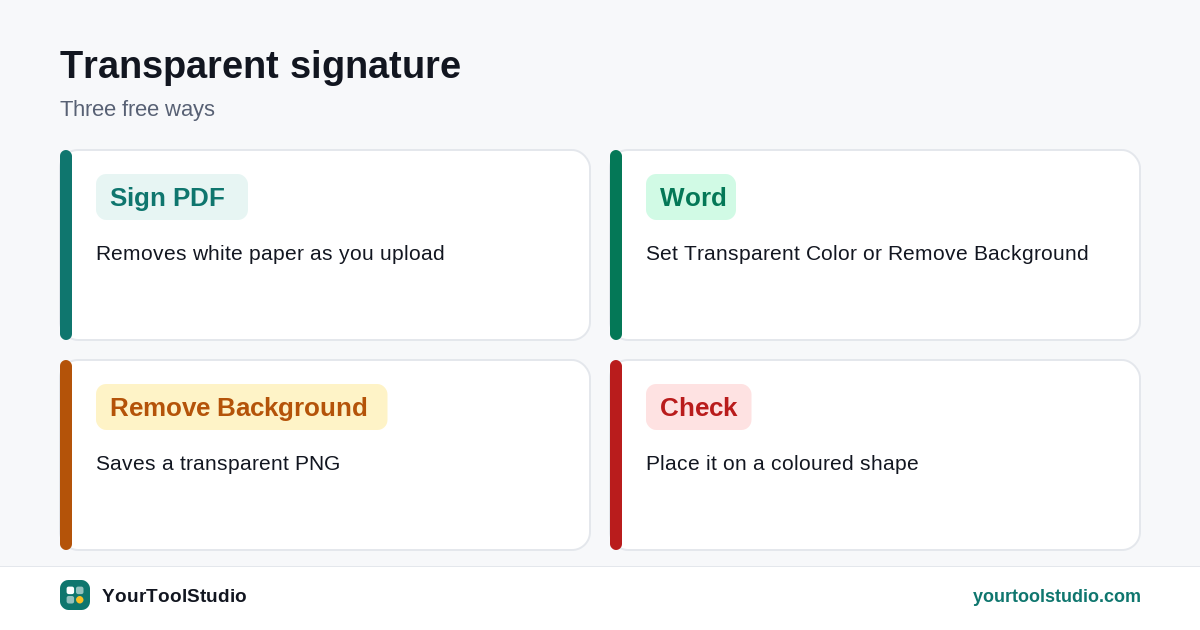
To make a signature background transparent, photograph the signature on plain white paper, remove the white with a tool that turns light pixels transparent, and keep the result as a PNG rather than a JPG. On YourToolStudio you can do it free in Sign PDF by uploading the photo with Remove white background ticked, and in desktop Word you can use Set Transparent Color or Remove Background. The Microsoft Support pages used below were read on 23 November 2026.
Which method should you use?
The right method depends on where the signature is going. A signature that only needs to appear on one PDF does not need to become a separate file at all, while one you will reuse in emails, letters and forms is worth saving as a transparent image once.
| Where the signature is going | Best method | What you end up with |
|---|---|---|
| A PDF you need to sign now | Sign PDF, Upload tab, Remove white background ticked | A signed PDF, made in your browser |
| A Word document | Word: Picture Format, Color, Set Transparent Color | The signature inside that document |
| A photo with a busy background, such as a desk or a lined pad | Word Remove Background, or Remove Background | A cut-out you can check and correct |
| Reuse everywhere: email signature, letterhead, forms | Remove Background saved as PNG | A transparent PNG file you keep |
| You do not have a written signature to photograph | Sign PDF, Draw or Type tab | A signature drawn or typed with no background at all |
Step 1: get a clean photo of the signature
Every background remover works far better on a good photo, and most bad results come from this step rather than from the tool. Tools that remove white treat light pixels as paper and dark pixels as ink, so anything that makes the paper darker or the ink lighter blurs that line.
- Paper: plain white printer paper. Lined, squared or cream paper leaves lines and tint behind.
- Pen: a black or dark blue gel or felt pen. A light ballpoint or pencil gives thin grey strokes that may fade out.
- Light: daylight from a window, with the page flat. A shadow from your hand or phone turns part of the paper grey, and grey paper is not removed.
- Angle: hold the phone straight above the page so the signature is not stretched.
- Size: sign a little larger than you would on a form, then crop tightly around it.
Method 1: Sign PDF, free in your browser
Our Sign PDF tool has an Upload tab for a photo or scan of a signature, with a Remove white background box that is ticked by default. We read the tool's code to describe exactly what it does:
- It accepts JPG, PNG and WebP images, and scales very wide photos down to 1600 pixels across.
- Pixels whose average brightness is above 215 on the 0 to 255 scale become fully transparent, which removes white and near white paper.
- Pixels between 170 and 215 are made partly transparent, so the soft edge of each stroke fades instead of leaving a jagged outline.
- Darker pixels, the ink, are kept as they are, and the empty space around the signature is cropped away.
- It runs in your browser, so the photo is not uploaded to us.
The brightness rule is why the photo matters. Paper in shadow can fall below 215 and stay visible as a grey smudge, while very faint pencil can rise above 215 and vanish. If either happens, retake the photo in better light or with a darker pen rather than fighting the result. If you have no written signature to hand, the Draw and Type tabs create one with no background in the first place.
Method 2: Word, Set Transparent Color
Microsoft Support describes this method on its page about making a picture transparent in Word. Insert the signature photo, select it, then go to Picture Format, Color and Set Transparent Color, and click the paper when the pointer changes. In older versions the same command is under Picture Tools, Format, Color.
Microsoft notes three limits that matter for signatures:
- Only one colour in a picture can be made transparent. Paper is rarely one exact colour in a photo, so a patchy fringe of off white can remain.
- It works only on an object inserted as a picture, not on a picture used to fill a shape.
- It is not available in Word for the web. Microsoft says you need desktop Word on Windows or macOS.
Microsoft also warns that areas which look like one colour can contain subtle variations, and says solid colour pictures work best. That is why this method works well on a scanned signature on bright white paper and poorly on a phone photo with uneven light. To undo it, use Reset Picture in the Adjust group.
Method 3: Word, Remove Background
For a signature photographed on a desk, a notepad or uneven paper, Word's Remove Background is the better choice. Microsoft Support lists it for Word, Excel, PowerPoint and Outlook in Microsoft 365 and in the 2021 versions, among others. Select the picture, choose Picture Format and Remove Background, and Word colours the area it plans to remove in magenta. If it is wrong, use Mark Areas to Keep or Mark Areas to Remove and draw over the strokes or the paper with the pencil, then select Keep Changes.
To reuse the result outside that document, Microsoft says to right-click the image and choose Save as Picture. Pick PNG when you save. Microsoft also notes that the option is greyed out for vector files such as SVG, AI and WMF, so convert those to a picture first.
Method 4: save a reusable transparent PNG
If you want one file to use in email signatures, letterheads and forms, run the photo through Remove Background with the background set to Transparent and save it as PNG or WebP. The tool uses an AI model that downloads once and then works on your device. It is built for subjects such as people, products and logos, so check thin strokes in the preview, and fall back to Sign PDF or Word if parts of the signature are lost. Tick Crop to the subject to trim the empty space.
The tool will not save a transparent result as JPG. Its code switches to PNG instead, because JPG cannot hold transparency, and that is the most common reason a signature that looked transparent comes back with a white box: it was saved or converted to JPG somewhere along the way.
Upload a photo of your signature, remove the white paper and place it on any page of a PDF, all in your browser.
Troubleshooting
| Problem | Likely cause | Fix |
|---|---|---|
| A white or grey box still shows | The file was saved as JPG, or the paper was too dark to count as white | Save as PNG, and retake the photo in brighter, even light |
| Grey patches remain around the signature | A shadow or uneven light on the paper | Raise brightness and contrast first, or use Remove Background with Mark Areas to Remove |
| Parts of the signature disappeared | Faint ink or pencil was as light as the paper | Sign again with a darker pen, or mark the strokes as areas to keep in Word |
| Set Transparent Color is missing | You are in Word for the web, or the picture fills a shape | Open the document in desktop Word and insert the photo as a picture |
| Remove Background is greyed out | The file is a vector graphic such as SVG | Export it as PNG from the program that made it, then insert the PNG |
| The edges look jagged | Hard cut-off between ink and paper | Use a larger, higher resolution photo so each stroke has more pixels |
How to check the result is really transparent
A transparent signature looks exactly like one on white paper when it sits on a white page, so you cannot judge it there. Place it over something coloured instead: in Word, draw a coloured rectangle and put the signature on top, or set a page colour. A photo viewer that shows a chequered pattern behind the image is also showing you real transparency. If you see white, the background is still there. For sizing a signature image for email, see our email signature image size guide, and if a transparent PNG shows a black background in another app, see why a PNG background turns black.
Sources and dates
| Page | Read | Used for |
|---|---|---|
| Microsoft Support: Make a picture transparent in Word | 23 November 2026 | Set Transparent Color steps, one colour limit, picture not shape, no Word for the web |
| Microsoft Support: Remove the background of a picture | 23 November 2026 | Remove Background steps, Mark Areas, Save as Picture, vector files |
| YourToolStudio Sign PDF and Remove Background | 23 November 2026, code read | Brightness thresholds, formats, PNG instead of JPG |
Frequently asked questions
How do I make my signature background transparent for free?
Photograph it on white paper, then upload it to Sign PDF with Remove white background ticked, or use Set Transparent Color in desktop Word. Keep the result as PNG.
Why does my transparent signature still have a white box?
It was most likely saved or converted to JPG, which cannot hold transparency, or the paper in the photo was too grey to be removed. Save as PNG and retake the photo in brighter light.
Can I make a signature transparent in Word for the web?
No. Microsoft Support says you cannot make a picture transparent in Word for the web and need desktop Word on Windows or macOS.
What file format should a transparent signature be?
PNG is the safe choice, and WebP also keeps transparency. Avoid JPG, which fills transparent areas with a solid colour.
Why did parts of my signature disappear?
Faint strokes were as light as the paper, so the tool treated them as background. Sign again with a dark gel or felt pen and photograph it in even light.