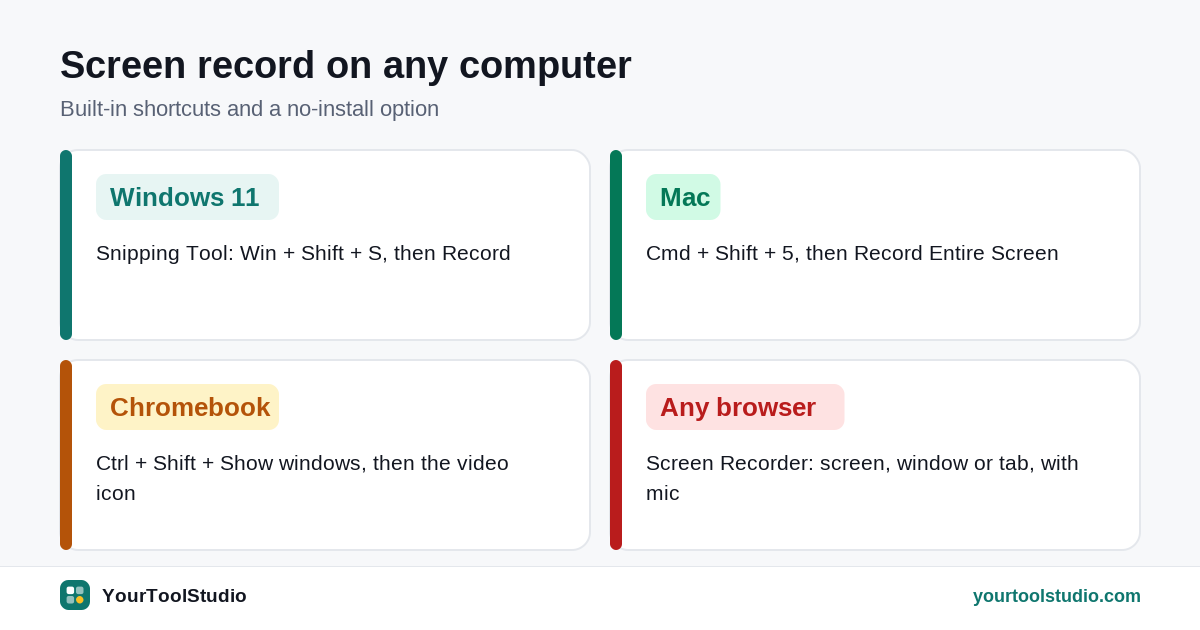
The fastest route on any computer: open Screen Recorder, press Start recording, pick the screen, window or tab, and press Stop when you are done. Nothing to install, no watermark, no time limit, and the recording never leaves your computer.
Every operating system also has a built-in recorder. They are fine for quick clips, but each has a catch, usually around sound. Here is what to use when.
Built-in screen recorders
| System | Shortcut | Records sound? | Catch |
|---|---|---|---|
| Windows 11 | Win + Shift + S, then the video camera icon (Snipping Tool) | Yes, mic and system sound in recent versions | Older builds record no audio |
| Windows 10 and 11 | Win + Alt + R (Xbox Game Bar) | Yes | Records one app window only, not the desktop |
| Mac | Cmd + Shift + 5 | Microphone only | No system sound without extra software |
| Chromebook | Ctrl + Shift + Show windows, then Screen record | Mic, and system sound on newer versions | Limited editing |
| iPhone and Android | Control Centre or Quick Settings | Yes | Phone only |
Record in the browser, no install
- Open Screen Recorder in Chrome or Edge for the most options, or Firefox and Safari.
- Choose 1080p or 720p. Tick Record my microphone for narration and Record the sound of the tab or screen for audio from the page or app.
- Press Start recording, then pick Entire screen, a Window or a Chrome tab.
- Pause when you need a break. Press Stop and save to see the result.
- Download it, or press Convert to MP4 for a file that plays everywhere.
No install, no watermark, no time limit. Your recording stays on your device.
Which option records which sound
Browsers can capture the sound of a tab on every desktop system, and the sound of the whole system on Windows and ChromeOS. On a Mac, share a browser tab when you need audio from a video or web call running in the browser.
Tips for a clean recording
- Close notifications first: Focus or Do Not Disturb mode keeps pop-ups out of the video.
- Share a single window or tab instead of the whole screen when you can. It hides other apps and keeps the file smaller.
- Use 1080p for tutorials with small text; 720p is enough for talking over slides.
- Do a 5-second test with sound before a long take.
After recording
Most recordings need a little tidying. Cut the start and end with Trim Video, shrink the file with Compress Video, and add a title with Add Text to Video. For a short loop in a chat or a bug report, Video to GIF turns a few seconds into an animation.
Frequently asked questions
How do I screen record on Windows with sound?
In Windows 11, open the Snipping Tool with Win + Shift + S and choose the video camera icon; recent versions record microphone and system audio. Or use the browser Screen Recorder and tick both sound options.
How do I screen record on a Mac with internal audio?
macOS does not record system sound by itself. For sound playing in a browser, record a browser tab with Screen Recorder and tick Record the sound of the tab.
Is there a time limit?
Not with the browser Screen Recorder. Long recordings only depend on free memory, so download them as soon as you stop.
Can I screen record on a phone in the browser?
No. Mobile browsers do not allow it. Use the built-in recorder in Control Centre on iPhone or Quick Settings on Android.
Is it safe to record private screens?
With Screen Recorder, yes: the video is kept in the browser tab and never uploaded. Download it before closing the page.